How to Make Video Calls on Android with Google Meet
A voice call is nice. Seeing someone's face is better, whether that's grandchildren on the other side of the country or a friend who's moved abroad.
Google Meet is free, already on most Android phones, and works with iPhones and computers too. Here's how to make your first call and get the best out of it.
Before you start: Android menus vary a little between phone makers. The steps below use Google Pixel / standard Android names, with Samsung Galaxy differences noted. If you can't find a setting, tap the search bar at the top of Settings and type its name.
How to make video calls on Android
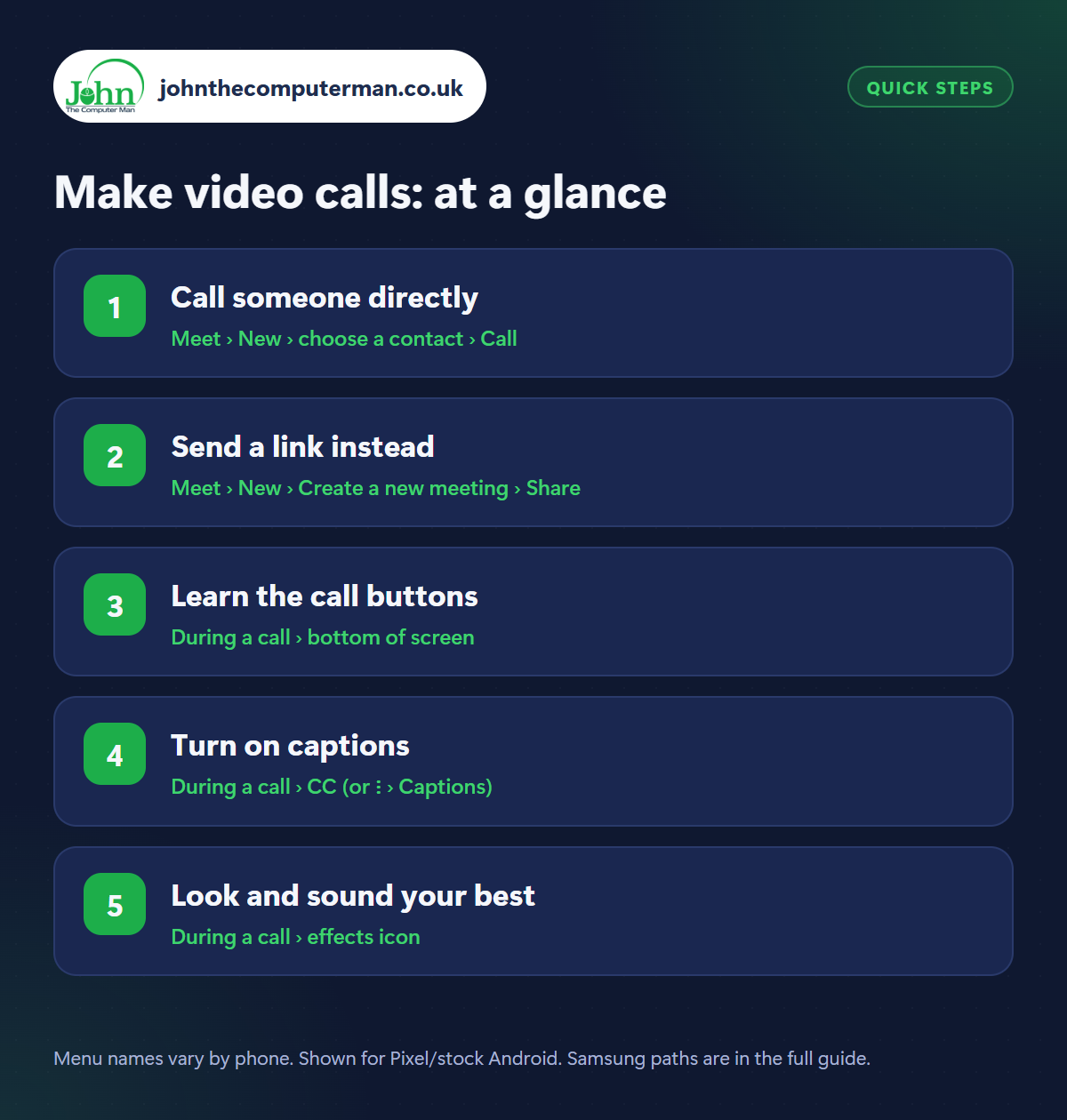
Step 1: Call someone directly
Where: Meet › New › choose a contact › Call
Open the Meet app and tap New (or the video icon). Search for a contact and tap Call. Their phone rings like a normal call if they have Meet. You can also start a video call from the Phone or Contacts app by tapping the video camera icon on someone's entry. If they don't have Meet, you'll be offered an invite to send.
Step 2: Send a link instead
Where: Meet › New › Create a new meeting › Share
For someone on a computer, or for a family get-together, tap New › Create a new meeting and then Share to send the link by text, email or WhatsApp. They tap it and join from a web browser with no app needed on a computer, or the Meet app on a phone. Several people can join the same link, and you can schedule one in Google Calendar.
Step 3: Learn the call buttons
Where: During a call › bottom of screen
Tap the screen during a call to show the buttons. The microphone mutes you (good manners in a group when you're not talking). The camera icon turns your video off. Flip camera switches to the back camera to show someone the garden or a new haircut on the dog. The speaker icon switches between speakerphone, earpiece and Bluetooth. The red button hangs up.
Step 4: Turn on captions
Where: During a call › CC (or ⋮ › Captions)
Tap the CC button (or three dots › Captions) and Meet shows live captions of what everyone says along the bottom of the screen. It's a huge help for anyone hard of hearing, on a bad line, or in a noisy room. Only you see them, so nobody else needs to know. See our guide to Android's hearing features.
Step 5: Look and sound your best
Where: During a call › effects icon
A few simple things make a big difference. Face a window or lamp, as light behind you turns you into a silhouette. Prop the phone up at eye level rather than holding it under your chin. Use Wi-Fi if you can. Tap the effects (sparkle) icon to blur your background or brighten a dark picture. Earbuds make you easier to hear.
Pro tip
💡 Helping a relative with their phone? In a Meet call, tap the three dots › Share screen and they can show you exactly what they're seeing.
FAQ
Is Google Meet free?
Yes. One-to-one calls have no time limit. Group calls on free accounts are limited to about an hour, which is plenty for most families.
Does it work with iPhones?
Yes. iPhone users can install Google Meet from the App Store, or join from a link in their browser.
How much data does a video call use?
Roughly 0.5–1 GB an hour. Use Wi-Fi where you can, or turn your camera off to save data.
The bottom line
Call a contact directly, or send a link for anyone on a computer. Add captions and good light, and a video call becomes the next best thing to being in the room.
More Android tutorials:
• 5 WhatsApp Privacy Settings to Change on Android
• How to Set Up an Android Phone for an Older Relative
• How to Check Your Android Phone's Battery Health
• How to Set Up an Android Phone for an Older Relative
• How to Check Your Android Phone's Battery Health
Part of the android phone tutorials series on johnthecomputerman.co.uk. Follow @johnthecomputerman on Instagram for more Android tips. Steps were checked on current Android and Samsung One UI versions in September 2026; menu names can change with updates.
