5 WhatsApp Privacy Settings to Change on Android
WhatsApp is where most of us talk to family and friends, which makes it a prime target for scammers. A hijacked account is used to ask all your contacts for money, as you.
Out of the box, WhatsApp also shares more than you might like with anyone who has your number. These five settings take five minutes and close the biggest gaps.
Before you start: Android menus vary a little between phone makers. The steps below use Google Pixel / standard Android names, with Samsung Galaxy differences noted. If you can't find a setting, tap the search bar at the top of Settings and type its name.
How to lock down WhatsApp on Android
Step 1: Turn on two-step verification
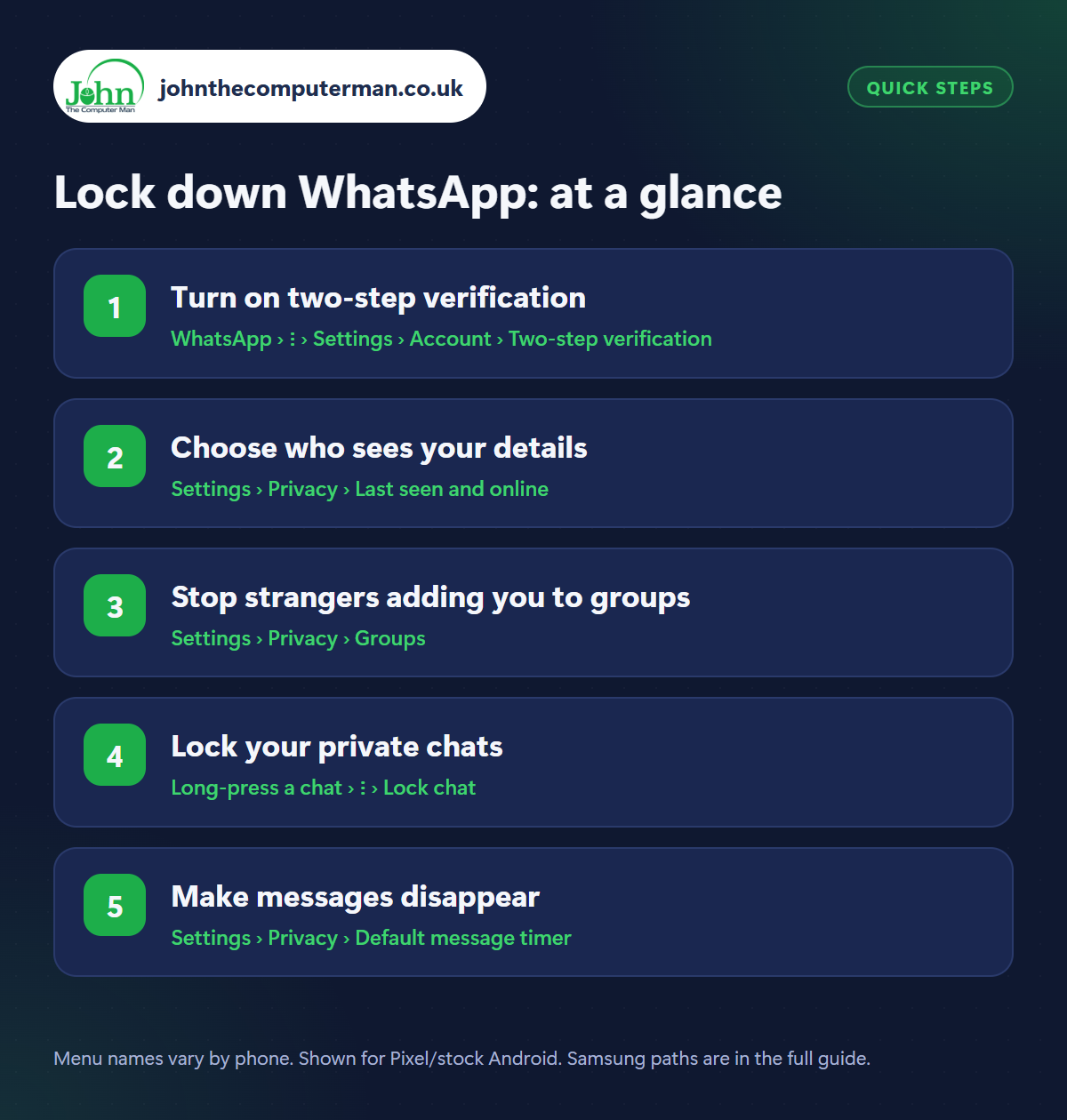
Where: WhatsApp › ⋮ › Settings › Account › Two-step verification
This is the important one. Go to WhatsApp › three dots › Settings › Account › Two-step verification and tap Turn on. Choose a 6-digit PIN and add an email address in case you forget it. From now on, anyone setting up WhatsApp with your number needs that PIN as well as the code sent by text. WhatsApp asks you for it occasionally so you don't forget.
Step 2: Choose who sees your details
Where: Settings › Privacy › Last seen and online
In Settings › Privacy, go through Last seen and online, Profile photo, About and Status. Change each from Everyone to My contacts (or Nobody). Otherwise anyone who has your number, including every tradesperson and marketplace buyer, can see your photo and when you were last online. You can turn off Read receipts (the blue ticks) here too.
Step 3: Stop strangers adding you to groups
Where: Settings › Privacy › Groups
Tap Settings › Privacy › Groups and choose My contacts. Strangers can then only invite you, not drop you straight into a group full of scammers. Next, go to Privacy › Calls and switch on Silence unknown callers. Calls from numbers not in your contacts won't ring, though they still appear in your call list in case one is genuine.
Step 4: Lock your private chats
Where: Long-press a chat › ⋮ › Lock chat
Long-press a chat and tap three dots › Lock chat (or open the chat, tap the name and choose Chat lock). It moves into a Locked chats folder that only opens with your fingerprint or PIN, and its notifications no longer show the message. To lock the whole app, go to Settings › Privacy › App lock and turn on Unlock with biometric.
Step 5: Make messages disappear
Where: Settings › Privacy › Default message timer
Under Settings › Privacy › Default message timer, choose 24 hours, 7 days or 90 days. Messages in new chats then delete themselves for both of you after that time. You can also turn it on for a single chat by tapping the contact's name › Disappearing messages. It keeps your chat history small and limits what's exposed if a phone is lost. Bear in mind people can still screenshot.
Pro tip
💡 Never share the 6-digit code WhatsApp texts you, not even with a friend who says they sent it by mistake. That message is how accounts get stolen.
FAQ
How do WhatsApp accounts get hijacked?
A scammer enters your number in WhatsApp, then tricks you into reading out the code you're texted. Two-step verification stops this working.
A family member messaged from a new number asking for money. Is it real?
Almost certainly not. Ring them on the number you already have before doing anything.
Can people tell if I've hidden my last seen?
They just won't see it. Note that if you hide yours, you can't see other people's either.
The bottom line
If you only do one thing, turn on two-step verification. It takes a minute and stops the most common WhatsApp scam dead. Then set your privacy options to My contacts.
More Android tutorials:
• How to Set Up an Android Phone for an Older Relative
• How to Check Your Android Phone's Battery Health
• Dropped Your Android Phone in Water? Do This Straight Away
• How to Check Your Android Phone's Battery Health
• Dropped Your Android Phone in Water? Do This Straight Away
Part of the android phone tutorials series on johnthecomputerman.co.uk. Follow @johnthecomputerman on Instagram for more Android tips. Steps were checked on current Android and Samsung One UI versions in September 2026; menu names can change with updates.
