5 Google Maps Tricks Every Android User Should Know
Most people use Google Maps for one thing: type a destination, press Start. It can do a great deal more.
These five features are all free and already in the app. They'll save you time, money on tolls and the occasional wrong turn on foot.
Before you start: Android menus vary a little between phone makers. The steps below use Google Pixel / standard Android names, with Samsung Galaxy differences noted. If you can't find a setting, tap the search bar at the top of Settings and type its name.
How to google Maps tricks on Android
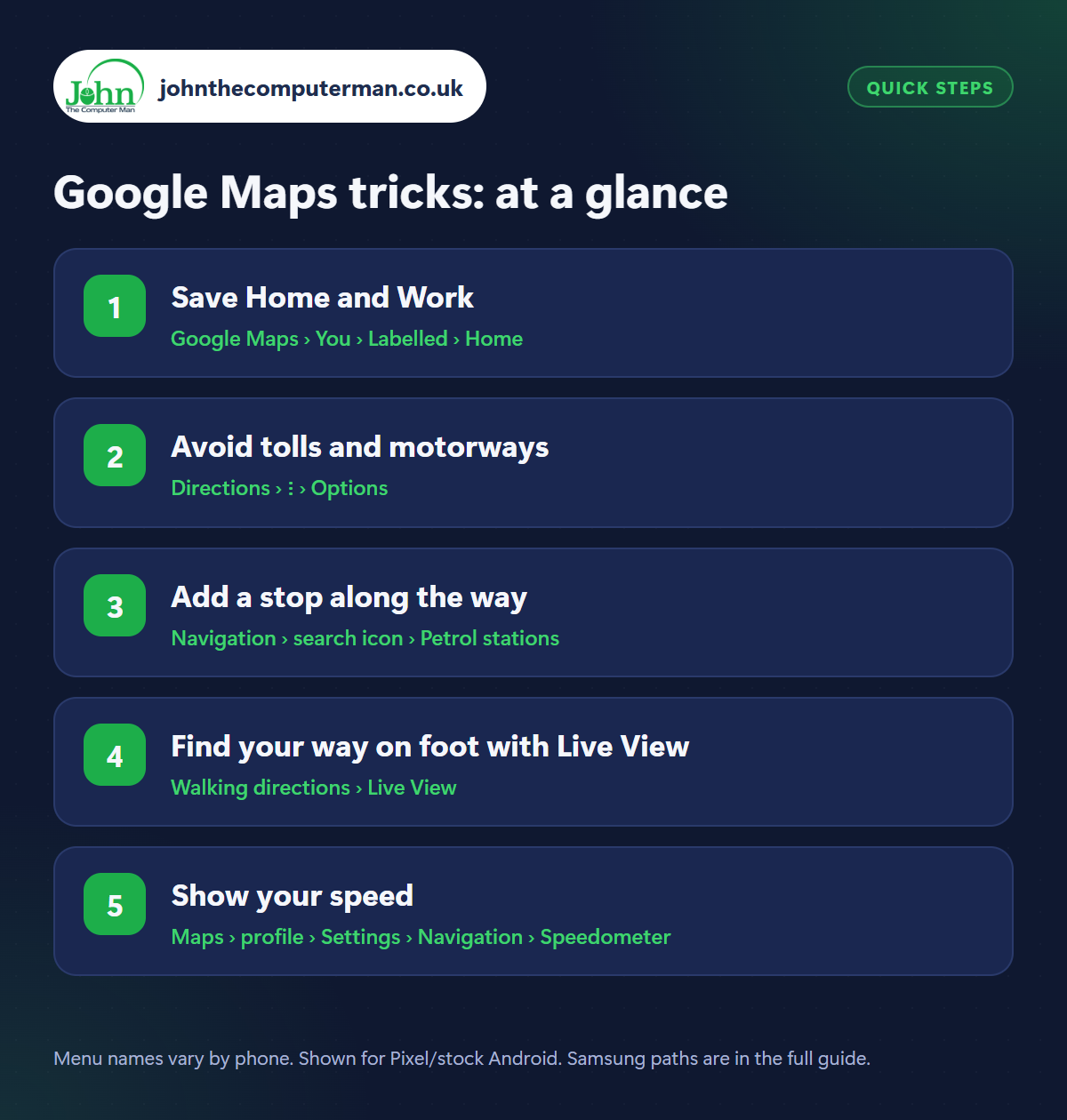
Step 1: Save Home and Work
Where: Google Maps › You › Labelled › Home
Open Google Maps, tap You at the bottom, then Labelled and set Home and Work. From then on, tap the Home shortcut under the search bar for instant directions, or say “Hey Google, navigate home”. Maps also starts telling you about traffic on your commute. You can label other regular places too, like ‘Mum's’ or ‘The allotment’.
Step 2: Avoid tolls and motorways
Where: Directions › ⋮ › Options
After getting directions, tap the three dots › Options (or Route options). Switch on Avoid tolls, Avoid motorways or Avoid ferries as you prefer. Maps remembers your choice for future journeys. On many routes you can also pick the fuel-efficient route, marked with a leaf, which may take a minute longer but uses less fuel.
Step 3: Add a stop along the way
Where: Navigation › search icon › Petrol stations
During navigation, tap the search (magnifying glass) icon and choose Petrol stations, Restaurants, Coffee or Supermarkets. Maps shows options along your route, with how many minutes each adds. Tap one and Add stop. Before setting off, you can also plan several stops by tapping three dots › Add stop on the directions screen.
Step 4: Find your way on foot with Live View
Where: Walking directions › Live View
Coming out of a station and not sure which way is which? Get walking directions, then tap Live View. Hold your phone up and Maps uses the camera to work out exactly where you are, then shows large arrows and street names over the real view in front of you. It works in most towns and cities. Lower the phone and it goes back to the normal map.
Step 5: Show your speed
Where: Maps › profile › Settings › Navigation › Speedometer
Tap your profile picture › Settings › Navigation and, under Driving options, turn on Speedometer and Speed limits. While navigating, your current speed appears in the corner next to the road's limit, and changes colour if you go over. It's a guide only. Your car's speedometer is the one that counts.
Pro tip
💡 Zoom with one hand: double-tap the map, keep your finger down on the second tap, then slide up or down.
FAQ
Does Google Maps use a lot of mobile data?
Navigation uses very little, roughly 5 MB an hour. Download an offline map of your area to use almost none.
Can Google Maps warn me about speed cameras?
Yes. It shows fixed and mobile cameras reported by other drivers on your route, and you can report them too.
How do I find where I parked?
Tap the blue dot showing your location and choose ‘Save parking’. Maps drops a pin you can navigate back to.
The bottom line
Save Home and Work today. It takes thirty seconds and you'll use it constantly. Then try adding a stop on your next long drive and Live View the next time you're lost on foot.
More Android tutorials:
• How to Avoid Being Locked Out of Your Google Account
• How to Tell If an Android App Is Safe Before You Install It
• How to Set Up Voicemail, Call Forwarding and Call Waiting on Android
• How to Tell If an Android App Is Safe Before You Install It
• How to Set Up Voicemail, Call Forwarding and Call Waiting on Android
Part of the android phone tutorials series on johnthecomputerman.co.uk. Follow @johnthecomputerman on Instagram for more Android tips. Steps were checked on current Android and Samsung One UI versions in September 2026; menu names can change with updates.
