How to Set Up Voicemail, Call Forwarding and Call Waiting on Android
For all the clever things a smartphone does, the basic call settings are oddly hard to find: voicemail, diverting calls, call waiting, hiding your number.
They're all in the Phone app's settings. Here's where to find each one. Menus vary a little between networks, and some features depend on your mobile plan.
Before you start: Android menus vary a little between phone makers. The steps below use Google Pixel / standard Android names, with Samsung Galaxy differences noted. If you can't find a setting, tap the search bar at the top of Settings and type its name.
How to voicemail & call settings on Android
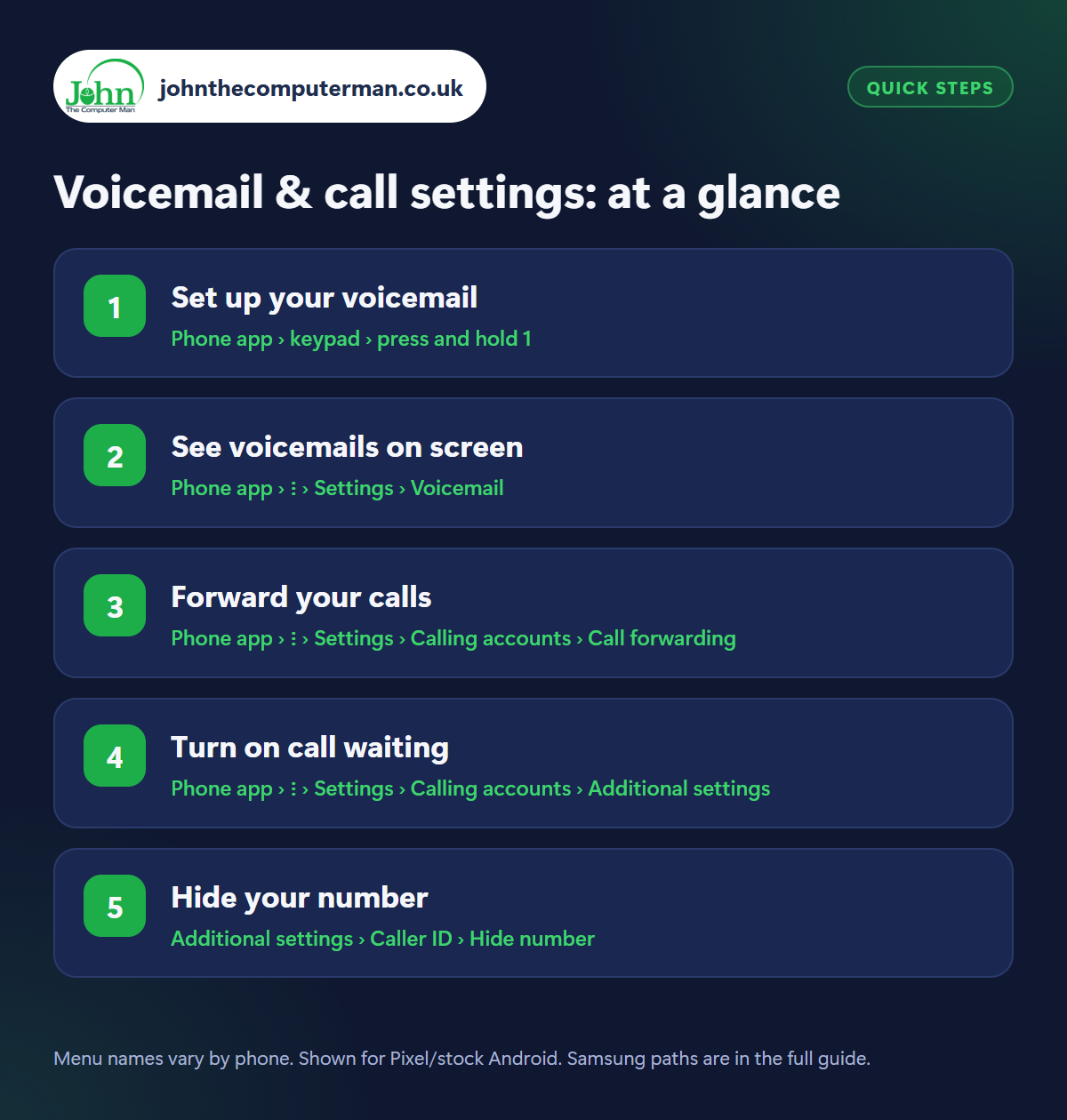
Step 1: Set up your voicemail
Where: Phone app › keypad › press and hold 1
Open the Phone app, go to the keypad and press and hold 1. This rings your network's voicemail service. The first time, it walks you through setting a PIN and recording a personal greeting. Do record one. Callers are much more likely to leave a message when they hear your name and know they've got the right person.
Step 2: See voicemails on screen
Where: Phone app › ⋮ › Settings › Voicemail
Visual voicemail lists your messages in the Phone app so you can see who called and play them in any order. Check Phone › three dots › Settings › Voicemail and turn on Visual voicemail if it's offered. It depends on your network and plan. Some networks provide it through their own app instead, and a few don't support it. Some phones can also show a written transcript.
Step 3: Forward your calls
Where: Phone app › ⋮ › Settings › Calling accounts › Call forwarding
Samsung: Phone › ⋮ › Settings › Supplementary services › Call forwarding
Samsung: Phone › ⋮ › Settings › Supplementary services › Call forwarding
Go to Phone › three dots › Settings › Calling accounts › [your SIM] › Call forwarding (Samsung: Settings › Supplementary services › Call forwarding). You can always forward, or forward only when busy, when unanswered or when unreachable. That last one is useful if you live somewhere with poor signal. Enter the number and tap Turn on. Your network may charge for forwarded calls, so check first.
Step 4: Turn on call waiting
Where: Phone app › ⋮ › Settings › Calling accounts › Additional settings
Samsung: Phone › ⋮ › Settings › Supplementary services › Call waiting
Samsung: Phone › ⋮ › Settings › Supplementary services › Call waiting
With call waiting on, you hear a beep and see the caller's name if someone rings while you're already on a call. You can hold and answer, end and answer, or ignore it. Without it, the second caller just gets voicemail or an engaged tone. Find it under Calling accounts › Additional settings › Call waiting (Samsung: Supplementary services).
Step 5: Hide your number
Where: Additional settings › Caller ID › Hide number
Samsung: Supplementary services › Show your caller ID
Samsung: Supplementary services › Show your caller ID
To hide your number on every call, go to Additional settings › Caller ID (Samsung: Supplementary services › Show your caller ID) and choose Hide number. More useful day to day: in the UK, dial 141 before a number to withhold yours for that one call. Remember many people don't answer withheld numbers, and you can't hide it from the emergency services.
Pro tip
💡 Divert calls without touching the settings: dial **21* then the number then # and press call. Dial ##21# to turn it off again. Works on most UK networks.
FAQ
How do I change my voicemail greeting?
Ring your voicemail (hold 1), then follow the spoken menu for greetings or mailbox settings.
Why does my phone go straight to voicemail?
Check Do Not Disturb and Airplane mode are off, call forwarding isn't set to ‘Always’, and you have signal.
Can I turn voicemail off completely?
Yes, but only through your network. Call them or use their app, as it isn't a setting on the phone.
The bottom line
Record a proper voicemail greeting and switch on call waiting. Those two alone mean far fewer missed calls. Forwarding ‘when unreachable’ is a gem if your signal at home is poor.
More Android tutorials:
• How to Transfer Photos from Android to a Computer with a USB Cable
• Is Your Android Phone Still Getting Updates? How to Check
• Android Speaker Too Quiet or Muffled? 5 Fixes
• Is Your Android Phone Still Getting Updates? How to Check
• Android Speaker Too Quiet or Muffled? 5 Fixes
Part of the android phone tutorials series on johnthecomputerman.co.uk. Follow @johnthecomputerman on Instagram for more Android tips. Steps were checked on current Android and Samsung One UI versions in September 2026; menu names can change with updates.
