How to Avoid Being Locked Out of Your Google Account
On an Android phone, your Google account is everything: your photos, emails, contacts, passwords and the backup of the phone itself.
People lose access all the time. A forgotten password, a lost phone, a new number. Getting back in is easy if you've set things up beforehand, and close to impossible if you haven't. These five steps take ten minutes.
Before you start: Android menus vary a little between phone makers. The steps below use Google Pixel / standard Android names, with Samsung Galaxy differences noted. If you can't find a setting, tap the search bar at the top of Settings and type its name.
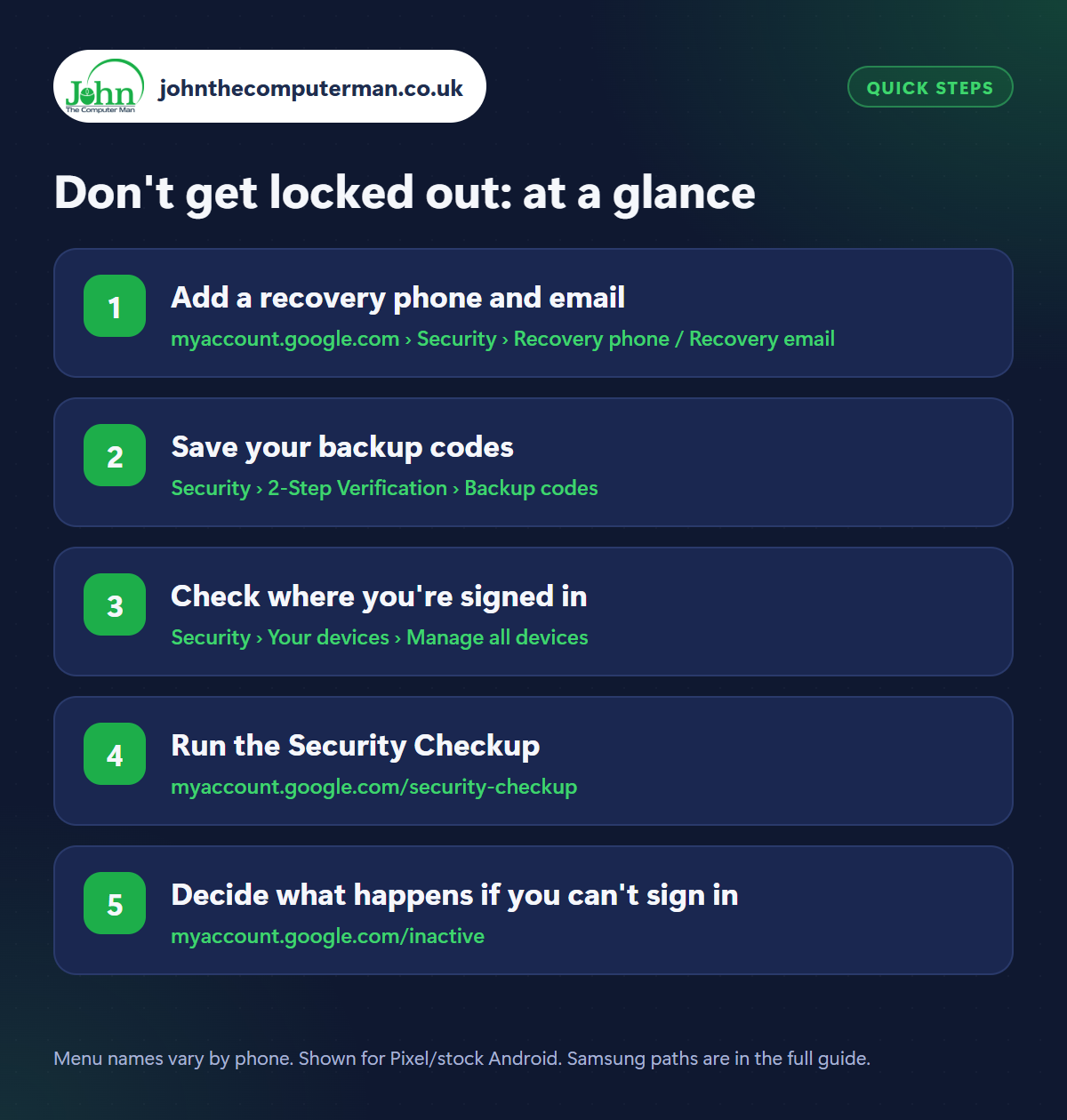
How to don't get locked out on Android
Step 1: Add a recovery phone and email
Where: myaccount.google.com › Security › Recovery phone / Recovery email
On your phone, open Settings › Google › Manage your Google Account › Security (or go to myaccount.google.com). Under How you sign in to Google, check Recovery phone and Recovery email. Make sure the phone number is your current one and the email is an address you can still open, ideally one that isn't Gmail. Update them every time you change number.
Step 2: Save your backup codes
Where: Security › 2-Step Verification › Backup codes
If you use 2-Step Verification and your phone is lost or broken, you could be locked out. Backup codes are the answer. Go to Security › 2-Step Verification › Backup codes and tap Get backup codes. You get ten one-time codes. Print them or write them down and keep them somewhere safe at home, not on the phone itself.
Step 3: Check where you're signed in
Where: Security › Your devices › Manage all devices
Under Security › Your devices, tap Manage all devices. You'll see every phone, tablet, computer and TV signed in to your account. Sign out of anything you've sold, given away or don't recognise. If you see a device you can't explain, sign it out and change your password straight away.
Step 4: Run the Security Checkup
Where: myaccount.google.com/security-checkup
Go to myaccount.google.com/security-checkup (or tap Security Checkup at the top of the Security page). Google reviews your recent security activity, sign-in settings, devices and the third-party apps that have access to your account, flagging anything that needs attention in amber or red. Remove access for apps and websites you no longer use.
Step 5: Decide what happens if you can't sign in
Where: myaccount.google.com/inactive
Inactive Account Manager (at myaccount.google.com/inactive) lets you choose what happens if your account isn't used for a set time, from three months to eighteen. You can name trusted contacts who'll be given access to the data you choose, such as your photos. It's a simple way to make sure family aren't locked out of precious memories. Newer accounts can also add recovery contacts to help you get back in.
Pro tip
💡 Locked out already? Go to g.co/recover on a device and Wi-Fi network you've used before. Google trusts familiar devices and places.
FAQ
I've forgotten my Google password. What now?
Tap ‘Forgot password?’ on the sign-in page and follow the steps. Your recovery phone or email is how Google confirms it's you.
Can Google support unlock my account by phone?
No. There's no phone line that can do this, and anyone offering to for a fee is a scammer. Recovery is only through g.co/recover.
Should I write my password down?
A written note kept safely at home is far better than a weak password or being locked out. Never keep it in your phone case or wallet.
The bottom line
An up-to-date recovery phone and a printed sheet of backup codes will get you back in when it matters. Ten minutes now can save every photo and email you have.
More Android tutorials:
• How to Tell If an Android App Is Safe Before You Install It
• How to Set Up Voicemail, Call Forwarding and Call Waiting on Android
• How to Transfer Photos from Android to a Computer with a USB Cable
• How to Set Up Voicemail, Call Forwarding and Call Waiting on Android
• How to Transfer Photos from Android to a Computer with a USB Cable
Part of the android phone tutorials series on johnthecomputerman.co.uk. Follow @johnthecomputerman on Instagram for more Android tips. Steps were checked on current Android and Samsung One UI versions in September 2026; menu names can change with updates.
