How to Tell If an Android App Is Safe Before You Install It
The Play Store is far safer than downloading apps from random websites, but it isn't perfect. Copycat apps, ad-stuffed junk and subscription traps slip through all the time.
You don't need to be technical to spot them. This check takes about a minute and catches most of the bad ones before they ever reach your phone.
Before you start: Android menus vary a little between phone makers. The steps below use Google Pixel / standard Android names, with Samsung Galaxy differences noted. If you can't find a setting, tap the search bar at the top of Settings and type its name.
How to is that app safe? on Android
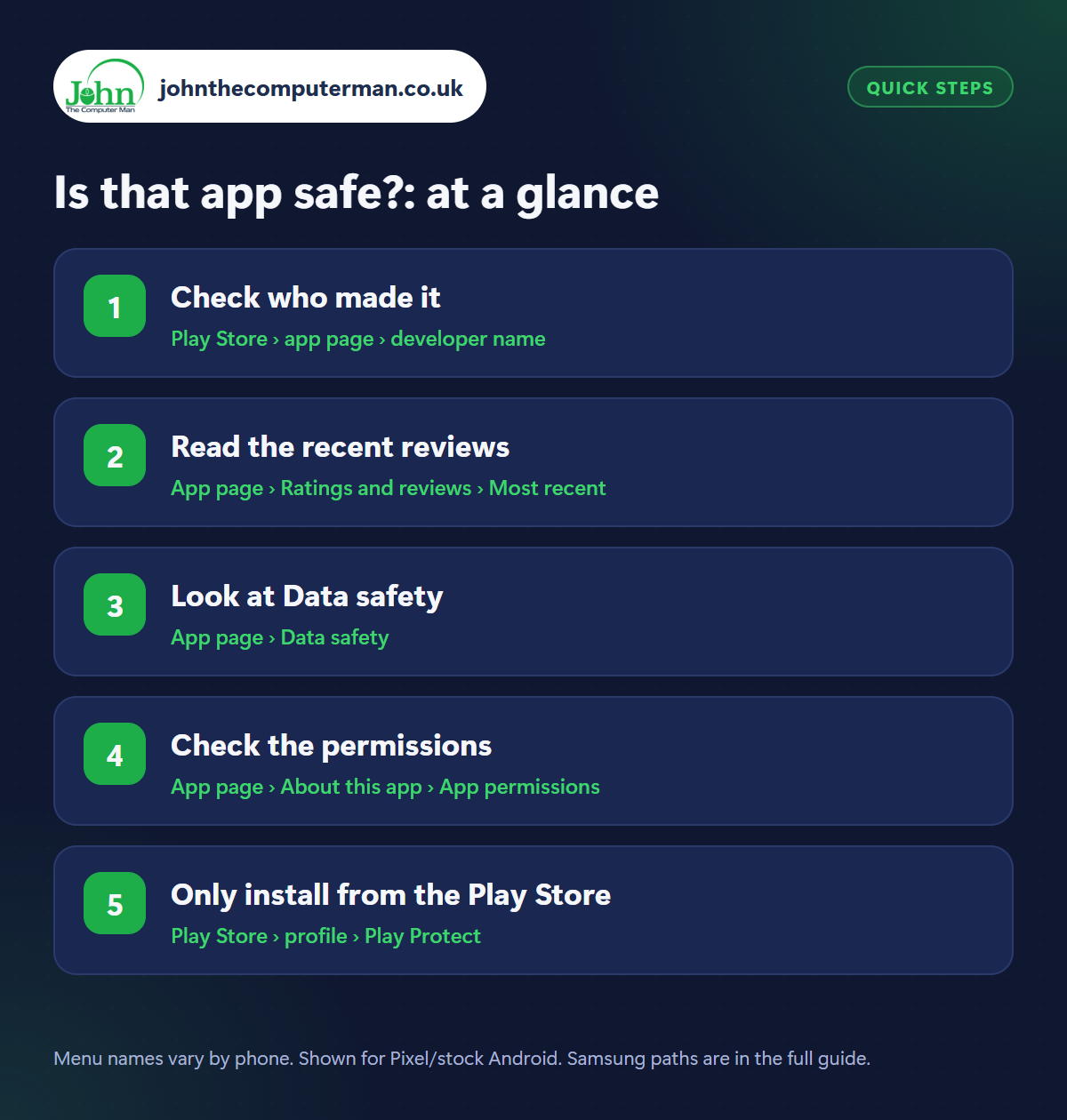
Step 1: Check who made it
Where: Play Store › app page › developer name
Under the app's title is the developer's name. For a well-known app it should be the real company: WhatsApp LLC, Google LLC, Barclays, Tesco. Fakes copy the icon and name but have an odd developer name. Check the download count too: your bank's app will have millions of downloads, not five thousand. If in doubt, follow the link to the app from the company's own website.
Step 2: Read the recent reviews
Where: App page › Ratings and reviews › Most recent
A high star rating can be bought. Scroll to Ratings and reviews and switch from Most relevant to Most recent, then read some 1-star and 2-star reviews. Look for the same complaints coming up: constant adverts, charged after a free trial, can't cancel, doesn't do what it says. Lots of short, gushing five-star reviews posted close together is a warning sign too.
Step 3: Look at Data safety
Where: App page › Data safety
Tap Data safety on the app's page. It lists what the app collects (location, contacts, messages, financial information) and what it shares with other companies. Ask whether it makes sense. A sat-nav app needs your location. A torch, wallpaper or calculator app does not need your contacts, location or messages. If it collects far more than its job requires, look for an alternative.
Step 4: Check the permissions
Where: App page › About this app › App permissions
Tap About this app, scroll down and tap App permissions › See more. This is the full list of what it can use: camera, microphone, SMS, storage and so on. After installing, only allow permissions when they make sense. Be especially careful with any app that asks for Accessibility access or to display over other apps. Scam apps use these to read your screen and take over.
Step 5: Only install from the Play Store
Where: Play Store › profile › Play Protect
The most dangerous apps don't come from the Play Store at all. They arrive as a link in a text, email or WhatsApp message (‘track your parcel’, ‘update your banking app’) asking you to install a file and ignore the warning. Never do this. Keep Play Protect on (Play Store › profile picture › Play Protect), and search the Play Store yourself instead of following a link.
Pro tip
💡 Check ‘Updated on’ under About this app. An app that hasn't been updated for a couple of years has probably been abandoned.
FAQ
Are apps on the Play Store always safe?
Mostly, but not always. Google removes harmful apps as it finds them, yet some slip through for a while. A quick check is still worth it.
Are free apps safe?
Many are excellent. But free apps make money somehow: adverts, subscriptions or your data. Check Data safety and the reviews.
I've installed something dodgy. What should I do?
Uninstall it, run a Play Protect scan, and check your subscriptions and bank statement. Change passwords if you typed any into it.
The bottom line
Developer name, recent one-star reviews, Data safety. That's sixty seconds, and it filters out nearly all the rubbish. And never, ever install an app from a link in a message.
More Android tutorials:
• How to Set Up Voicemail, Call Forwarding and Call Waiting on Android
• How to Transfer Photos from Android to a Computer with a USB Cable
• Is Your Android Phone Still Getting Updates? How to Check
• How to Transfer Photos from Android to a Computer with a USB Cable
• Is Your Android Phone Still Getting Updates? How to Check
Part of the android phone tutorials series on johnthecomputerman.co.uk. Follow @johnthecomputerman on Instagram for more Android tips. Steps were checked on current Android and Samsung One UI versions in September 2026; menu names can change with updates.
