5 Google Messages Tricks for Better Texting on Android
Texting on Android has quietly become much better. The Google Messages app (the default on Pixel, and now on Samsung and most other Android phones) can do most of what WhatsApp does.
If you still think of texts as plain 160-character messages, these five features are worth a look.
Before you start: Android menus vary a little between phone makers. The steps below use Google Pixel / standard Android names, with Samsung Galaxy differences noted. If you can't find a setting, tap the search bar at the top of Settings and type its name.
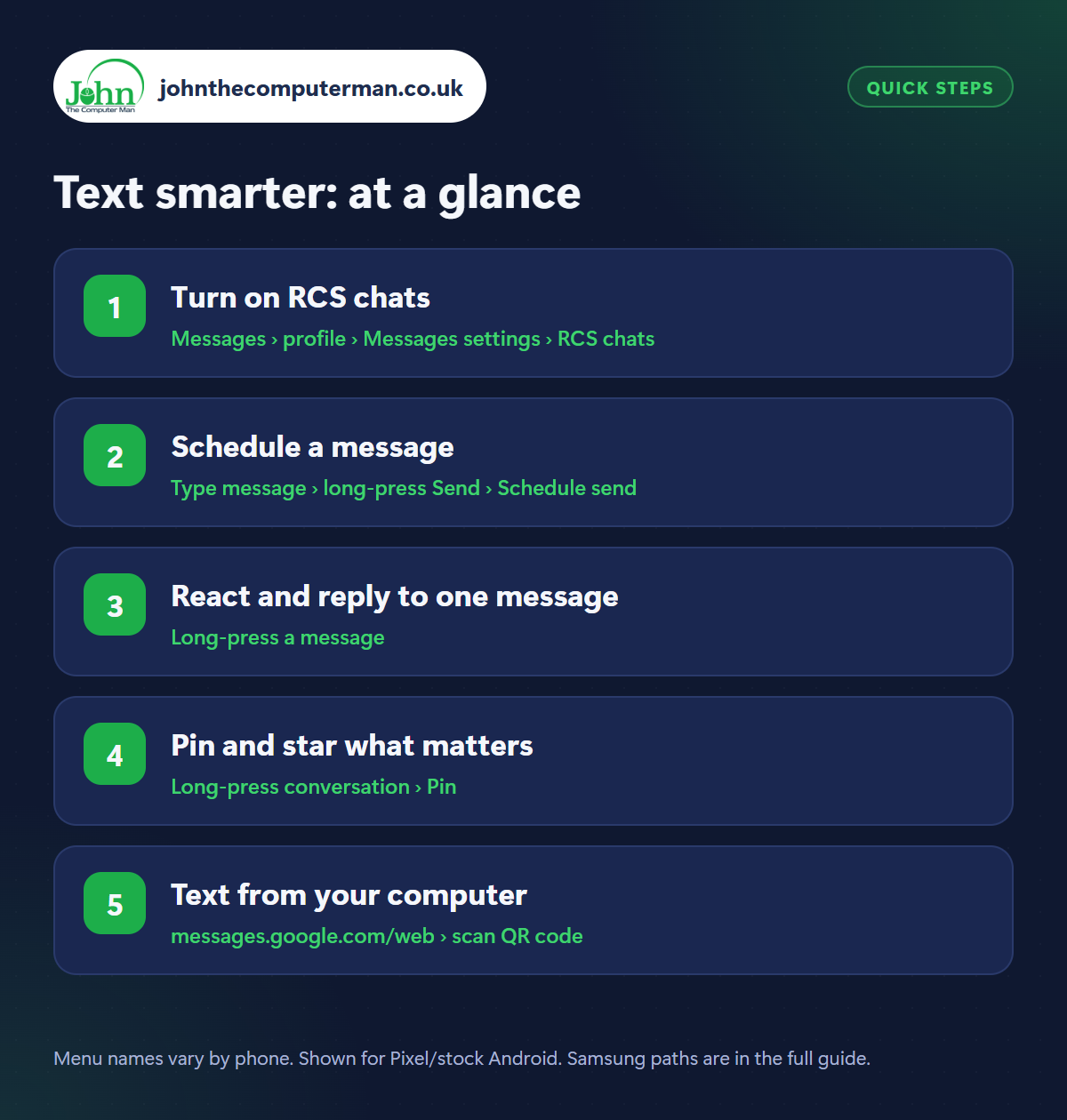
How to text smarter on Android
Step 1: Turn on RCS chats
Where: Messages › profile › Messages settings › RCS chats
RCS is the modern replacement for SMS. It adds typing indicators, read receipts, high-quality photos and videos, proper group chats and sending over Wi-Fi. Open Messages, tap your profile picture › Messages settings › RCS chats and switch it on. It works with other Android users and with iPhones running recent software. If the other person doesn't have it, your message is simply sent as a normal text.
Step 2: Schedule a message
Where: Type message › long-press Send › Schedule send
Remembered someone's birthday at midnight? Type the message, then press and hold the Send button and tap Schedule send. Pick a suggested time or choose your own date and time. The message waits in the conversation with a small clock icon and sends by itself. Your phone needs to be switched on and connected at the time. Tap the clock to edit or cancel it.
Step 3: React and reply to one message
Where: Long-press a message
Press and hold any message to add an emoji reaction, a quick thumbs-up instead of another text. In a busy chat, swipe right on a message to reply to that one specifically, so it's clear what you're answering. The long-press menu also lets you copy, forward or delete a message.
Step 4: Pin and star what matters
Where: Long-press conversation › Pin
On the main list, long-press a conversation and tap the pin icon to keep it at the top. That's great for family and your partner. Inside a chat, long-press a message and tap the star to save it: useful for addresses, door codes and booking references. Find them again by tapping search and choosing Starred.
Step 5: Text from your computer
Where: messages.google.com/web › scan QR code
On your computer, go to messages.google.com/web. On your phone, open Messages › profile picture › Device pairing › QR code scanner and scan the code on screen. Your conversations appear in the browser and you can read and reply using a full keyboard. Handy for long messages or when your phone's charging in another room. Only do this on a computer you trust, and unpair it from the same menu.
Pro tip
💡 Sent an RCS message with a typo? Long-press it within 15 minutes and tap the pencil to edit it.
FAQ
Is RCS free?
RCS uses Wi-Fi or mobile data rather than your text allowance. It's free on Wi-Fi, and uses very little data otherwise.
How do I know if a message was sent as RCS?
The text box says ‘RCS message’ rather than ‘Text message’, and the bubbles are usually a darker colour.
Are RCS chats private?
RCS chats between Google Messages users are end-to-end encrypted. Look for the padlock next to the send button and timestamps.
The bottom line
Turn on RCS and try scheduling your next birthday text. Between reactions, pinned chats and texting from your computer, plain old texting has grown up.
More Android tutorials:
• How to Change Your Ringtone and Notification Sounds on Android
• How to Scan and Create QR Codes on Android
• How to Make Your Android Screen Easier on Your Eyes at Night
• How to Scan and Create QR Codes on Android
• How to Make Your Android Screen Easier on Your Eyes at Night
Part of the android phone tutorials series on johnthecomputerman.co.uk. Follow @johnthecomputerman on Instagram for more Android tips. Steps were checked on current Android and Samsung One UI versions in September 2026; menu names can change with updates.
