How to Scan and Create QR Codes on Android
Restaurant menus, parking machines, parcel returns, Wi-Fi passwords, event tickets. QR codes are everywhere, and plenty of people still think they need a special app to read them.
You don't. Your Android phone can scan QR codes with the camera it already has, and make them too. Here's how, plus how to avoid the growing number of QR code scams.
Before you start: Android menus vary a little between phone makers. The steps below use Google Pixel / standard Android names, with Samsung Galaxy differences noted. If you can't find a setting, tap the search bar at the top of Settings and type its name.
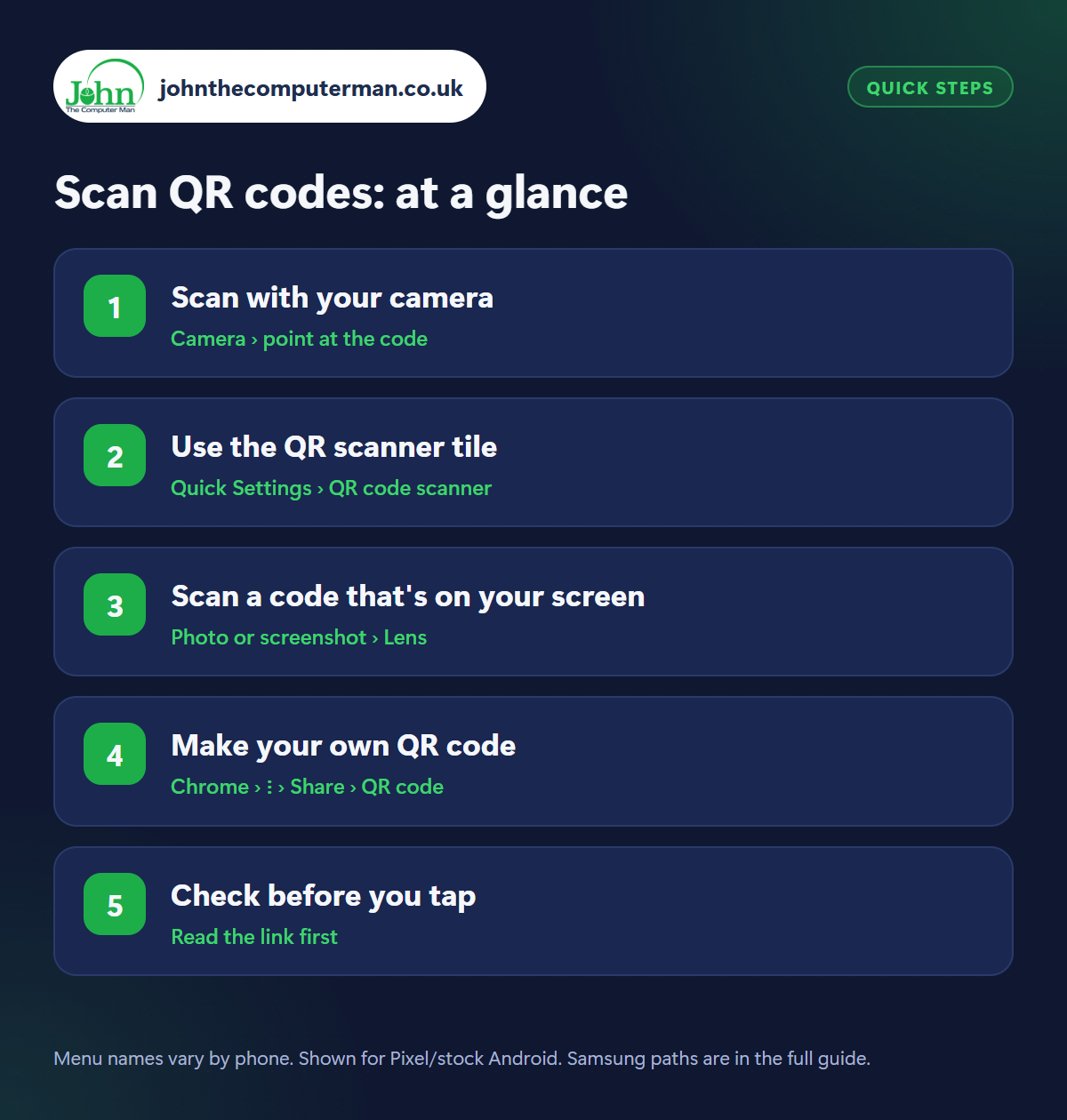
How to scan QR codes on Android
Step 1: Scan with your camera
Where: Camera › point at the code
Open your normal Camera app and point it at the QR code. You don't need to take a photo. After a second, a link or button appears on the screen. Tap it to open the website, join the Wi-Fi or see the details. If nothing happens, move back a little so the whole code is in view, and make sure there's enough light.
Step 2: Use the QR scanner tile
Where: Quick Settings › QR code scanner
Swipe down twice to open Quick Settings and tap QR code scanner (Samsung: Scan QR code). If you can't see it, tap the pencil and drag it into your tiles. This opens a dedicated scanner that's quicker than the camera and works on phones whose camera doesn't scan automatically. It also has a torch button for dark places.
Step 3: Scan a code that's on your screen
Where: Photo or screenshot › Lens
You can't point your camera at your own screen, so when a QR code arrives in an email, a message or on a web page, take a screenshot, open it in Google Photos and tap Lens. The link appears just as if you'd scanned it. On phones with Circle to Search, just long-press the home button and tap the code.
Step 4: Make your own QR code
Where: Chrome › ⋮ › Share › QR code
To share a web page with someone standing next to you, open it in Chrome, tap the three dots › Share › QR code. They scan it from your screen and the page opens on their phone. You can also download the code as an image to print on a poster or leaflet. Your Wi-Fi settings can make a QR code for joining your network in the same way.
Step 5: Check before you tap
Where: Read the link first
QR code scams are on the rise. Criminals stick fake codes over real ones on parking machines, EV chargers and restaurant tables, leading to convincing fake payment pages. Before you tap, read the web address your phone shows. Does it match the company? Is anything misspelt? Check for a sticker placed over the original code. For parking, it's safer to use the official app or type the address yourself.
Pro tip
💡 Share your Wi-Fi without reading out the password: open your Wi-Fi network's settings and tap Share. Guests scan the QR code to join.
FAQ
Do I need a QR scanner app?
No. The camera and the Quick Settings scanner do everything. Many QR apps in the Play Store are full of adverts or worse.
Is it safe to scan QR codes?
Scanning is safe. The risk is what you do next: only open links you trust and never enter card details on a page you reached from a random code.
Can I scan a QR code from a photo in my gallery?
Yes. Open the photo in Google Photos and tap Lens.
The bottom line
Your camera reads QR codes, the Quick Settings tile is quicker still, and Lens handles codes on your own screen. Just make a habit of reading the link before you tap it.
More Android tutorials:
• How to Make Your Android Screen Easier on Your Eyes at Night
• How to Keep Your Android Phone Unlocked at Home with Extend Unlock
• How to Wipe Your Android Phone Before Selling or Trading It In
• How to Keep Your Android Phone Unlocked at Home with Extend Unlock
• How to Wipe Your Android Phone Before Selling or Trading It In
Part of the android phone tutorials series on johnthecomputerman.co.uk. Follow @johnthecomputerman on Instagram for more Android tips. Steps were checked on current Android and Samsung One UI versions in September 2026; menu names can change with updates.
