How to Make Your Android Screen Easier on Your Eyes at Night
A bright white screen in a dark room is hard on your eyes, and the blue light phones give off in the evening can make it harder to drop off to sleep.
You don't need special glasses or apps. Android has five settings that make your screen warmer, darker and more comfortable at night, and they can all switch on and off automatically.
Before you start: Android menus vary a little between phone makers. The steps below use Google Pixel / standard Android names, with Samsung Galaxy differences noted. If you can't find a setting, tap the search bar at the top of Settings and type its name.
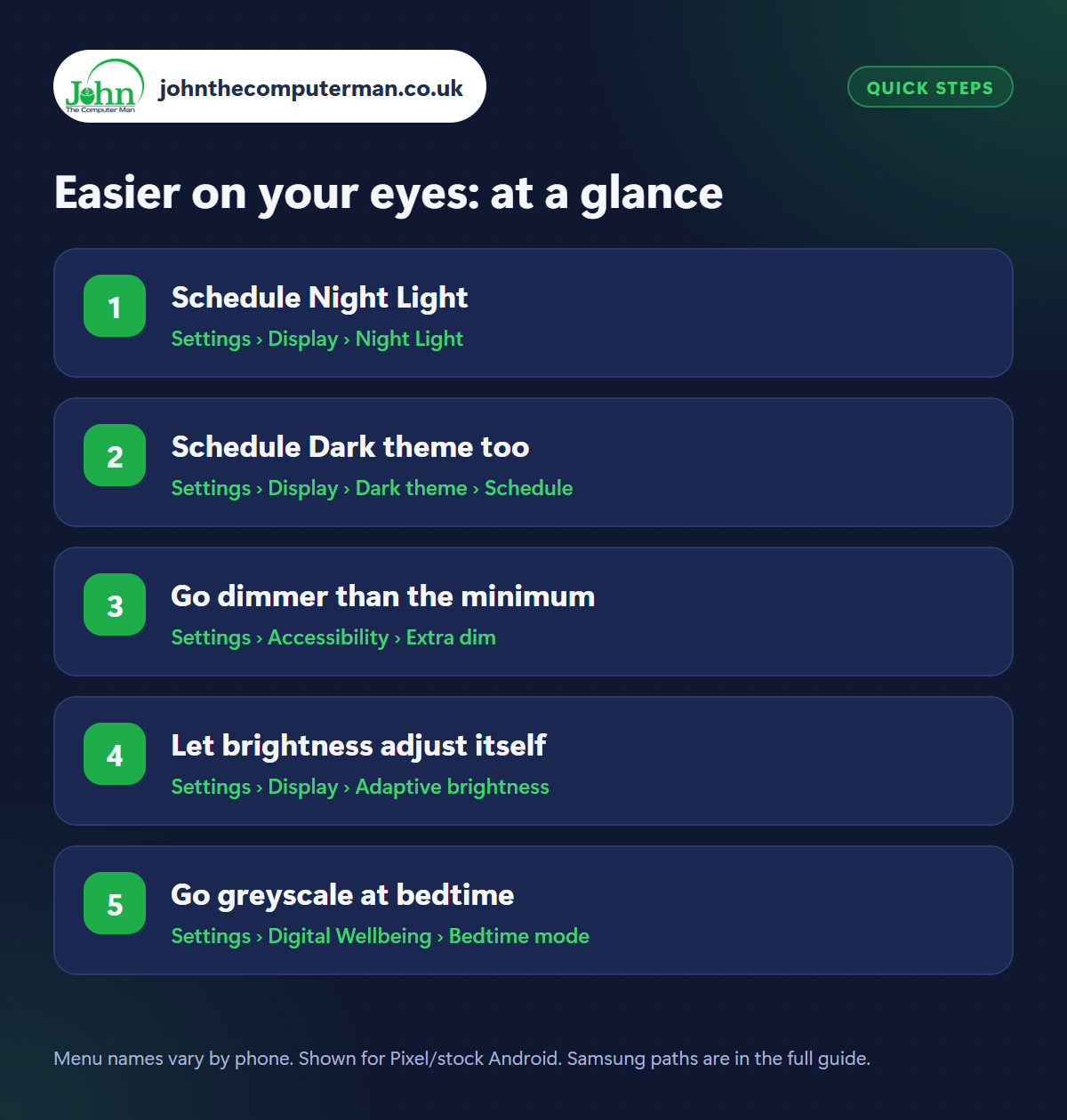
How to easier on your eyes on Android
Step 1: Schedule Night Light
Where: Settings › Display › Night Light
Samsung: Settings › Display › Eye comfort shield
Samsung: Settings › Display › Eye comfort shield
Night Light (Samsung calls it Eye comfort shield) reduces blue light by giving the screen a warmer, amber tint. Find it in Settings › Display. Tap Schedule and choose Sunset to sunrise, or set your own times. Adjust the intensity slider until it's comfortable. It looks odd for the first minute, then you stop noticing it.
Step 2: Schedule Dark theme too
Where: Settings › Display › Dark theme › Schedule
Dark theme turns white backgrounds black in menus and most apps, so far less light hits your eyes. In Settings › Display › Dark theme, set a Schedule to match Night Light: sunset to sunrise, or at your bedtime. Plenty of people leave it on permanently. On most phones it also saves a little battery. See our battery guide.
Step 3: Go dimmer than the minimum
Where: Settings › Accessibility › Extra dim
Samsung: Settings › Accessibility › Vision enhancements › Extra dim
Samsung: Settings › Accessibility › Vision enhancements › Extra dim
Even at minimum brightness, a phone can be dazzling in a pitch-dark bedroom. Extra dim lowers it further. Turn it on in Settings › Accessibility › Extra dim (Samsung: Accessibility › Vision enhancements) and set how dim you want it. Add its tile to Quick Settings so you can switch it on in one tap at night and off again in the morning.
Step 4: Let brightness adjust itself
Where: Settings › Display › Adaptive brightness
Turn on Adaptive brightness in Settings › Display. Your phone uses its light sensor to brighten the screen outdoors and dim it in a dark room. If it gets it wrong, just drag the brightness slider to where you want it. The phone learns your preference for that level of light. Give it a week or so before judging it.
Step 5: Go greyscale at bedtime
Where: Settings › Digital Wellbeing › Bedtime mode
Samsung: Settings › Modes and Routines › Sleep
Samsung: Settings › Modes and Routines › Sleep
Bedtime mode turns the whole screen black and white, dims the wallpaper and switches on Do Not Disturb at the time you choose. A grey screen is kinder on the eyes and, usefully, far less interesting to scroll. Set it up in Settings › Digital Wellbeing & parental controls › Bedtime mode (Samsung: Modes and Routines › Sleep). See our guide to cutting screen time.
Pro tip
💡 Reading in bed? Lower the screen timeout to 30 seconds and hold the phone a bit further from your face. Both cut eye strain.
FAQ
Does Night Light actually help you sleep?
The evidence is mixed, but a warmer, dimmer screen is certainly more comfortable. Putting the phone down 30 minutes before bed helps most.
Does dark mode save battery?
On phones with OLED screens (most modern ones), yes, a little, because black pixels are switched off.
Why do colours look wrong with Night Light on?
That's the warm tint doing its job. Turn it off temporarily when editing photos or shopping for something colour-sensitive.
The bottom line
Schedule Night Light and Dark theme for sunset and you'll never have to think about them again. Add Extra dim for reading in bed and your eyes will thank you.
More Android tutorials:
• How to Keep Your Android Phone Unlocked at Home with Extend Unlock
• How to Wipe Your Android Phone Before Selling or Trading It In
• 5 Android Clock App Tricks: Better Alarms, Timers and Bedtime
• How to Wipe Your Android Phone Before Selling or Trading It In
• 5 Android Clock App Tricks: Better Alarms, Timers and Bedtime
Part of the android phone tutorials series on johnthecomputerman.co.uk. Follow @johnthecomputerman on Instagram for more Android tips. Steps were checked on current Android and Samsung One UI versions in September 2026; menu names can change with updates.
