How to Change Your Ringtone and Notification Sounds on Android
If your phone makes the same sound as everyone else's, you end up checking it every time a phone goes off nearby.
Android lets you change every sound it makes: your ringtone, your text tone, even a different ring for particular people. Here's how to set it up so you know what's happening without taking your phone out of your pocket.
Before you start: Android menus vary a little between phone makers. The steps below use Google Pixel / standard Android names, with Samsung Galaxy differences noted. If you can't find a setting, tap the search bar at the top of Settings and type its name.
How to change your ringtone on Android
Step 1: Change your ringtone
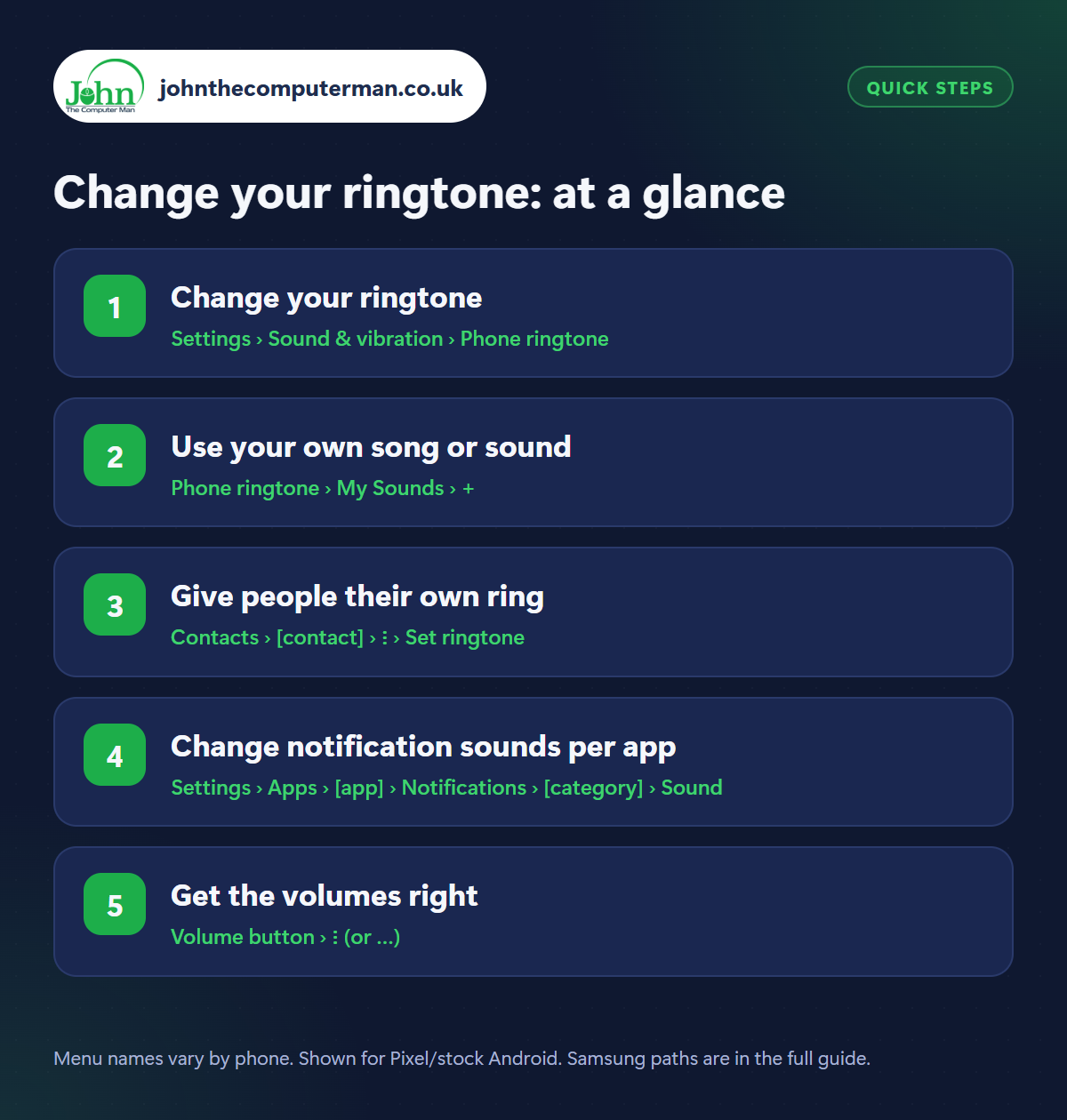
Where: Settings › Sound & vibration › Phone ringtone
Samsung: Settings › Sounds and vibration › Ringtone
Samsung: Settings › Sounds and vibration › Ringtone
Go to Settings › Sound & vibration › Phone ringtone (Samsung: Settings › Sounds and vibration › Ringtone). Tap any ringtone to hear a preview, and tap Save or go back when you've found one you like. Choose something distinctive and easy to hear in a noisy place. Gentle chimes sound lovely at home but vanish on a busy street.
Step 2: Use your own song or sound
Where: Phone ringtone › My Sounds › +
Samsung: Ringtone › + (top right)
Samsung: Ringtone › + (top right)
At the ringtone list, tap My Sounds then the + button (Samsung: the + at the top right). Choose any audio file saved on your phone, such as an MP3 in your Downloads or Music folder. On Samsung you can pick which part of the song plays. Music from streaming apps like Spotify can't be used. It has to be a file you own.
Step 3: Give people their own ring
Where: Contacts › [contact] › ⋮ › Set ringtone
Samsung: Contacts › [contact] › Edit › View more › Ringtone
Samsung: Contacts › [contact] › Edit › View more › Ringtone
Open the Contacts app, choose a person, tap the three dots › Set ringtone and pick a sound (Samsung: open the contact, tap Edit › View more › Ringtone). Do this for the handful of people who matter most. You'll know it's your partner or your child's school before you've even reached for the phone.
Step 4: Change notification sounds per app
Where: Settings › Apps › [app] › Notifications › [category] › Sound
Set the general sound in Settings › Sound & vibration › Default notification sound. Then give important apps their own: go to Settings › Apps › [app] › Notifications, tap a category (such as Messages) and then Sound. A different tone for texts, WhatsApp and email means you can tell which one arrived, and ignore the ones that can wait.
Step 5: Get the volumes right
Where: Volume button › ⋮ (or …)
Press a volume button, then tap the three dots under the slider. You'll see separate sliders for Media, Call, Ring, Notifications and Alarm. The side buttons normally change media volume only, which is why your ringer can be silent without you realising. Set ring volume high, and tap the bell icon to switch between ring, vibrate and silent.
Pro tip
💡 Missing calls in your pocket? Turn on ‘Vibrate for calls’ (or ‘Vibrate first, then ring gradually’) in Sound & vibration settings.
FAQ
Why can't I see my music file in the list?
The file has to be saved on the phone itself as MP3, M4A, WAV or OGG. Songs inside streaming apps aren't files you can use.
Can I have a different ringtone for each SIM?
Yes, on dual-SIM phones you can usually set a ringtone for each SIM in the same ringtone settings.
My phone doesn't ring at all. Why?
Check ring volume, that Do Not Disturb is off, and that the bell icon isn't set to silent or vibrate.
The bottom line
A distinctive ringtone, separate sounds for your key apps and a personal ring for your favourite people. Ten minutes of setup, and your phone tells you what's going on without a glance.
More Android tutorials:
• How to Scan and Create QR Codes on Android
• How to Make Your Android Screen Easier on Your Eyes at Night
• How to Keep Your Android Phone Unlocked at Home with Extend Unlock
• How to Make Your Android Screen Easier on Your Eyes at Night
• How to Keep Your Android Phone Unlocked at Home with Extend Unlock
Part of the android phone tutorials series on johnthecomputerman.co.uk. Follow @johnthecomputerman on Instagram for more Android tips. Steps were checked on current Android and Samsung One UI versions in September 2026; menu names can change with updates.
