Dropped Your Android Phone in Water? Do This Straight Away
The sink. The bath. The loo. A puddle. A pint. Sooner or later most phones take an unplanned swim.
Many modern phones are water-resistant, which helps, but that protection wears with age and it isn't a guarantee. What you do in the first minute or two makes the biggest difference. Here's the right order.
Before you start: Android menus vary a little between phone makers. The steps below use Google Pixel / standard Android names, with Samsung Galaxy differences noted. If you can't find a setting, tap the search bar at the top of Settings and type its name.
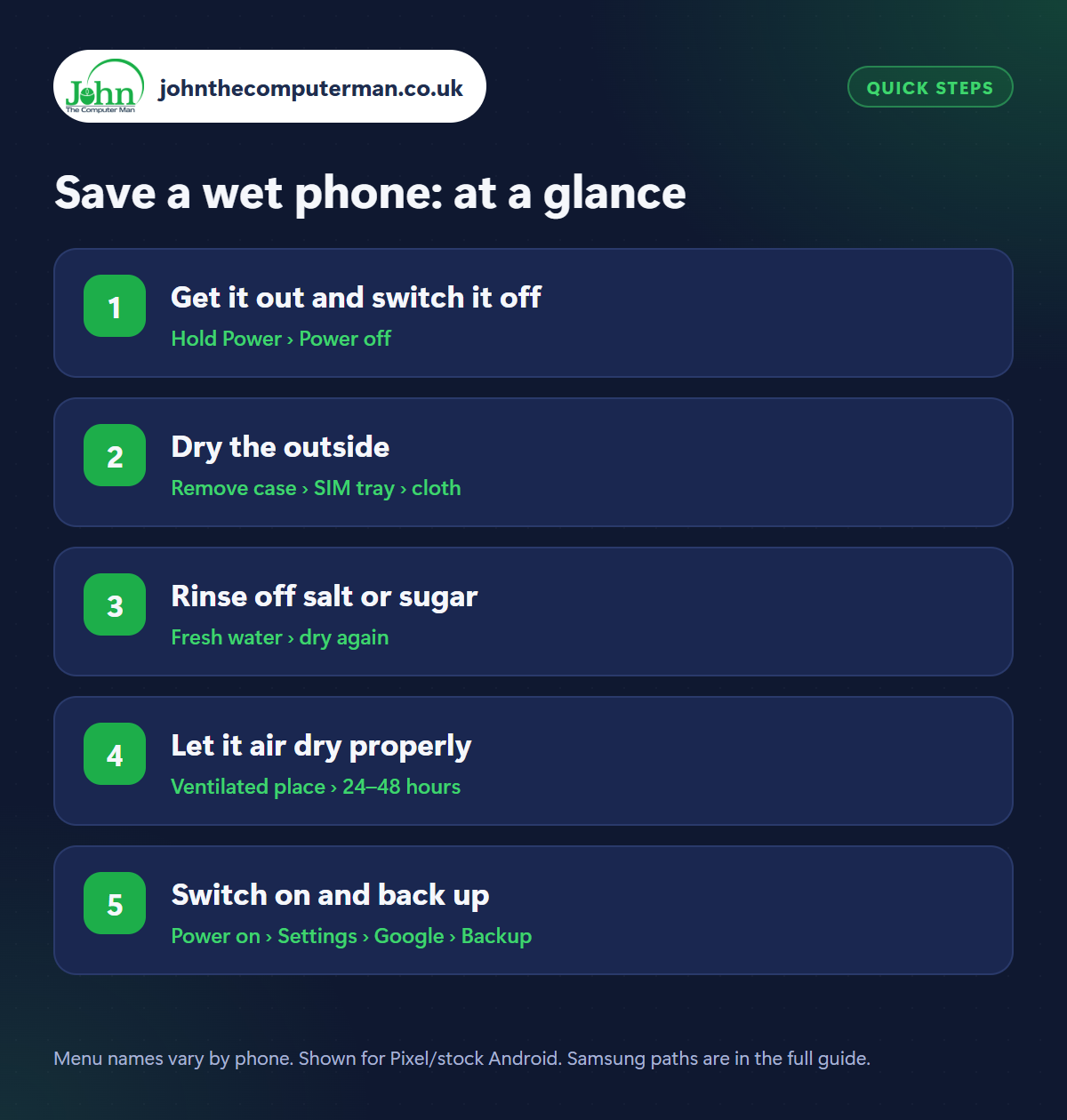
How to save a wet phone on Android
Step 1: Get it out and switch it off
Where: Hold Power › Power off
Get the phone out of the water and switch it off immediately. Water alone rarely kills a phone. Electricity flowing through wet circuits does. Don't press buttons to ‘check if it still works’, and above all don't plug it in to charge. If it was charging when it got wet, switch off at the wall before you unplug it.
Step 2: Dry the outside
Where: Remove case › SIM tray › cloth
Take off the case and remove the SIM tray (and memory card). Wipe everything with a soft, absorbent cloth or kitchen roll. Hold the phone with the charging port facing down and tap it gently against your palm to shake water out. Don't blow into the ports or poke anything inside, and don't shake it hard. That can push water further in.
Step 3: Rinse off salt or sugar
Where: Fresh water › dry again
Sea water, pool water and sugary drinks cause far more damage than clean water, as they corrode and gum up the insides when they dry. If your phone is rated water-resistant (IP67 or IP68), the manufacturers advise rinsing it briefly in fresh tap water while switched off, then drying it as above. If it isn't water-resistant, just wipe it with a damp cloth.
Step 4: Let it air dry properly
Where: Ventilated place › 24–48 hours
Leave the phone switched off in a dry, well-ventilated place for at least 24 hours, ideally 48. In front of a fan is ideal. Silica gel sachets in a sealed box can help. Skip the rice. It doesn't draw water out of a phone, and dust and grains get into the ports. Never use a hairdryer, oven or radiator. Heat damages the battery, screen and seals.
Step 5: Switch on and back up
Where: Power on › Settings › Google › Backup
Once it's had time to dry, switch it on. If it works, back up immediately (Settings › Google › Backup › Back up now). Corrosion can cause failure days later. If you see a ‘Moisture detected’ warning, wait longer before charging. Test the speakers, microphone and cameras. If it won't switch on, or things aren't right, take it to a repair shop quickly. The sooner it's opened and cleaned, the better.
Pro tip
💡 Water resistance fades as a phone ages and isn't covered by most warranties. Treat IP68 as a safety net, not permission to take it swimming.
FAQ
Does putting a phone in rice work?
No. Tests show open air dries a phone just as well or better, and rice can leave dust and starch in the ports.
My phone is IP68. Is it waterproof?
It's water-resistant in clean, still water for a limited depth and time when new. Seals degrade with drops, heat and age.
The speaker sounds muffled after getting wet. Is it broken?
Probably not. Water in the speaker grille muffles sound. It usually clears as it dries over a day or two.
The bottom line
Switch off, don't charge, dry it and wait. Patience saves more wet phones than any trick. And once it's working again, back it up before you do anything else.
More Android tutorials:
• Android Touchscreen Not Responding? 5 Fixes to Try
• Android Phone Frozen or Won't Turn On? 5 Things to Try
• 5 Google Maps Tricks Every Android User Should Know
• Android Phone Frozen or Won't Turn On? 5 Things to Try
• 5 Google Maps Tricks Every Android User Should Know
Part of the android phone tutorials series on johnthecomputerman.co.uk. Follow @johnthecomputerman on Instagram for more Android tips. Steps were checked on current Android and Samsung One UI versions in September 2026; menu names can change with updates.
