How to Set Up an Android Phone for an Older Relative
A smartphone can be a lifeline for an older relative: photos of the grandchildren, video calls, messages from the family. It can also be a source of confusion, frustration and scam calls.
With half an hour of setup you can make an Android phone much simpler and safer to use. Sit down with them if you can, and set it up around what they want to do with it.
Before you start: Android menus vary a little between phone makers. The steps below use Google Pixel / standard Android names, with Samsung Galaxy differences noted. If you can't find a setting, tap the search bar at the top of Settings and type its name.
How to set up a phone for a parent on Android
Step 1: Make everything bigger
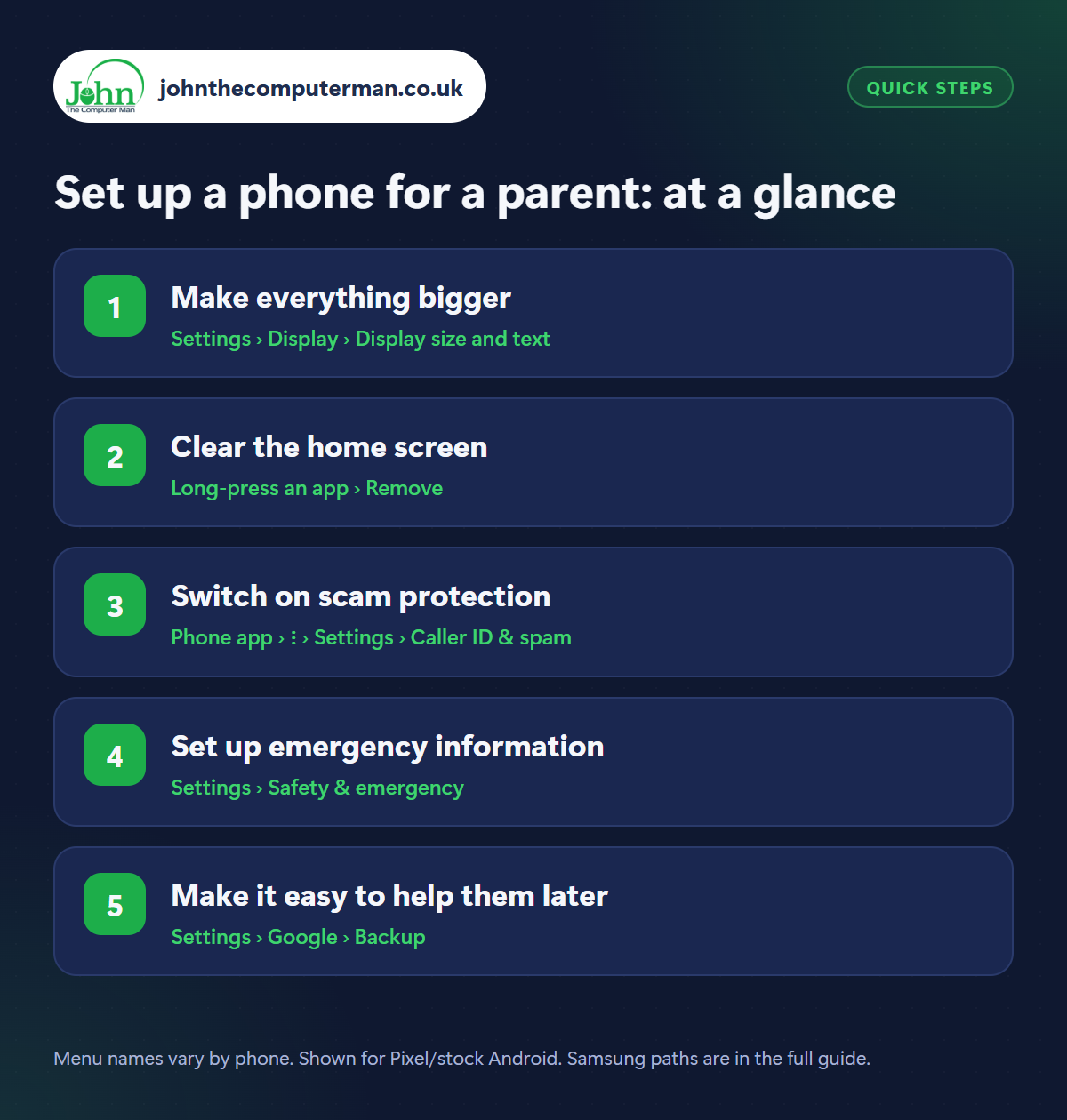
Where: Settings › Display › Display size and text
Samsung: Settings › Display › Easy mode
Samsung: Settings › Display › Easy mode
Start with Settings › Display › Display size and text. Increase Font size and Display size and turn on Bold text. On a Samsung, Easy mode (in Settings › Display) does it all at once, with bigger icons, bigger text and a simpler layout. Also lengthen the Screen timeout to 2 minutes so the screen doesn't go dark mid-task. More in our guide to making Android easier to see.
Step 2: Clear the home screen
Where: Long-press an app › Remove
Remove every icon they won't use from the home screen (long-press › Remove). The apps stay installed, just out of sight. Leave the essentials on one page: Phone, Messages, Camera, Photos, WhatsApp. Then add shortcuts to their most important people: open a contact, tap the three dots › Add to Home screen, and they can call family with one tap on a face.
Step 3: Switch on scam protection
Where: Phone app › ⋮ › Settings › Caller ID & spam
Older people are targeted heavily by phone scams. In the Phone app, turn on Caller ID & spam and Filter spam calls. In Messages, turn on Spam protection. See how to stop spam calls and texts. Just as important: talk about it. Agree a simple rule, such as ‘the bank will never ask you to move money, and if in doubt, hang up and ring me’.
Step 4: Set up emergency information
Where: Settings › Safety & emergency
Open Settings › Safety & emergency. Add their medical information (conditions, medication, allergies) and yourself as an emergency contact. Both can be seen from the lock screen by paramedics. Turn on Emergency SOS and show them the five presses of the power button. Full details in our Emergency SOS guide. Consider location sharing too, with their agreement.
Step 5: Make it easy to help them later
Where: Settings › Google › Backup
Turn on Backup (Settings › Google › Backup) and Google Photos backup so nothing is lost if the phone is. Check apps update automatically. Set up a fingerprint so they rarely need the PIN. Then write down their Google email address, password and PIN and keep it somewhere safe at home. You'll need them the day something goes wrong.
Pro tip
💡 Taps not registering, or menus popping up by accident? Increase ‘Touch and hold delay’ in Settings › Accessibility. It helps with shaky or slower hands.
FAQ
Which Android phone is best for an older person?
A mid-range Samsung is a good choice because of Easy mode, a large screen and long update support. A sturdy case matters more than the model.
Can I help them with their phone remotely?
Yes. Start a Google Meet video call and ask them to share their screen, so you can see what they see and talk them through it.
Should I set up parental controls?
No. They're designed for children. Purchase verification in the Play Store is a better way to prevent accidental spending.
The bottom line
Bigger text, a one-page home screen with faces to tap, scam filtering and emergency details. Half an hour of setup turns a confusing gadget into something they'll actually enjoy using.
More Android tutorials:
• How to Check Your Android Phone's Battery Health
• Dropped Your Android Phone in Water? Do This Straight Away
• Android Touchscreen Not Responding? 5 Fixes to Try
• Dropped Your Android Phone in Water? Do This Straight Away
• Android Touchscreen Not Responding? 5 Fixes to Try
Part of the android phone tutorials series on johnthecomputerman.co.uk. Follow @johnthecomputerman on Instagram for more Android tips. Steps were checked on current Android and Samsung One UI versions in September 2026; menu names can change with updates.
