How to Check Your Android Phone's Battery Health
Every phone battery wears out. After two or three years of daily charging it simply holds less than it did, and no setting can change that.
The good news is a tired battery doesn't mean you need a new phone. Here's how to find out what state yours is in, tell a worn battery from a software problem, and decide what to do about it.
Before you start: Android menus vary a little between phone makers. The steps below use Google Pixel / standard Android names, with Samsung Galaxy differences noted. If you can't find a setting, tap the search bar at the top of Settings and type its name.
How to check battery health on Android
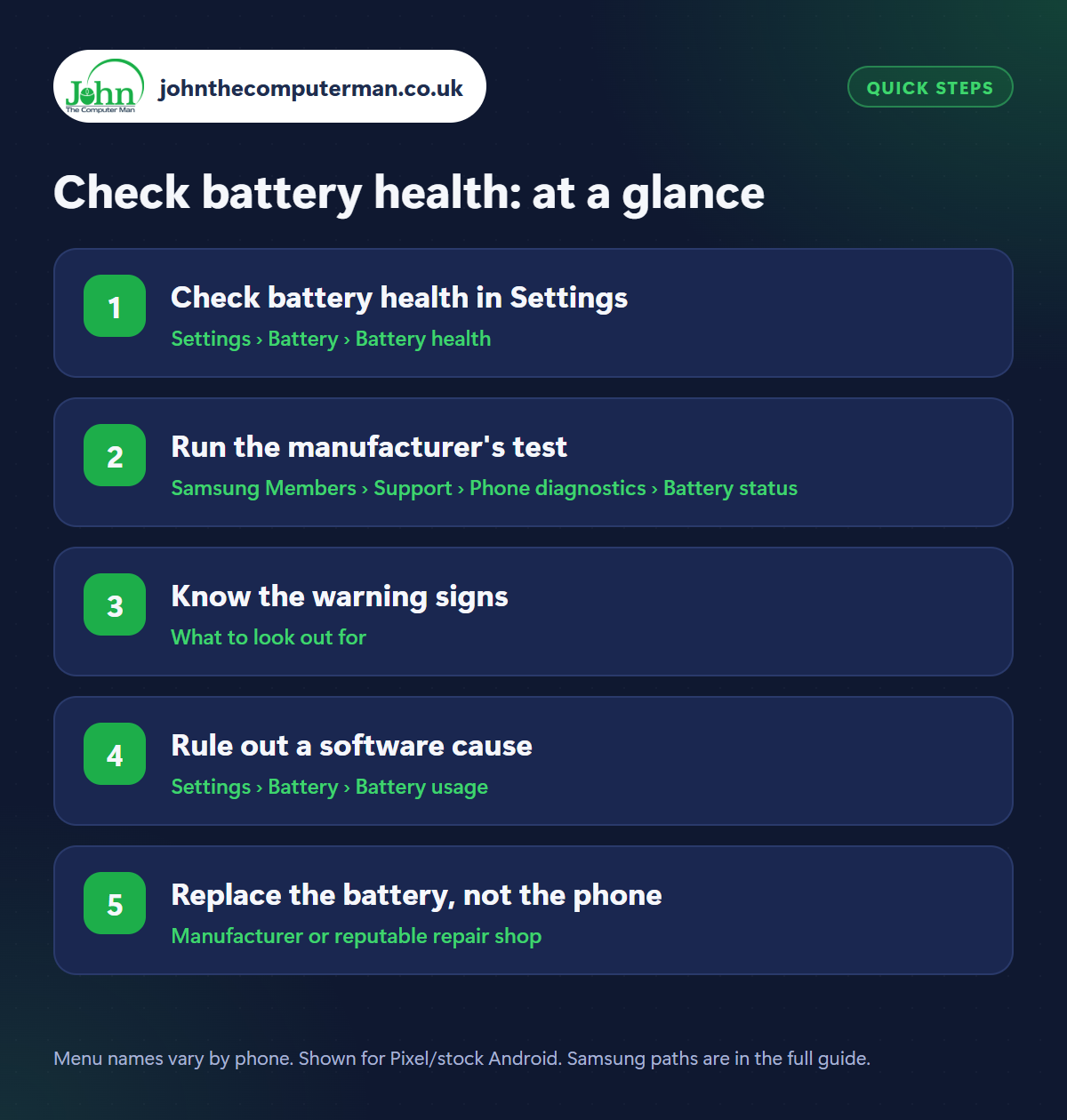
Step 1: Check battery health in Settings
Where: Settings › Battery › Battery health
Samsung: Settings › Battery › Battery information
Samsung: Settings › Battery › Battery information
On recent Pixel phones, go to Settings › Battery › Battery health. You'll see a status and, on newer models, the remaining capacity as a percentage. On Samsung, look in Settings › Battery › Battery information. Not every phone has this, and it depends on your Android version. If you can't find it, search Settings for ‘battery health’, then try step 2.
Step 2: Run the manufacturer's test
Where: Samsung Members › Support › Phone diagnostics › Battery status
On a Samsung phone, open the Samsung Members app, tap Support › Phone diagnostics › Battery status. It reports the battery's life as Good, Normal or Weak. Other makers have similar tools in their own support apps. Be wary of third-party ‘battery health’ apps from the Play Store. Most can only estimate, and many are stuffed with adverts.
Step 3: Know the warning signs
Where: What to look out for
Whatever the settings say, these are the real-world signs of a worn battery: it no longer lasts a day with normal use; the phone switches off at 20% or 30%; the percentage drops in sudden jumps; or it shuts down in the cold. As a rule of thumb, a battery below about 80% of its original capacity is ready for replacing.
Step 4: Rule out a software cause
Where: Settings › Battery › Battery usage
If the battery got worse suddenly rather than gradually, an app is more likely to blame than wear. Check Settings › Battery › Battery usage for anything using far more than it should, install any updates and restart. Our guide to making your battery last longer covers the settings that help. Batteries also drain faster for a day or two after a big update.
Step 5: Replace the battery, not the phone
Where: Manufacturer or reputable repair shop
If the battery is worn but the phone is otherwise fine, replace the battery. It costs a fraction of the price of a new phone and usually takes under an hour. Use the manufacturer's service or a well-reviewed repair shop that fits quality parts. Check the phone still gets security updates first. If it does, a new battery is some of the best money you can spend on tech.
Pro tip
💡 If the back of your phone is bulging or the screen is lifting, the battery is swelling. Stop charging it and get it replaced straight away.
FAQ
How long should a phone battery last?
Typically two to four years before it noticeably fades, depending on how often it's charged and how hot it gets.
Does fast charging damage the battery?
Not significantly. Heat does. Avoid charging in hot places and turn on the 80% limit if you charge overnight.
Can I replace the battery myself?
It's possible on some models but fiddly, and modern phones are glued shut. For most people a repair shop is safer.
The bottom line
Check the battery health screen, but trust the symptoms more. If your phone can't make it through the day and still gets updates, a new battery is far better value than a new phone.
More Android tutorials:
• Dropped Your Android Phone in Water? Do This Straight Away
• Android Touchscreen Not Responding? 5 Fixes to Try
• Android Phone Frozen or Won't Turn On? 5 Things to Try
• Android Touchscreen Not Responding? 5 Fixes to Try
• Android Phone Frozen or Won't Turn On? 5 Things to Try
Part of the android phone tutorials series on johnthecomputerman.co.uk. Follow @johnthecomputerman on Instagram for more Android tips. Steps were checked on current Android and Samsung One UI versions in September 2026; menu names can change with updates.
