Android GPS Not Accurate? 5 Ways to Fix Your Location
The blue dot is two streets away. The sat-nav says ‘turn left’ after you've passed the junction. Your running app thinks you ran through a building.
GPS on a phone relies on more than satellites, and a few settings make a big difference to how accurate it is. Here's what to check.
Before you start: Android menus vary a little between phone makers. The steps below use Google Pixel / standard Android names, with Samsung Galaxy differences noted. If you can't find a setting, tap the search bar at the top of Settings and type its name.
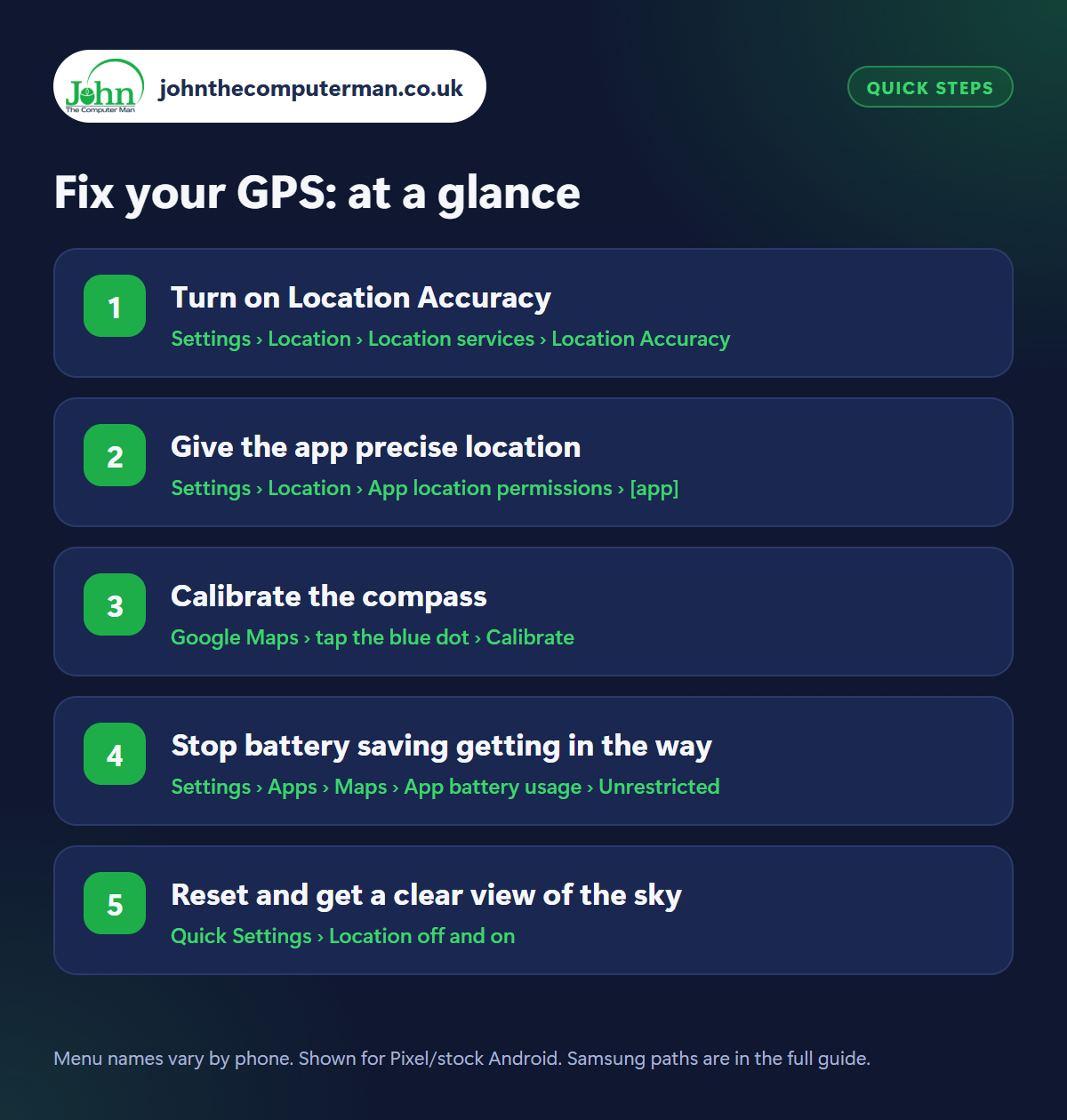
How to fix your GPS on Android
Step 1: Turn on Location Accuracy
Where: Settings › Location › Location services › Location Accuracy
Go to Settings › Location › Location services › Location Accuracy (it may be called Google Location Accuracy) and switch on Improve Location Accuracy. Your phone then combines GPS satellites with nearby Wi-Fi networks, mobile masts and sensors. This makes a huge difference indoors and in built-up areas, where tall buildings block the satellites.
Step 2: Give the app precise location
Where: Settings › Location › App location permissions › [app]
Open Settings › Location › App location permissions, tap the app that's struggling (such as Maps) and make sure Use precise location is on. With it off, the app only knows roughly where you are, to within a mile or two. Also set the permission to Allow only while using the app or Allow all the time, not Ask every time.
Step 3: Calibrate the compass
Where: Google Maps › tap the blue dot › Calibrate
If the dot is in the right place but the beam points the wrong way, the compass needs calibrating. In Google Maps, tap the blue dot › Calibrate. Either point the camera at nearby buildings and signs when asked, or move the phone in a figure of eight a few times. A narrow beam means the compass is confident, and a wide fan means it isn't.
Step 4: Stop battery saving getting in the way
Where: Settings › Apps › Maps › App battery usage › Unrestricted
Battery Saver reduces how often your location updates, and an app set to Restricted may lose your position when the screen is off. Go to Settings › Apps › Maps › App battery usage and choose Unrestricted (Samsung: add it to Never sleeping apps). Do the same for running and cycling apps that need to track you with the screen off.
Step 5: Reset and get a clear view of the sky
Where: Quick Settings › Location off and on
Swipe down, turn Location off, wait a few seconds and turn it back on, or use Airplane mode for ten seconds. Then go outside, away from tall buildings and trees, and give the phone 30 seconds to lock on. GPS barely works indoors or underground. Thick or metal cases and magnetic mounts can interfere, so take the case off to test. Finally, restart and check for updates.
Pro tip
💡 Keep Wi-Fi switched on, even when you're out and not connected to anything. Your phone uses nearby Wi-Fi networks to pinpoint you faster.
FAQ
Does GPS need mobile data?
No. GPS itself is free and works anywhere with a view of the sky. Data is only needed to download the map, which is why offline maps are so useful.
Why is my location wrong indoors?
Satellite signals don't pass through buildings well, so the phone estimates from Wi-Fi and masts instead. That's normal.
Does leaving Location on drain the battery?
Very little when nothing is actively using it. Navigation uses more, mainly because the screen stays on.
The bottom line
Location Accuracy and precise location are the two settings that matter most. If the dot is right but pointing the wrong way, calibrate the compass. Outdoors with a clear sky, it should be good to a few metres.
More Android tutorials:
• How to Customise Your Android Lock Screen
• How to Clean Your Phone Safely (Screen, Ports, Speakers and Case)
• How to Use Google Calendar on Android: 5 Things Worth Knowing
• How to Clean Your Phone Safely (Screen, Ports, Speakers and Case)
• How to Use Google Calendar on Android: 5 Things Worth Knowing
Part of the android phone tutorials series on johnthecomputerman.co.uk. Follow @johnthecomputerman on Instagram for more Android tips. Steps were checked on current Android and Samsung One UI versions in September 2026; menu names can change with updates.
