How to Customise Your Android Lock Screen
You look at your lock screen more than any other screen on your phone, dozens of times a day, usually just to check the time.
It can do much more than show a clock. You can restyle it, put useful shortcuts on it, control what it reveals to people nearby and even help a lost phone find its way home.
Before you start: Android menus vary a little between phone makers. The steps below use Google Pixel / standard Android names, with Samsung Galaxy differences noted. If you can't find a setting, tap the search bar at the top of Settings and type its name.
How to customise your lock screen on Android
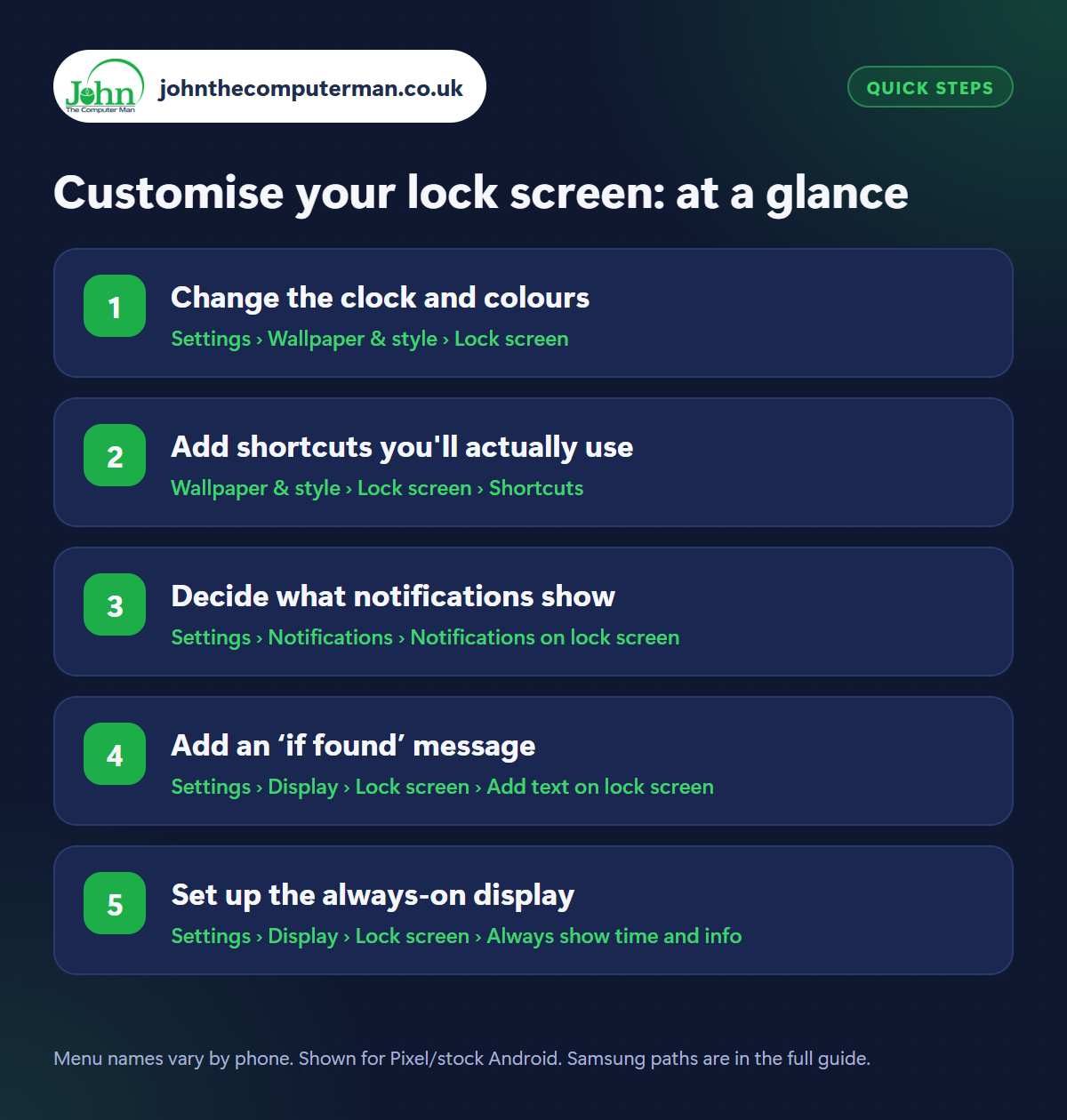
Step 1: Change the clock and colours
Where: Settings › Wallpaper & style › Lock screen
Samsung: Long-press the lock screen
Samsung: Long-press the lock screen
On Pixel and many Android phones, open Settings › Wallpaper & style and tap the Lock screen tab. Swipe through the clock styles, change the colour and size, and set a wallpaper just for the lock screen. On Samsung, simply long-press the lock screen and unlock to enter the editor, where you can tap the clock to change its font, style and position.
Step 2: Add shortcuts you'll actually use
Where: Wallpaper & style › Lock screen › Shortcuts
Samsung: Long-press lock screen › tap a shortcut
Samsung: Long-press lock screen › tap a shortcut
The two bottom corners of the lock screen can hold shortcuts. In Wallpaper & style › Lock screen › Shortcuts, choose from Torch, Camera, QR code scanner, Wallet, Do Not Disturb, Home controls and more. On Samsung, long-press the lock screen and tap either shortcut to change it. To use one, press and hold its icon. The torch is the one most people end up using daily.
Step 3: Decide what notifications show
Where: Settings › Notifications › Notifications on lock screen
Samsung: Settings › Notifications › Lock screen notifications
Samsung: Settings › Notifications › Lock screen notifications
Go to Settings › Notifications › Notifications on lock screen (Samsung: Lock screen notifications). You can show everything, hide sensitive content so you see that a message arrived but not what it says, or show nothing at all. Hiding content is a sensible middle ground. It also stops anyone who picks up your phone reading security codes sent by text.
Step 4: Add an ‘if found’ message
Where: Settings › Display › Lock screen › Add text on lock screen
Samsung: Settings › Lock screen and AOD › Edit lock screen › Contact information
Samsung: Settings › Lock screen and AOD › Edit lock screen › Contact information
In Settings › Display › Lock screen › Add text on lock screen (Samsung: Lock screen and AOD › Edit lock screen › Contact information), type something like ‘If found, please ring 07…’, using a partner's or landline number, not the phone's own. It shows on the lock screen all the time, so whoever finds your phone can return it without needing to unlock it.
Step 5: Set up the always-on display
Where: Settings › Display › Lock screen › Always show time and info
Samsung: Settings › Lock screen and AOD › Always On Display
Samsung: Settings › Lock screen and AOD › Always On Display
The always-on display shows the time, date, battery and notification icons on a dim screen while the phone is locked. Turn it on or off in Settings › Display › Lock screen › Always show time and info (Samsung: Lock screen and AOD › Always On Display, where you can choose Tap to show as a compromise). It uses a little battery, usually one or two per cent an hour at most.
Pro tip
💡 Double-press the power button from the lock screen to open the camera straight away. You can take photos without unlocking the phone.
FAQ
Is it safe to have shortcuts on the lock screen?
Yes. The torch and camera work without unlocking, but anything that needs your data, like Wallet payments, still asks for your fingerprint or PIN.
Can someone see my photos from the lock screen camera?
No. They can take new photos, but can't open your gallery without unlocking the phone.
Does the always-on display damage the screen?
No. The clock shifts position slightly every so often to prevent any image being burned into the screen.
The bottom line
Add a torch shortcut, hide sensitive notifications and put an ‘if found’ number on the screen. Three small changes that make your lock screen more useful and more private.
More Android tutorials:
• How to Clean Your Phone Safely (Screen, Ports, Speakers and Case)
• How to Use Google Calendar on Android: 5 Things Worth Knowing
• Using Your Android Phone Abroad: 5 Things to Do Before You Fly
• How to Use Google Calendar on Android: 5 Things Worth Knowing
• Using Your Android Phone Abroad: 5 Things to Do Before You Fly
Part of the android phone tutorials series on johnthecomputerman.co.uk. Follow @johnthecomputerman on Instagram for more Android tips. Steps were checked on current Android and Samsung One UI versions in September 2026; menu names can change with updates.
