How to Edit Photos on Android with Google Photos (Free)
A great photo spoiled by a wonky horizon, a dark face or a stranger in the background doesn't have to stay that way.
The Google Photos app that's already on your Android phone has a surprisingly powerful editor built in. It's free, quick, and your original photo is always kept safe. Here are the five tools worth knowing.
Before you start: Android menus vary a little between phone makers. The steps below use Google Pixel / standard Android names, with Samsung Galaxy differences noted. If you can't find a setting, tap the search bar at the top of Settings and type its name.
How to edit your photos on Android
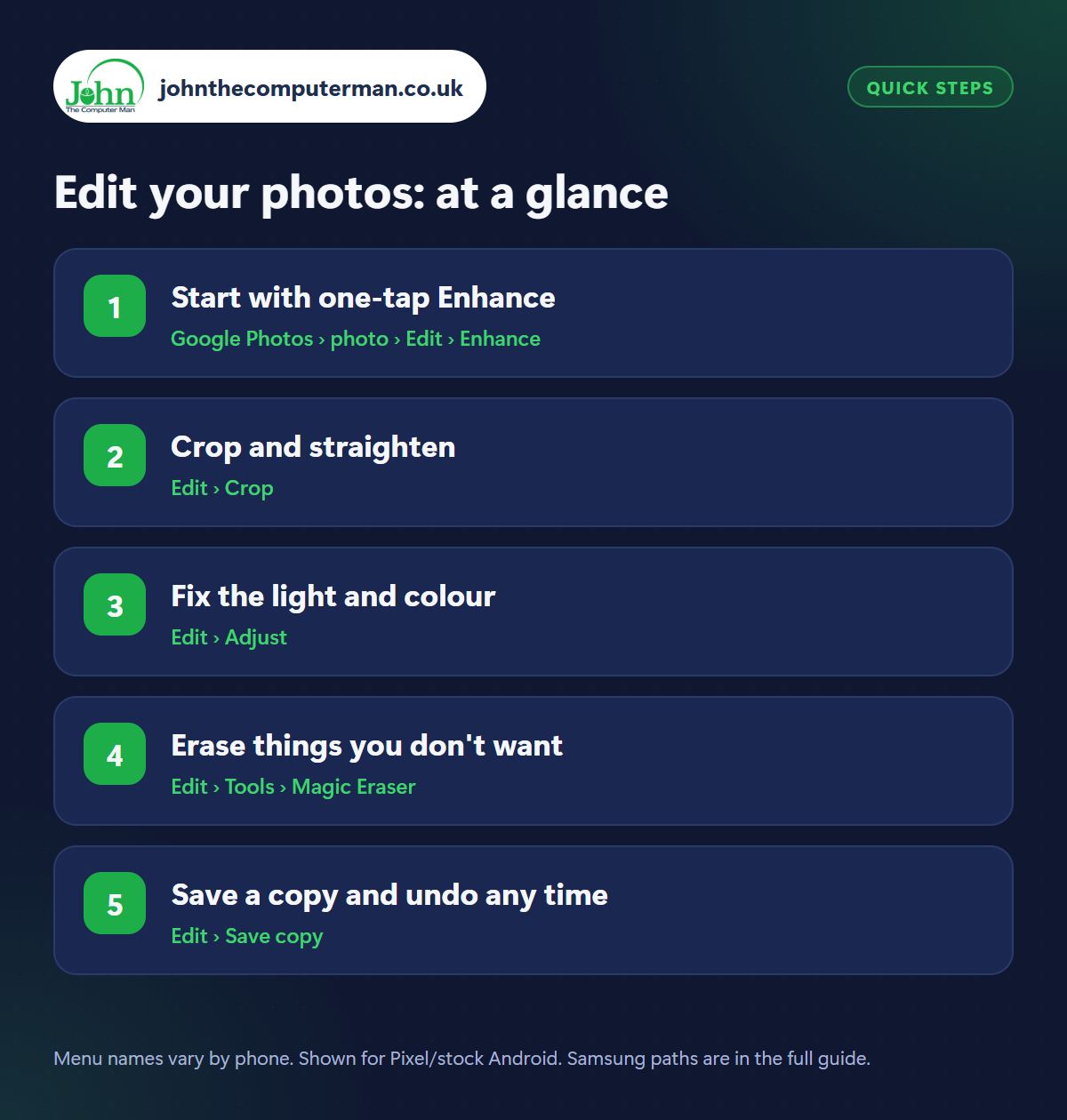
Step 1: Start with one-tap Enhance
Where: Google Photos › photo › Edit › Enhance
Open a photo in Google Photos and tap Edit. The first suggestion is usually Enhance: one tap and it balances the brightness, contrast and colour automatically. It gets most photos 80% of the way there. If you don't like the result, tap it again to turn it off. You may see other suggestions too, depending on the photo.
Step 2: Crop and straighten
Where: Edit › Crop
Tap Crop. Drag the corners to cut out clutter at the edges and bring attention to your subject. Use the dial underneath to straighten a tilted horizon (or tap Auto to let the app do it). The aspect ratio button gives you set shapes like Square or 4:5 for Instagram, and you can rotate photos that are on their side.
Step 3: Fix the light and colour
Where: Edit › Adjust
In Adjust you'll find sliders for fine-tuning. The most useful are Brightness (overall light), Shadows (brightens dark areas like faces without washing out the sky), Contrast and Warmth (makes a cold, blue photo look more natural). Move each one a little at a time. Subtle edits look best. Press and hold the photo to compare with the original.
Step 4: Erase things you don't want
Where: Edit › Tools › Magic Eraser
Magic Eraser removes unwanted things from photos: strangers in the background, bins, power lines, a stray thumb. Find it under Tools (or as Erase, depending on your version). It may suggest things to remove automatically, or you can circle or brush over an object with your finger. It works best on small things against simple backgrounds like sky, grass or sand.
Step 5: Save a copy and undo any time
Where: Edit › Save copy
When you're happy, tap Save copy to keep your edit as a new photo alongside the untouched original. If you choose Save instead, Google Photos still remembers the original: open the photo, tap Edit › Revert and it's back to how it was. So experiment freely. You can't break anything.
Pro tip
💡 Press and hold on the photo while editing to flip back to the original. It's the quickest way to check you haven't overdone it.
FAQ
Is Magic Eraser free?
Yes, Magic Eraser is available free to Google Photos users on most Android phones. Some newer AI editing tools have monthly limits unless you have a Google One plan.
Will editing reduce my photo's quality?
No. Edits are applied to a full-quality copy, and the original is kept so you can revert at any time.
Can I edit videos too?
Yes. Open a video and tap Edit to trim, crop, stabilise shaky footage, mute the sound or adjust the colour.
The bottom line
Enhance, crop and a nudge of the Shadows slider fix most photos in under a minute. Magic Eraser handles the rest. And because you can always revert, there's no reason not to try.
More Android tutorials:
• How to Use Split Screen on Android (and Other Multitasking Tricks)
• How to Use “Hey Google” Voice Commands on Android
• Android's Hearing Features: Live Caption, Live Transcribe and More
• How to Use “Hey Google” Voice Commands on Android
• Android's Hearing Features: Live Caption, Live Transcribe and More
Part of the android phone tutorials series on johnthecomputerman.co.uk. Follow @johnthecomputerman on Instagram for more Android tips. Steps were checked on current Android and Samsung One UI versions in September 2026; menu names can change with updates.
