How to Take Better Photos with Your Android Phone (5 Simple Tips)
Modern Android phones have brilliant cameras, but most of us just point, tap and hope for the best.
You don't need to understand photography or buy a new phone. These five habits take seconds, work on any Android phone, and make a bigger difference than any camera upgrade.
Before you start: Android menus vary a little between phone makers. The steps below use Google Pixel / standard Android names, with Samsung Galaxy differences noted. If you can't find a setting, tap the search bar at the top of Settings and type its name.
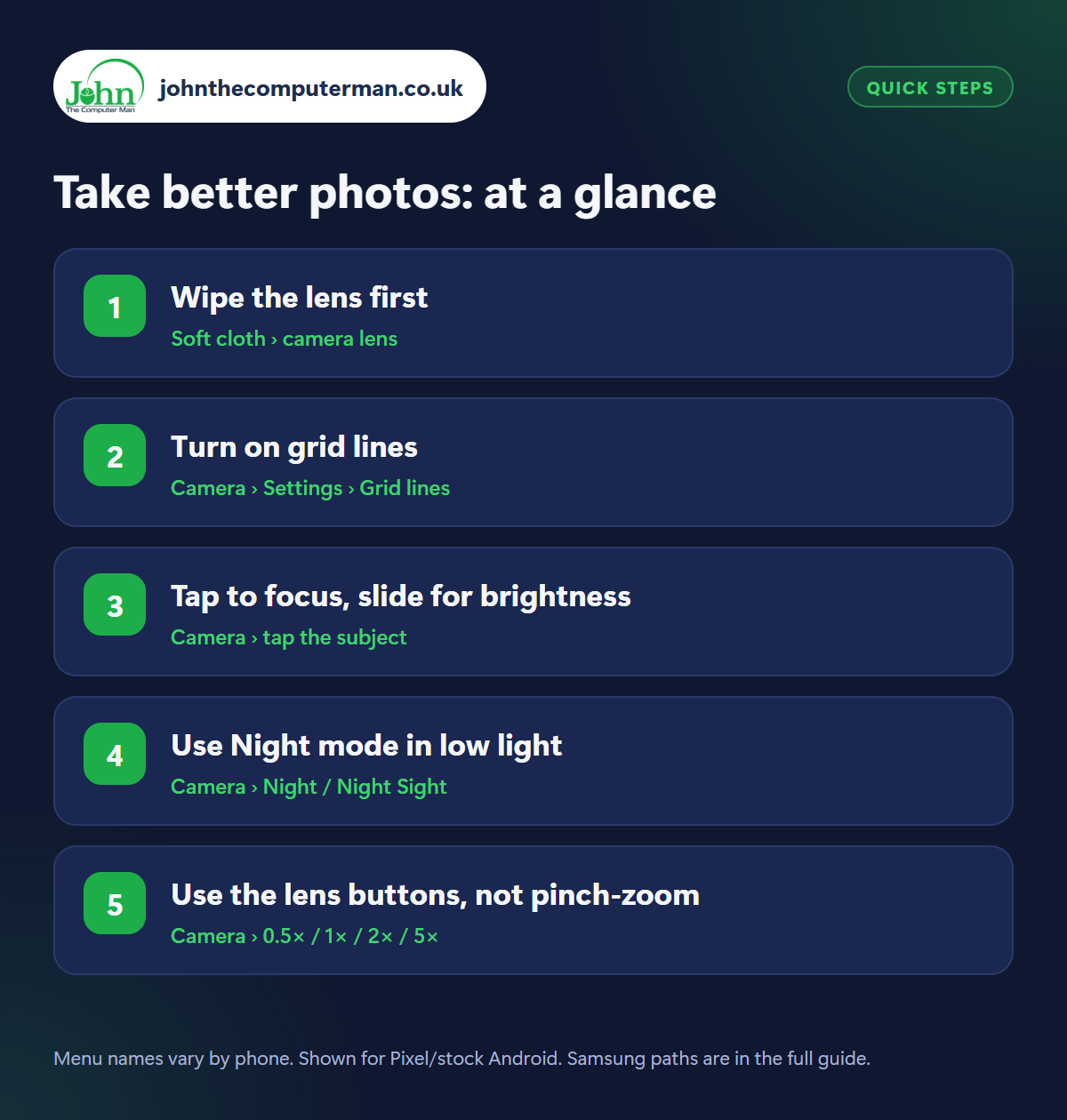
How to take better photos on Android
Step 1: Wipe the lens first
Where: Soft cloth › camera lens
Your phone spends its life in pockets, bags and hands, so the camera lens is nearly always covered in fingerprints. That grease is what causes hazy photos, streaky lights and a soft, foggy look. Before any photo that matters, give the lens a quick wipe with a soft cloth or a clean bit of cotton T-shirt. It's the single biggest improvement you can make, and it's free.
Step 2: Turn on grid lines
Where: Camera › Settings › Grid lines
Open your Camera app, tap the settings (gear) icon and turn on Grid lines (called Grid type on Pixel phones; choose 3 × 3). The faint lines help you keep the horizon straight and use the rule of thirds: place your subject where the lines cross rather than dead centre, and photos instantly look more balanced.
Step 3: Tap to focus, slide for brightness
Where: Camera › tap the subject
Don't let the camera guess. Tap on your subject on the screen to focus there. A brightness slider (or sun icon) appears: drag it to make the picture lighter or darker before you take it. This is the fix for faces that come out too dark against a bright window or sky. Press and hold to lock the focus if things keep shifting.
Step 4: Use Night mode in low light
Where: Camera › Night / Night Sight
In dim rooms, restaurants or at night, switch to Night mode (Night Sight on Pixel). The phone takes several shots over a few seconds and combines them, so hold it as still as you can until it finishes, or prop it against something. The results are far better than using the flash, which flattens faces and gives you red eyes and dark backgrounds.
Step 5: Use the lens buttons, not pinch-zoom
Where: Camera › 0.5× / 1× / 2× / 5×
The buttons above the shutter (0.5×, 1×, 2×, 3× or 5×) switch between your phone's real lenses, so the photo stays sharp. Pinching to zoom in between those steps just enlarges the picture and loses detail. If you can, walk closer instead of zooming. Use 0.5× for big groups, buildings and landscapes, and Portrait mode for people, which softly blurs the background.
Pro tip
💡 Press a volume button to take the photo instead of tapping the screen. It keeps the phone steadier, and it's much easier for selfies.
FAQ
Why are my photos blurry?
Usually a dirty lens, a moving hand or low light. Wipe the lens, hold the phone with both hands, and use Night mode when it's dim.
Should I use the flash?
Rarely. Night mode gives more natural results. Flash is only useful for filling in shadows on faces in bright sunlight.
Do I need a camera app from the Play Store?
No. Your phone's own camera app is tuned for its lenses and almost always gives the best results.
The bottom line
Wipe the lens, switch on grid lines and tap to focus. Those three habits alone will transform your photos, on whatever phone you already own.
More Android tutorials:
• How to Edit Photos on Android with Google Photos (Free)
• How to Use Split Screen on Android (and Other Multitasking Tricks)
• How to Use “Hey Google” Voice Commands on Android
• How to Use Split Screen on Android (and Other Multitasking Tricks)
• How to Use “Hey Google” Voice Commands on Android
Part of the android phone tutorials series on johnthecomputerman.co.uk. Follow @johnthecomputerman on Instagram for more Android tips. Steps were checked on current Android and Samsung One UI versions in September 2026; menu names can change with updates.
