Poor Mobile Signal on Android? 5 Fixes, Including Wi-Fi Calling
Calls that drop when you walk into the kitchen. Texts that arrive hours late. ‘No service’ in the one room where you need it.
Poor signal is sometimes down to where you live, but there's a lot you can do from your phone's settings, and one feature in particular fixes it for most people at home.
Before you start: Android menus vary a little between phone makers. The steps below use Google Pixel / standard Android names, with Samsung Galaxy differences noted. If you can't find a setting, tap the search bar at the top of Settings and type its name.
How to fix poor signal on Android
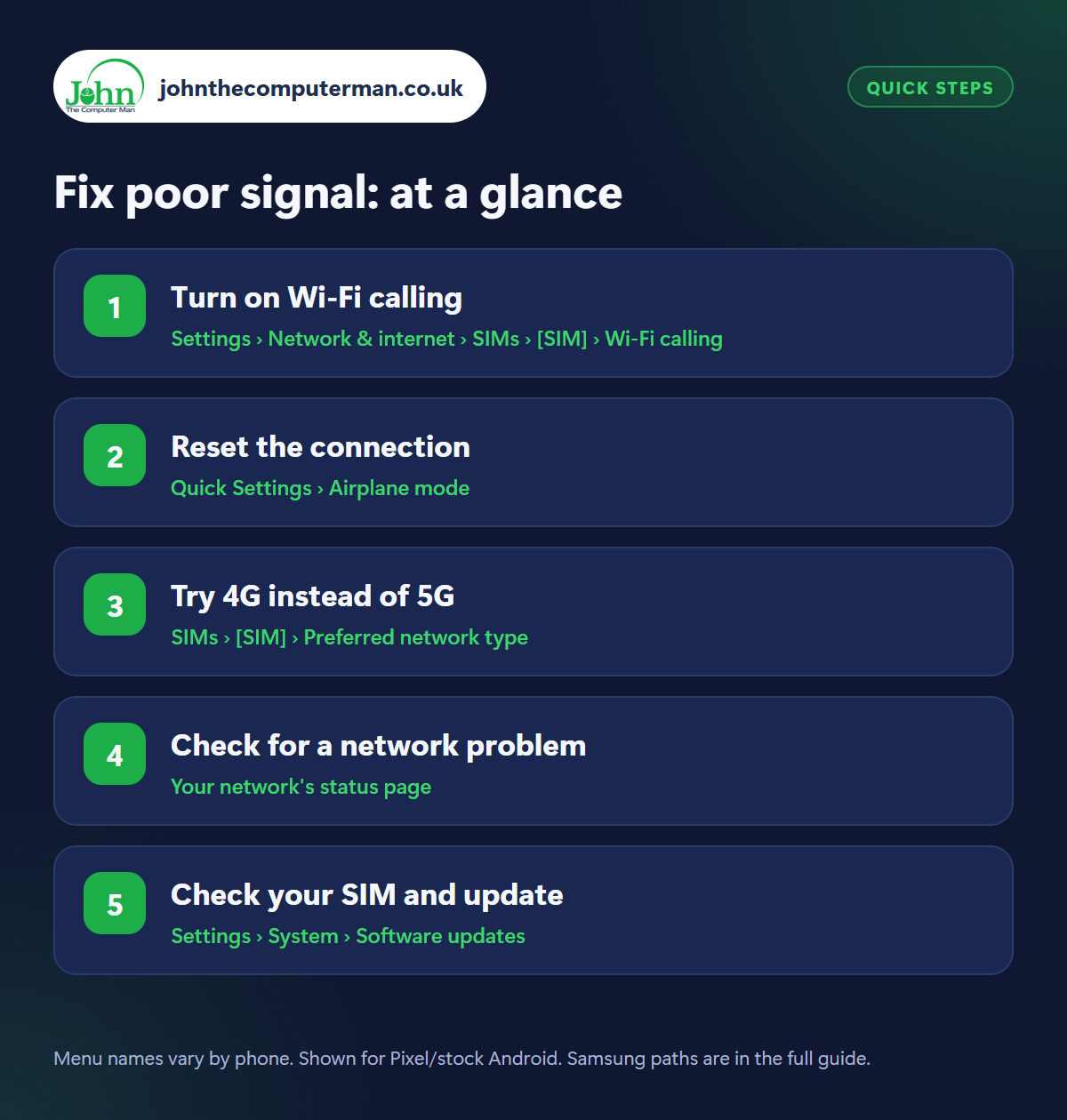
Step 1: Turn on Wi-Fi calling
Where: Settings › Network & internet › SIMs › [SIM] › Wi-Fi calling
Samsung: Settings › Connections › Wi-Fi Calling
Samsung: Settings › Connections › Wi-Fi Calling
Wi-Fi calling lets your phone make and receive normal calls and texts over Wi-Fi when the mobile signal is weak. Same number, no app needed, and calls come out of your usual allowance. Turn it on in Settings › Network & internet › SIMs › [your SIM] › Wi-Fi calling (Samsung: Settings › Connections › Wi-Fi Calling). All the main UK networks support it. If the option is missing, ask your network to enable it.
Step 2: Reset the connection
Where: Quick Settings › Airplane mode
Your phone can cling to a distant mast even when a better one is nearby. Swipe down, tap Airplane mode, wait 10 seconds, and tap it again. This forces the phone to search afresh and connect to the strongest signal. It's worth doing whenever you arrive somewhere new and the signal seems worse than it should be.
Step 3: Try 4G instead of 5G
Where: SIMs › [SIM] › Preferred network type
Samsung: Settings › Connections › Mobile networks › Network mode
Samsung: Settings › Connections › Mobile networks › Network mode
In areas where 5G is patchy, your phone can keep hopping between 5G and 4G, which causes dropped calls and drains the battery. Go to Settings › Network & internet › SIMs › [SIM] › Preferred network type (Samsung: Settings › Connections › Mobile networks › Network mode) and choose 4G/LTE. If things improve, leave it there. You can switch back any time.
Step 4: Check for a network problem
Where: Your network's status page
Sometimes it isn't you. All the main networks have a service status checker on their website where you enter your postcode to see reported faults and planned work on local masts. If other people on the same network nearby have the same problem, it's the network. Report it, as that's often what gets it fixed.
Step 5: Check your SIM and update
Where: Settings › System › Software updates
Switch the phone off, remove the SIM, wipe the gold contacts with a soft dry cloth and put it back. Then check Settings › System › Software updates, as updates often include network fixes. A SIM that's many years old can fail or lack support for newer network features, and networks will replace one free. If nothing helps, try Reset mobile network settings under Settings › System › Reset options.
Pro tip
💡 Thinking of switching network? Use Ofcom's online coverage checker to compare every network's signal at your home address first.
FAQ
Does Wi-Fi calling cost extra?
No. Calls and texts come out of your normal allowance, just as if you had a mobile signal.
Do signal booster apps work?
No. An app can't improve the signal your phone receives. Avoid them. Many are just full of adverts.
Why is my signal worse indoors?
Thick walls, foil-backed insulation and energy-efficient glass block mobile signal. Wi-Fi calling is the best fix at home.
The bottom line
Wi-Fi calling solves poor signal at home for most people in one switch. For everything else, the Airplane mode trick and a move to 4G are the quickest things to try.
More Android tutorials:
• 5 Chrome Tricks Every Android User Should Know
• How to Stop Pop-Up Ads on Your Android Phone
• Android Phone Getting Hot? 5 Ways to Cool It Down
• How to Stop Pop-Up Ads on Your Android Phone
• Android Phone Getting Hot? 5 Ways to Cool It Down
Part of the android phone tutorials series on johnthecomputerman.co.uk. Follow @johnthecomputerman on Instagram for more Android tips. Steps were checked on current Android and Samsung One UI versions in September 2026; menu names can change with updates.
