Android's Hearing Features: Live Caption, Live Transcribe and More
Whether you're hard of hearing, watching a video on a noisy train, or trying not to wake the baby, Android has some remarkable features that turn sound into text.
They're free, built in and private, as most of the work happens on your phone. Here are five worth knowing about, for yourself or for a relative.
Before you start: Android menus vary a little between phone makers. The steps below use Google Pixel / standard Android names, with Samsung Galaxy differences noted. If you can't find a setting, tap the search bar at the top of Settings and type its name.
How to hearing features on Android
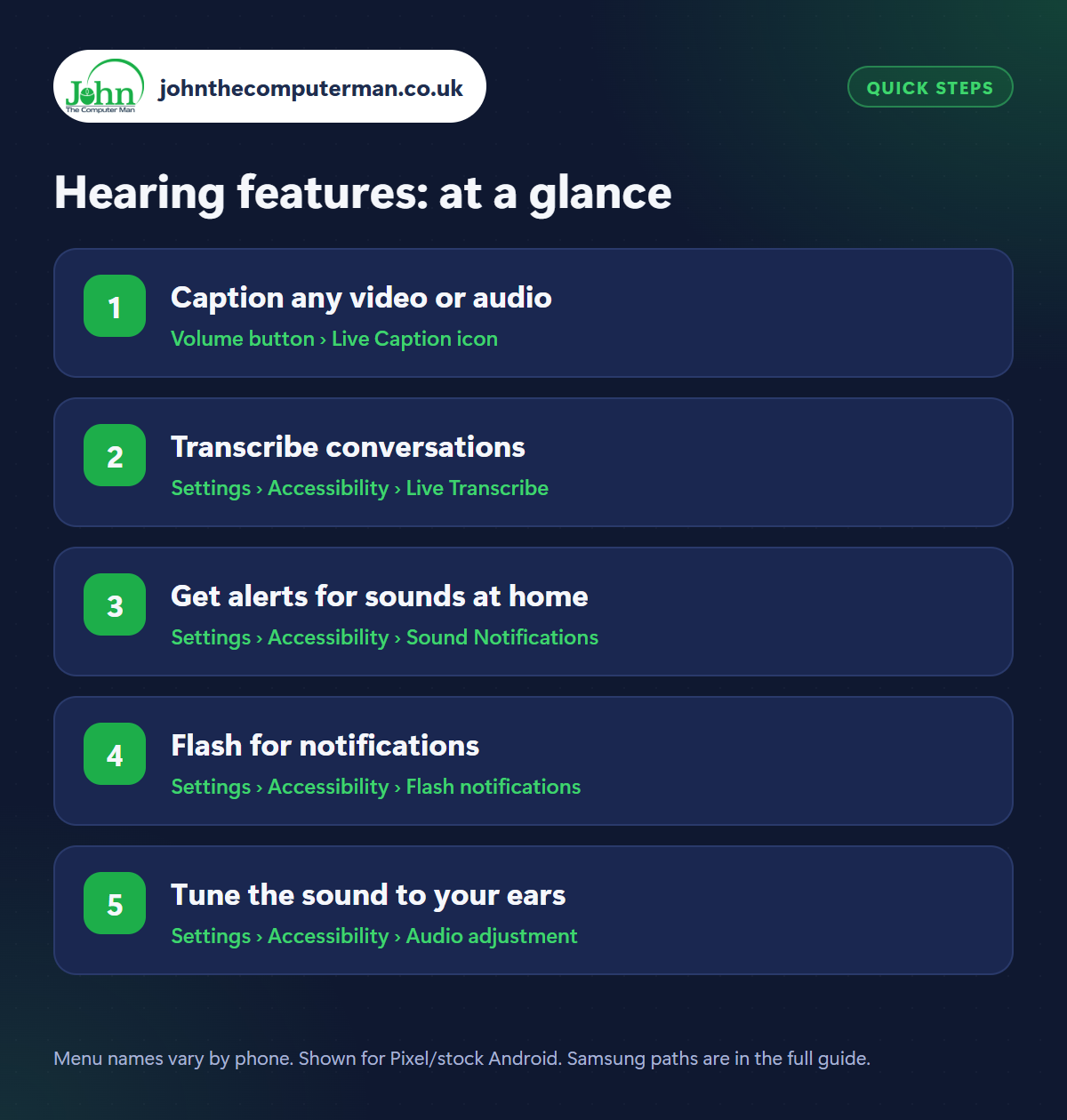
Step 1: Caption any video or audio
Where: Volume button › Live Caption icon
Samsung: Settings › Accessibility › Hearing enhancements › Live Caption
Samsung: Settings › Accessibility › Hearing enhancements › Live Caption
Live Caption adds subtitles to anything playing on your phone: videos, podcasts, voice notes, even ones with no subtitles of their own. Press a volume button and tap the Live Caption icon under the volume slider. Or turn it on in Settings › Sound & vibration › Live Caption (Samsung: Settings › Accessibility › Hearing enhancements). Drag the caption box anywhere on screen. On many phones it can caption phone calls too.
Step 2: Transcribe conversations
Where: Settings › Accessibility › Live Transcribe
Live Transcribe listens through your phone's microphone and shows what people are saying as text, in real time. It's superb for conversations in noisy places, appointments and family gatherings. Turn it on in Settings › Accessibility › Live Transcribe (install Live Transcribe & Notification from the Play Store if it's missing). It supports many languages and you can type replies for the other person to read.
Step 3: Get alerts for sounds at home
Where: Settings › Accessibility › Sound Notifications
Sound Notifications listens for important sounds and alerts you with a notification, a flash or a vibration (including on a smartwatch). It recognises smoke and fire alarms, doorbells, knocking, babies crying, dogs barking and appliances beeping. Turn it on in Settings › Accessibility › Sound Notifications and choose which sounds matter to you. Don't rely on it as your only smoke alarm alert.
Step 4: Flash for notifications
Where: Settings › Accessibility › Flash notifications
If you often miss calls and messages, turn on Flash notifications in Settings › Accessibility (Samsung: Accessibility › Advanced settings › Flash notification). Choose Camera flash, Screen flash, or both. The phone flashes when a notification or call comes in, so you can spot it across the room even with the sound off.
Step 5: Tune the sound to your ears
Where: Settings › Accessibility › Audio adjustment
In Settings › Accessibility › Audio adjustment (Samsung: Hearing enhancements) you can turn on Mono audio, which plays everything in both ears and is ideal if you hear better on one side, and move the balance left or right. Under Hearing devices you can pair compatible hearing aids so calls and music stream straight to them.
Pro tip
💡 Plug in headphones and try Sound Amplifier (in Accessibility). It boosts quiet voices and reduces background noise, like a simple hearing aid.
FAQ
Does Live Caption use the internet?
No. Captions are created on your phone, so it works offline and nothing you listen to is sent anywhere.
How accurate is Live Transcribe?
Very good with clear speech and reasonable background noise. It struggles with several people talking at once or strong accents in loud places.
Do these features drain the battery?
Live Caption and Live Transcribe use extra battery while they're running. Turn them off when you don't need them.
The bottom line
Live Caption is worth using even if your hearing is perfect. For anyone hard of hearing, Live Transcribe and Sound Notifications can be genuinely life-changing, and they're already on the phone.
More Android tutorials:
• How to Use Google Translate on Android: Camera, Conversation and Offline
• How to Set Up Android Auto in Your Car
• 5 Android Privacy Settings to Stop Apps Tracking You
• How to Set Up Android Auto in Your Car
• 5 Android Privacy Settings to Stop Apps Tracking You
Part of the android phone tutorials series on johnthecomputerman.co.uk. Follow @johnthecomputerman on Instagram for more Android tips. Steps were checked on current Android and Samsung One UI versions in September 2026; menu names can change with updates.
