How to Use Google Translate on Android: Camera, Conversation and Offline
A menu you can't read, a taxi driver who doesn't speak English, a sign that might say ‘no entry’. A few years ago you'd have needed a phrasebook and a lot of pointing.
The free Google Translate app handles all of it, and it works without a data connection if you prepare before you go. Here are the five features that make travelling so much easier.
Before you start: Android menus vary a little between phone makers. The steps below use Google Pixel / standard Android names, with Samsung Galaxy differences noted. If you can't find a setting, tap the search bar at the top of Settings and type its name.
How to translate anything on Android
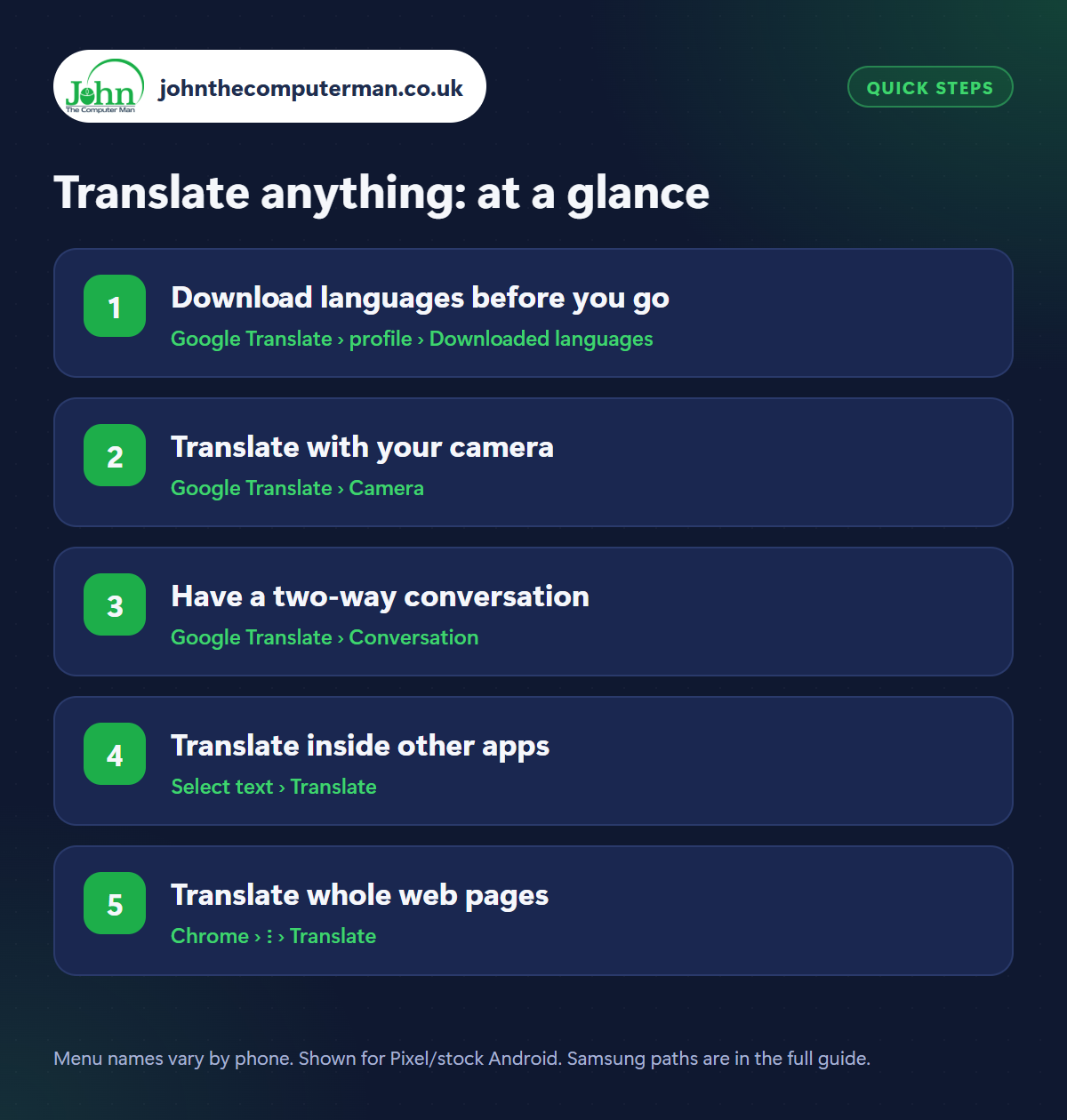
Step 1: Download languages before you go
Where: Google Translate › profile › Downloaded languages
Install Google Translate from the Play Store, then tap your profile picture › Downloaded languages and tap the download arrow next to the language you need. Each one is a small download. Do this on Wi-Fi before you travel. Translation then works with no signal and no roaming charges. Pair it with offline Google Maps.
Step 2: Translate with your camera
Where: Google Translate › Camera
Tap Camera and point your phone at a menu, sign, label or instruction leaflet. The foreign words are replaced with English on your screen, live. Tap the shutter to freeze the image so you can read it properly or select and copy particular bits. You can also translate text in photos already on your phone by tapping the gallery icon.
Step 3: Have a two-way conversation
Where: Google Translate › Conversation
Tap Conversation and choose the two languages. Speak, and the app shows and says your words aloud in the other language. When the other person replies, it translates back to you. Use the auto option so it listens for both languages without anyone pressing buttons. Hold the phone between you. It's ideal for taxis, pharmacies and asking for directions.
Step 4: Translate inside other apps
Where: Select text › Translate
You don't need to open the Translate app each time. In most apps, press and hold to select text, then tap Translate in the pop-up menu (you may need to tap the three dots to see it). The translation appears in a small panel over the top. It's handy for messages, emails and reviews written in another language.
Step 5: Translate whole web pages
Where: Chrome › ⋮ › Translate
When you open a foreign-language website in Chrome, a bar usually offers to translate it. If not, tap the three dots › Translate. The whole page changes to English and stays that way as you tap around the site. Useful for booking local restaurants, reading transport sites and checking opening times.
Pro tip
💡 Save key phrases before you travel: tap the star on a translation (like your allergy or hotel address) to find it instantly in your Saved list.
FAQ
Is Google Translate accurate?
It's very good for everyday phrases, signs and menus. For anything medical, legal or important, keep sentences short and simple, and double-check.
Does camera translation work offline?
Yes, for languages you've downloaded, though results are better with a connection.
Is Google Translate free?
Yes, completely, including offline languages, camera and conversation modes.
The bottom line
Download the language before you leave and you've got a translator in your pocket that works anywhere. The camera feature alone makes foreign menus and signs a non-issue.
More Android tutorials:
• How to Set Up Android Auto in Your Car
• 5 Android Privacy Settings to Stop Apps Tracking You
• Android Quick Settings and Gestures: 5 Shortcuts to Learn
• 5 Android Privacy Settings to Stop Apps Tracking You
• Android Quick Settings and Gestures: 5 Shortcuts to Learn
Part of the android phone tutorials series on johnthecomputerman.co.uk. Follow @johnthecomputerman on Instagram for more Android tips. Steps were checked on current Android and Samsung One UI versions in September 2026; menu names can change with updates.
