How to Set Up Android Auto in Your Car
Balancing your phone on the dashboard to follow directions isn't safe, and in the UK it can land you a fine and points on your licence.
Android Auto puts a simplified version of your phone on your car's built-in screen: Google Maps, Waze, Spotify, calls and messages, all controlled by voice or the car's own buttons. Most cars made in the last few years support it. Here's how to get going.
Before you start: Android menus vary a little between phone makers. The steps below use Google Pixel / standard Android names, with Samsung Galaxy differences noted. If you can't find a setting, tap the search bar at the top of Settings and type its name.
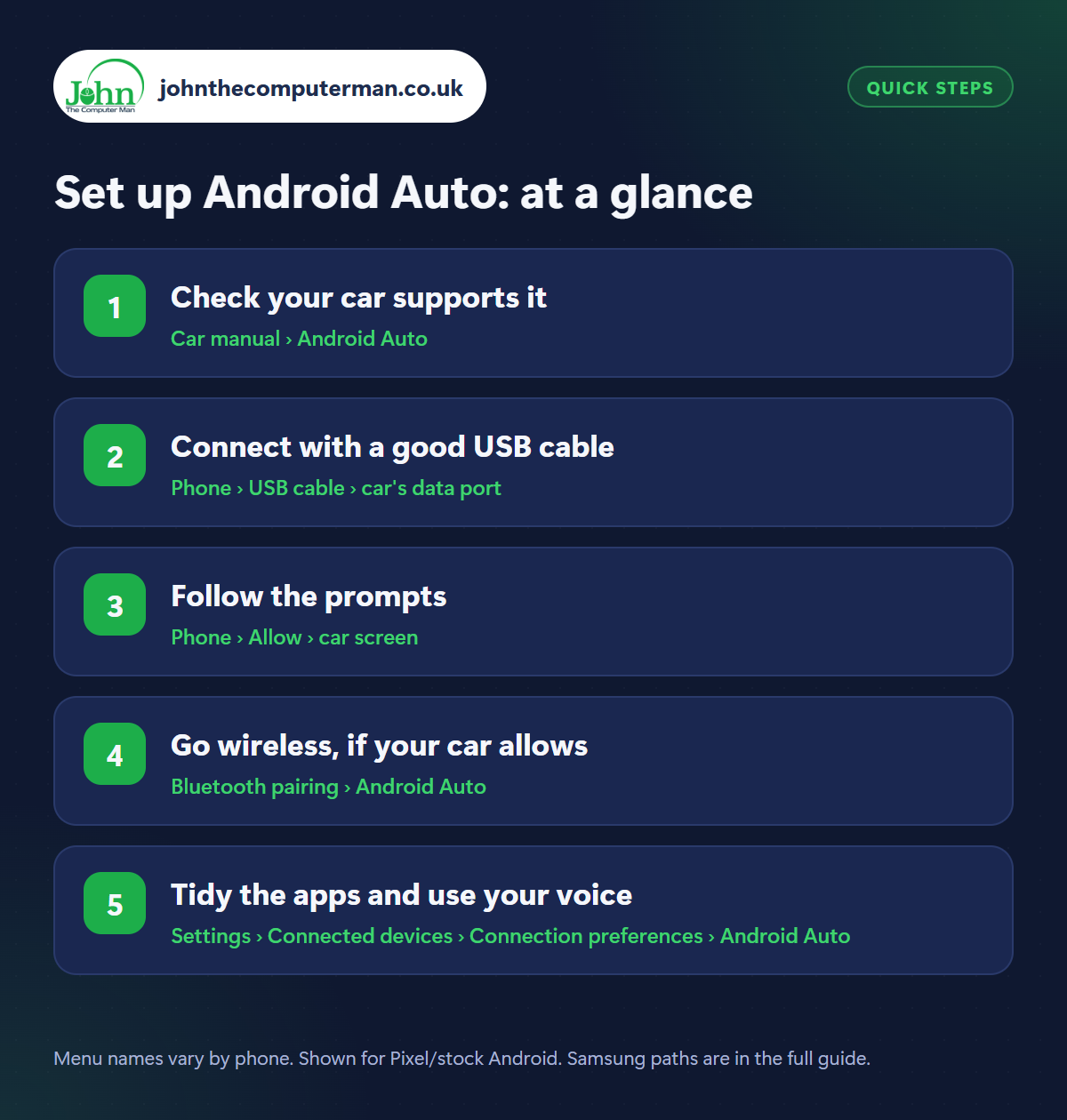
How to set up Android Auto on Android
Step 1: Check your car supports it
Where: Car manual › Android Auto
Android Auto is built into Android phones. There's no app to install. What you need is a car (or aftermarket stereo) that supports it. Look for an Android Auto or phone projection option in the car's screen menus, or check the manual. You may need to switch it on in the car's settings first. Park somewhere safe with the engine running to set it up.
Step 2: Connect with a good USB cable
Where: Phone › USB cable › car's data port
For the first setup, plug your phone into the car's USB port with a good-quality cable, ideally the one that came with your phone and under a metre long. Many cars have more than one USB port, and only one carries data: it's usually marked with a phone or USB symbol. If nothing happens, try the other port or another cable.
Step 3: Follow the prompts
Where: Phone › Allow › car screen
Unlock your phone and follow the prompts on both the phone and the car's screen. Allow the permissions it asks for (contacts, messages, location and so on). It needs these to make calls, read messages aloud and navigate. After a minute or so, Android Auto appears on the car's display with Maps, your music and phone apps.
Step 4: Go wireless, if your car allows
Where: Bluetooth pairing › Android Auto
Many newer cars support wireless Android Auto. After setting up by cable, or by pairing your phone to the car by Bluetooth, the car offers to connect wirelessly. From then on it starts automatically when you get in, with the phone still in your pocket. It uses more battery, so keep a charger handy on long drives. Older cars can be upgraded with a small wireless adapter.
Step 5: Tidy the apps and use your voice
Where: Settings › Connected devices › Connection preferences › Android Auto
Samsung: Settings › Connected devices › Android Auto
Samsung: Settings › Connected devices › Android Auto
On your phone, open Settings › Connected devices › Connection preferences › Android Auto (or search Settings for ‘Android Auto’) and tap Customise launcher to hide apps you don't use in the car and reorder the rest. While driving, say “Hey Google, navigate to…”, “play…” or “call…”, or press the voice button on the steering wheel. Incoming messages are read aloud and you can reply by voice.
Pro tip
💡 Android Auto keeps disconnecting? Nine times out of ten it's the cable. Swap it for a short, good-quality one before trying anything else.
FAQ
Is Android Auto free?
Yes. It's built into Android. Navigation and music streaming use your mobile data, though, so download maps and playlists if your allowance is small.
My car doesn't have Android Auto. What can I do?
Use Google Maps' driving mode with a proper phone mount, or fit an aftermarket stereo that supports Android Auto.
Can passengers watch videos on it?
No. For safety, Android Auto only shows apps designed for driving while the car is moving.
The bottom line
Android Auto makes driving safer and far less fiddly. Use a decent cable for the first setup, go wireless if your car supports it, and let your voice do the rest.
More Android tutorials:
• 5 Android Privacy Settings to Stop Apps Tracking You
• Android Quick Settings and Gestures: 5 Shortcuts to Learn
• How to Connect Bluetooth Headphones, Speakers and Cars to Android
• Android Quick Settings and Gestures: 5 Shortcuts to Learn
• How to Connect Bluetooth Headphones, Speakers and Cars to Android
Part of the android phone tutorials series on johnthecomputerman.co.uk. Follow @johnthecomputerman on Instagram for more Android tips. Steps were checked on current Android and Samsung One UI versions in September 2026; menu names can change with updates.
