Android Speaker Too Quiet or Muffled? 5 Fixes
Callers sound far away. Videos are barely audible at full volume. Music has gone tinny or crackly. It's easy to assume the speaker has died.
Usually it hasn't. The cause is far more often a setting, a Bluetooth device you forgot about, or a grille packed with pocket fluff. Work through these five checks first.
Before you start: Android menus vary a little between phone makers. The steps below use Google Pixel / standard Android names, with Samsung Galaxy differences noted. If you can't find a setting, tap the search bar at the top of Settings and type its name.
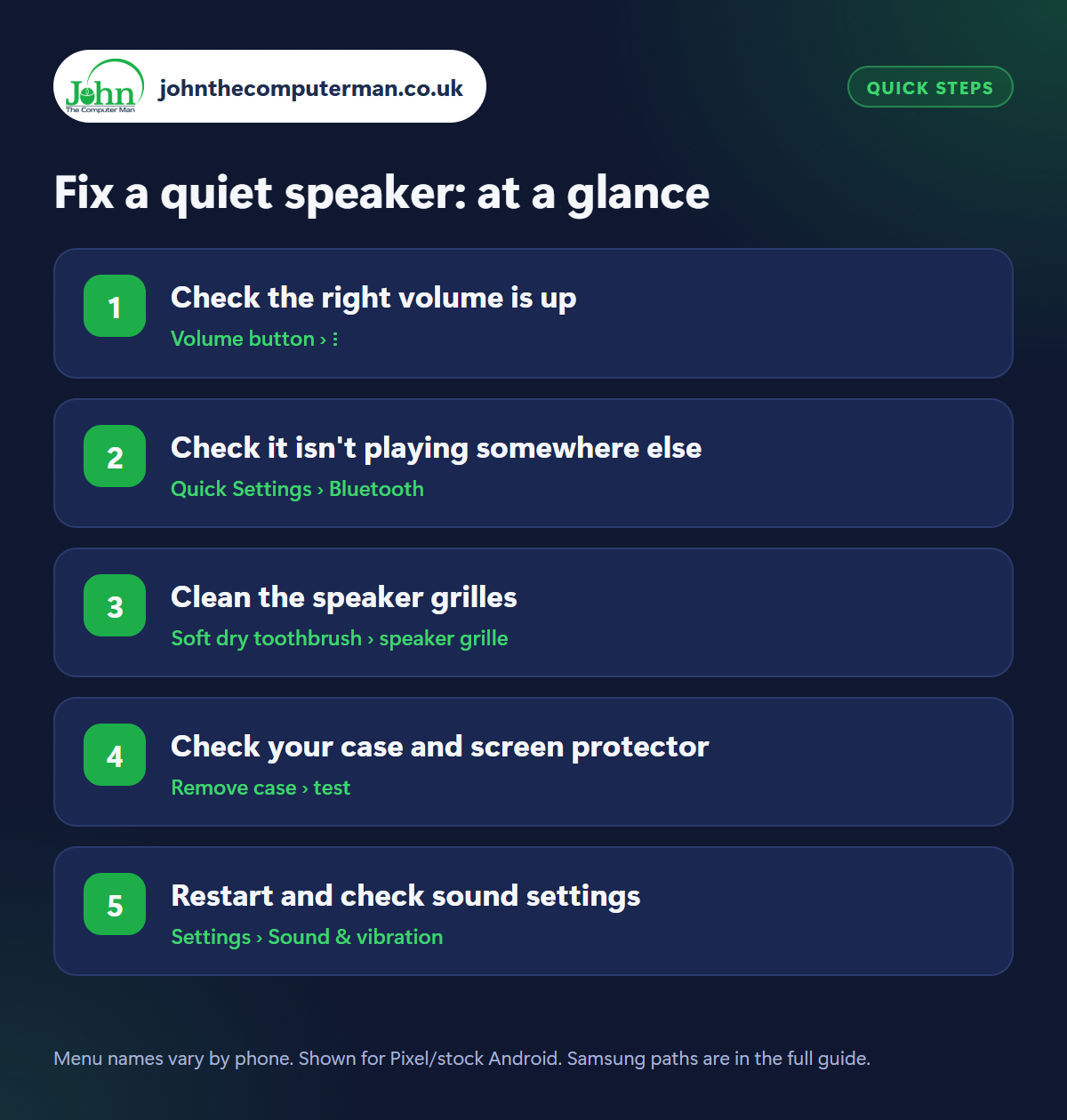
How to fix a quiet speaker on Android
Step 1: Check the right volume is up
Where: Volume button › ⋮
Android has separate volume levels for Media, Call, Ring, Notifications and Alarm. Press a volume button, tap the three dots and check them all. To make callers louder, press Volume Up during a call, as call volume can only be changed while you're on one. Check Do Not Disturb is off as well.
Step 2: Check it isn't playing somewhere else
Where: Quick Settings › Bluetooth
A very common cause of ‘no sound’ is that it's playing through a Bluetooth device, such as earbuds in a drawer, a speaker in another room or the car on the drive. Swipe down and turn Bluetooth off to test. If sound comes back, that was it. Press a volume button and tap the output name to choose where sound goes in future.
Step 3: Clean the speaker grilles
Where: Soft dry toothbrush › speaker grille
The speaker holes at the bottom of the phone and the earpiece slot at the top collect dust, fluff and grime, which muffles everything. Switch the phone off and brush them gently with a clean, dry, soft toothbrush, or press and lift with a small piece of Blu Tack. Don't poke with pins or needles. The mesh behind is delicate, and you'll push dirt further in.
Step 4: Check your case and screen protector
Where: Remove case › test
Take the case off and try again. Cheap or badly aligned cases can cover the speaker or microphone holes. Check your screen protector isn't covering the earpiece at the top of the screen. That's a classic cause of quiet calls. If the phone recently got wet, the speaker will sound muffled until it dries fully, which can take a day or two.
Step 5: Restart and check sound settings
Where: Settings › Sound & vibration
Restart the phone to clear any glitch. Then look in Settings › Sound & vibration for anything that's been changed. On Samsung, check Volume › three dots › Media volume limit isn't on, and look at Sound quality and effects for an equaliser set oddly. Try a different app, as the problem may be one app's own volume. Still bad in Safe mode? It's likely a hardware fault.
Pro tip
💡 Callers say they can't hear you? That's the microphone. Check the tiny hole at the bottom of the phone isn't blocked by the case or fluff.
FAQ
Why is the sound fine on headphones but not the speaker?
That points to the speaker itself: a blocked grille, water inside or a failed speaker. Clean it and let it dry before assuming the worst.
Do volume booster apps work?
They can make sound louder by distorting it, which risks damaging the speaker. They're usually full of adverts too. Best avoided.
Is a phone speaker expensive to replace?
Usually not. It's one of the cheaper repairs, and a decent repair shop can often do it the same day.
The bottom line
Check the volume sliders and switch Bluetooth off before anything else. Then give the grilles a gentle brush. Between them, those three sort out the great majority of quiet phones.
More Android tutorials:
• Android GPS Not Accurate? 5 Ways to Fix Your Location
• How to Customise Your Android Lock Screen
• How to Clean Your Phone Safely (Screen, Ports, Speakers and Case)
• How to Customise Your Android Lock Screen
• How to Clean Your Phone Safely (Screen, Ports, Speakers and Case)
Part of the android phone tutorials series on johnthecomputerman.co.uk. Follow @johnthecomputerman on Instagram for more Android tips. Steps were checked on current Android and Samsung One UI versions in September 2026; menu names can change with updates.
