Android Touchscreen Not Responding? 5 Fixes to Try
You tap and nothing happens. Or the screen reacts in the wrong place, or starts pressing things by itself. A misbehaving touchscreen makes a phone almost unusable.
Before assuming the screen is broken, work through these. A surprising number of touch problems are caused by software, a screen protector or even the charger.
Before you start: Android menus vary a little between phone makers. The steps below use Google Pixel / standard Android names, with Samsung Galaxy differences noted. If you can't find a setting, tap the search bar at the top of Settings and type its name.
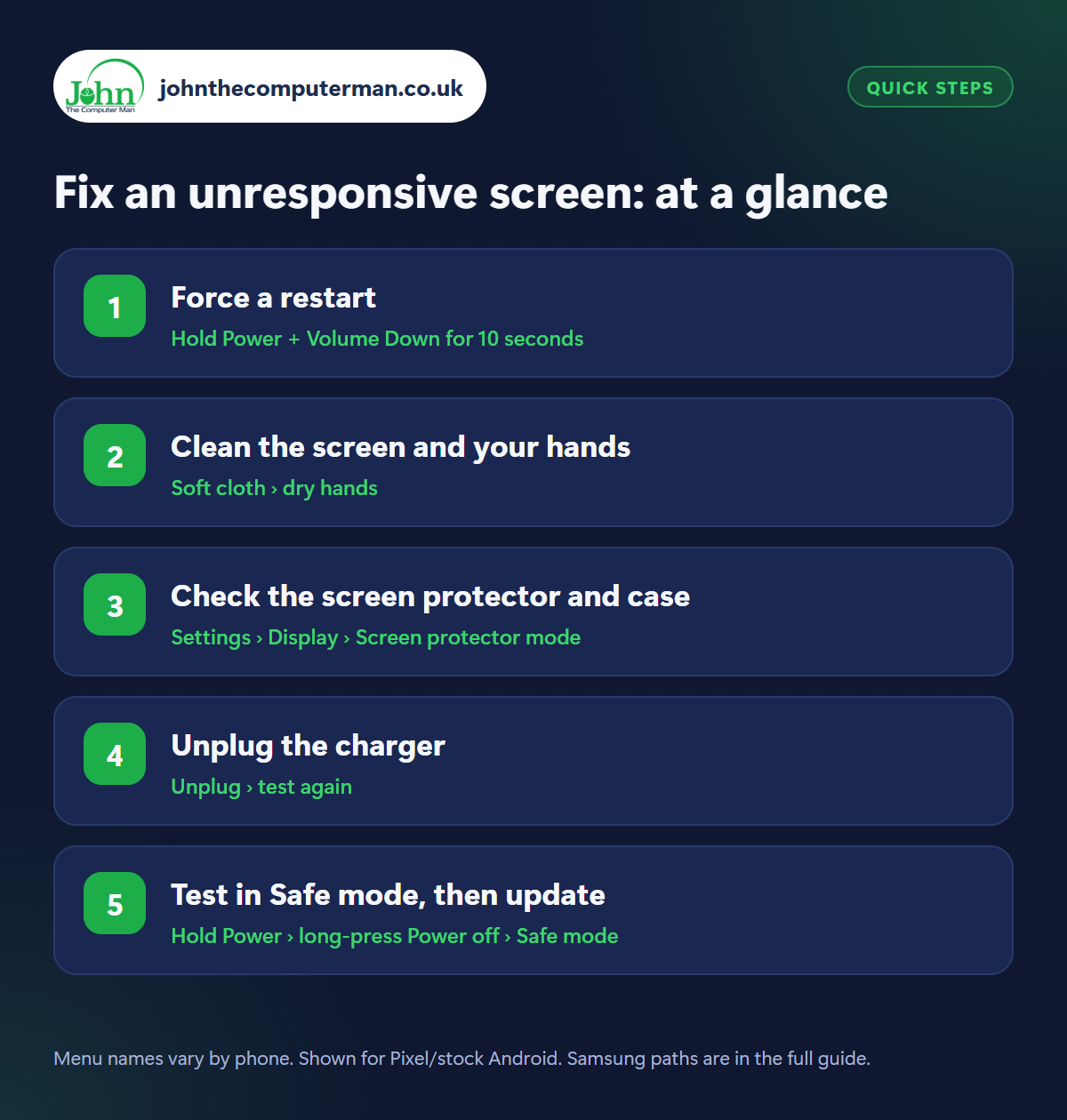
How to fix an unresponsive screen on Android
Step 1: Force a restart
Where: Hold Power + Volume Down for 10 seconds
If the screen won't respond at all, you can't tap ‘Restart’, so use the buttons. On most phones, including Samsung, hold Power and Volume Down together for 10 to 15 seconds until the screen goes black and the logo appears. On Pixel phones, hold Power and Volume Up (or just Power on older models) for up to 30 seconds. This is safe and doesn't delete anything.
Step 2: Clean the screen and your hands
Where: Soft cloth › dry hands
Touchscreens detect the tiny electrical charge in your fingertip, and water, sweat, grease and hand cream get in the way. Wipe the screen with a soft, slightly damp cloth, then dry it, and dry your hands. Screens also struggle in rain and with very cold or dry fingers. If it only misbehaves in those conditions, the phone is fine.
Step 3: Check the screen protector and case
Where: Settings › Display › Screen protector mode
Samsung: Settings › Display › Touch sensitivity
Samsung: Settings › Display › Touch sensitivity
A thick, cheap or badly fitted screen protector is a very common cause, especially if it has air bubbles or is lifting at the edges. Turn on Screen protector mode in Settings › Display (Samsung: Touch sensitivity), which makes the screen more responsive through glass. If that doesn't help, peel the protector off to test. A tight case pressing on the screen edges can cause phantom touches too.
Step 4: Unplug the charger
Where: Unplug › test again
If the screen goes haywire only while charging (tapping by itself, jumping about or ignoring you), the charger or cable is almost certainly the cause. Poor-quality chargers put electrical noise onto the screen. Unplug it and see if the problem stops. If it does, replace the charger and cable with good-quality ones. See our guide to charging problems.
Step 5: Test in Safe mode, then update
Where: Hold Power › long-press Power off › Safe mode
Restart in Safe mode: hold Power, then long-press Power off and tap OK. This switches off every app you've installed. If touch behaves normally there, an app is to blame. Uninstall recent ones, especially anything that draws over the screen. Then check Settings › System › Software updates. If it still fails in Safe mode, or the screen is cracked, it needs a repair.
Pro tip
💡 Samsung owners can test every part of the screen: open Samsung Members › Support › Phone diagnostics › Touch screen and drag your finger over each square.
FAQ
What are ghost touches?
The screen registering taps you didn't make. Common causes are a faulty charger, moisture, a damaged screen protector or, less often, a failing screen.
Can a cracked screen stop touch working?
Yes. Even a hairline crack can damage the touch layer. It often gets worse over time, so back up while you still can.
How do I back up if the screen doesn't work?
If backup was already on, your data is safe in your Google account. You can also plug in a USB mouse with a USB-C adapter to control the phone.
The bottom line
Force a restart, wipe the screen and unplug the charger. Those three sort most touch problems. If it still plays up in Safe mode, it's time for a repair shop, and a backup first.
More Android tutorials:
• Android Phone Frozen or Won't Turn On? 5 Things to Try
• 5 Google Maps Tricks Every Android User Should Know
• How to Avoid Being Locked Out of Your Google Account
• 5 Google Maps Tricks Every Android User Should Know
• How to Avoid Being Locked Out of Your Google Account
Part of the android phone tutorials series on johnthecomputerman.co.uk. Follow @johnthecomputerman on Instagram for more Android tips. Steps were checked on current Android and Samsung One UI versions in September 2026; menu names can change with updates.
