Android Phone Frozen or Won't Turn On? 5 Things to Try
You press the power button and nothing happens. Or the phone is stuck on one screen and ignores everything you do. It feels like a disaster.
Very often it isn't. A phone that seems dead is frequently just frozen, or completely out of battery. Try these five steps in order before you assume the worst.
Before you start: Android menus vary a little between phone makers. The steps below use Google Pixel / standard Android names, with Samsung Galaxy differences noted. If you can't find a setting, tap the search bar at the top of Settings and type its name.
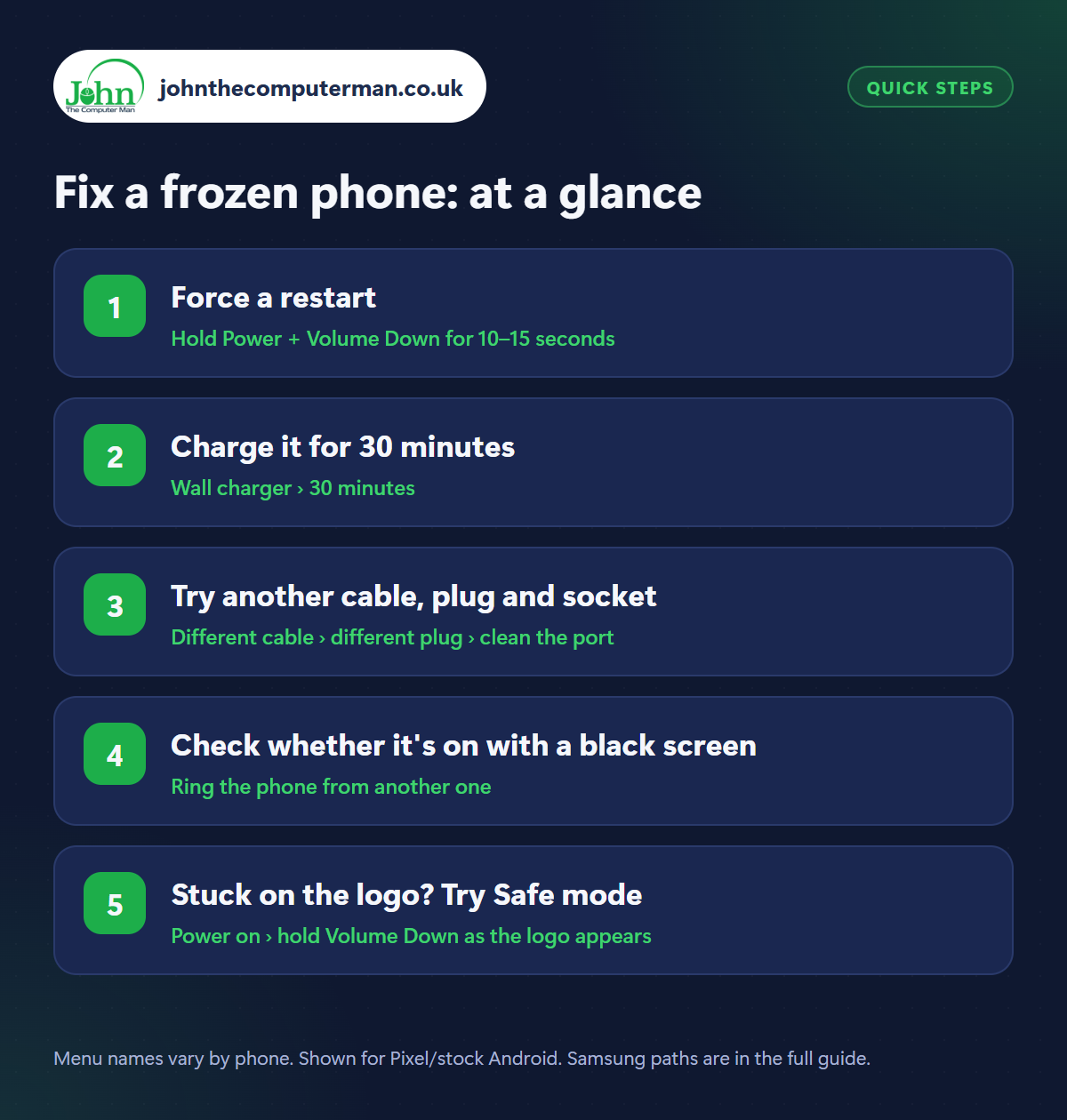
How to fix a frozen phone on Android
Step 1: Force a restart
Where: Hold Power + Volume Down for 10–15 seconds
A frozen phone can look exactly like a dead one. Hold Power and Volume Down together for 10 to 15 seconds (on Pixel phones, Power and Volume Up, or Power alone for up to 30 seconds). Keep holding even if nothing seems to happen. If the logo appears, it was just frozen. This is a forced restart. It's safe and doesn't delete anything.
Step 2: Charge it for 30 minutes
Where: Wall charger › 30 minutes
When a battery is completely empty, the phone may show nothing at all for several minutes after you plug it in. Use a wall charger (not a laptop port or a wireless pad) and leave it for at least 30 minutes. Look for a battery icon or a light. Then try the forced restart again while it's still plugged in.
Step 3: Try another cable, plug and socket
Where: Different cable › different plug › clean the port
If nothing appears, the charger may be the real problem. Try a different cable, a different plug and a different wall socket. Shine a torch into the phone's charging port. Pocket fluff can stop the cable connecting. With the phone off, ease it out gently with a wooden toothpick. More in our guide to charging problems.
Step 4: Check whether it's on with a black screen
Where: Ring the phone from another one
Sometimes the phone is working but the screen isn't. Ring it from another phone. If you hear it ring, feel it vibrate, or it makes a sound when you plug it in, the phone is alive and the display has failed, often after a drop. That needs a screen repair, but your data is safe and anything already backed up to Google is fine.
Step 5: Stuck on the logo? Try Safe mode
Where: Power on › hold Volume Down as the logo appears
If the phone starts but gets stuck on the logo or keeps restarting, try Safe mode: switch it on and hold Volume Down as soon as the logo appears, until the home screen loads with ‘Safe mode’ in the corner. If it works, uninstall recent apps, free up some storage and install updates. If it won't start even then, it's time for the manufacturer or a repair shop.
Pro tip
💡 Just one app frozen, not the whole phone? Give it ten seconds, then swipe up to the home screen. No need to restart everything.
FAQ
Will a forced restart delete my data?
No. It's the same as switching off and on again. Only a factory reset deletes data.
Why does my phone keep freezing?
Usually it's almost out of storage, overheating, or one misbehaving app. Keep at least 10% of storage free and update your apps.
Is it worth repairing an older phone?
If it still gets security updates and the repair costs well under half the price of a replacement, usually yes.
The bottom line
The forced restart and a proper 30-minute charge revive most ‘dead’ phones. Learn the button combination for your phone now. One day you'll need it.
More Android tutorials:
• 5 Google Maps Tricks Every Android User Should Know
• How to Avoid Being Locked Out of Your Google Account
• How to Tell If an Android App Is Safe Before You Install It
• How to Avoid Being Locked Out of Your Google Account
• How to Tell If an Android App Is Safe Before You Install It
Part of the android phone tutorials series on johnthecomputerman.co.uk. Follow @johnthecomputerman on Instagram for more Android tips. Steps were checked on current Android and Samsung One UI versions in September 2026; menu names can change with updates.
