How to Transfer Photos from Android to a Computer with a USB Cable
Cloud backup is brilliant, but sometimes you just want your photos on your own computer: to free up the phone, to make a photo book, or to keep a copy that doesn't depend on any subscription.
The simplest way is still a USB cable. It's quick, it works without the internet, and it copies photos at full quality. Here's how.
Before you start: Android menus vary a little between phone makers. The steps below use Google Pixel / standard Android names, with Samsung Galaxy differences noted. If you can't find a setting, tap the search bar at the top of Settings and type its name.
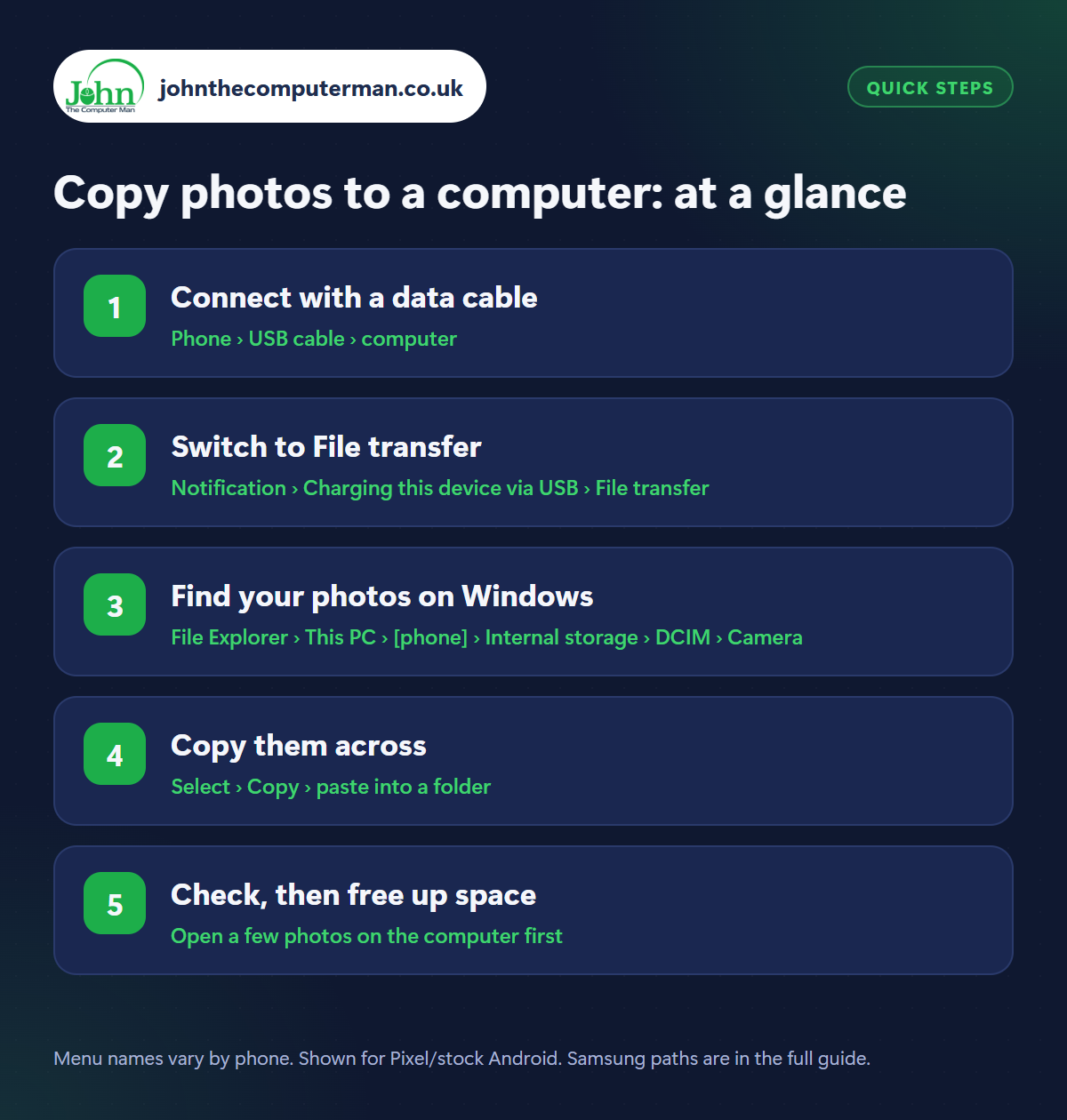
How to copy photos to a computer on Android
Step 1: Connect with a data cable
Where: Phone › USB cable › computer
Plug your phone into the computer with a USB cable and unlock the phone. Use the cable that came with the phone if you can. Some cheap cables are charge-only and can't carry data, which is the most common reason this doesn't work. If your computer only has the older rectangular USB ports, you'll need a USB-C to USB-A cable.
Step 2: Switch to File transfer
Where: Notification › Charging this device via USB › File transfer
By default, plugging in only charges the phone. Swipe down from the top, tap the notification that says Charging this device via USB, and choose File transfer (sometimes called Transferring files or MTP). You may also need to tap Allow on a prompt asking whether to let the computer access your data. You'll need to do this each time you connect.
Step 3: Find your photos on Windows
Where: File Explorer › This PC › [phone] › Internal storage › DCIM › Camera
On Windows, open File Explorer and click This PC. Your phone appears by name. Open it, then Internal storage › DCIM › Camera. That's where the camera saves photos and videos. Other pictures live elsewhere: Pictures › Screenshots, Download, and for WhatsApp, Android › media › com.whatsapp › WhatsApp › Media.
Step 4: Copy them across
Where: Select › Copy › paste into a folder
Select the photos you want (Ctrl + A selects everything), right-click and choose Copy, then paste them into a folder in Pictures on your computer. Alternatively, open the Windows Photos app and click Import › From a connected device to bring in everything new and sort it by date. Large collections take a while. Leave the phone unlocked and don't unplug it.
Step 5: Check, then free up space
Where: Open a few photos on the computer first
Before deleting anything from the phone, open several photos and a video on the computer to make sure they copied properly. Then eject the phone from the taskbar and unplug it. If you want the space back, delete the originals in your phone's gallery, though it's wise to keep a second copy somewhere, such as Google Photos backup or an external drive.
Pro tip
💡 On a Mac, Android phones don't show up in Finder. Use a free app such as OpenMTP, or simply download your photos from photos.google.com.
FAQ
My computer doesn't see my phone. Why?
Usually the phone is locked, still set to ‘charging only’, or the cable is charge-only. Unlock it, choose File transfer and try another cable.
Can I transfer without a cable?
Yes. Use Quick Share for Windows or Phone Link. See our guides to Quick Share and connecting your phone to a Windows PC.
Does copying reduce photo quality?
No. A USB copy transfers the original files at full quality, unlike sending them through messaging apps.
The bottom line
A good cable and remembering to tap ‘File transfer’ are the two things that matter. After that it's just copy and paste, and your photos are safely on your own computer.
More Android tutorials:
• Is Your Android Phone Still Getting Updates? How to Check
• Android Speaker Too Quiet or Muffled? 5 Fixes
• Android GPS Not Accurate? 5 Ways to Fix Your Location
• Android Speaker Too Quiet or Muffled? 5 Fixes
• Android GPS Not Accurate? 5 Ways to Fix Your Location
Part of the android phone tutorials series on johnthecomputerman.co.uk. Follow @johnthecomputerman on Instagram for more Android tips. Steps were checked on current Android and Samsung One UI versions in September 2026; menu names can change with updates.
