How to Keep Your Android Phone Unlocked at Home with Extend Unlock
A strong screen lock is essential. Typing it in forty times a day on your own sofa is tedious, and it's the reason some people give up and use a weak PIN, or none at all.
Extend Unlock (it used to be called Smart Lock) is the answer. Your phone stays unlocked in situations you trust and locks itself as normal everywhere else. Here's how to use it sensibly.
Before you start: Android menus vary a little between phone makers. The steps below use Google Pixel / standard Android names, with Samsung Galaxy differences noted. If you can't find a setting, tap the search bar at the top of Settings and type its name.
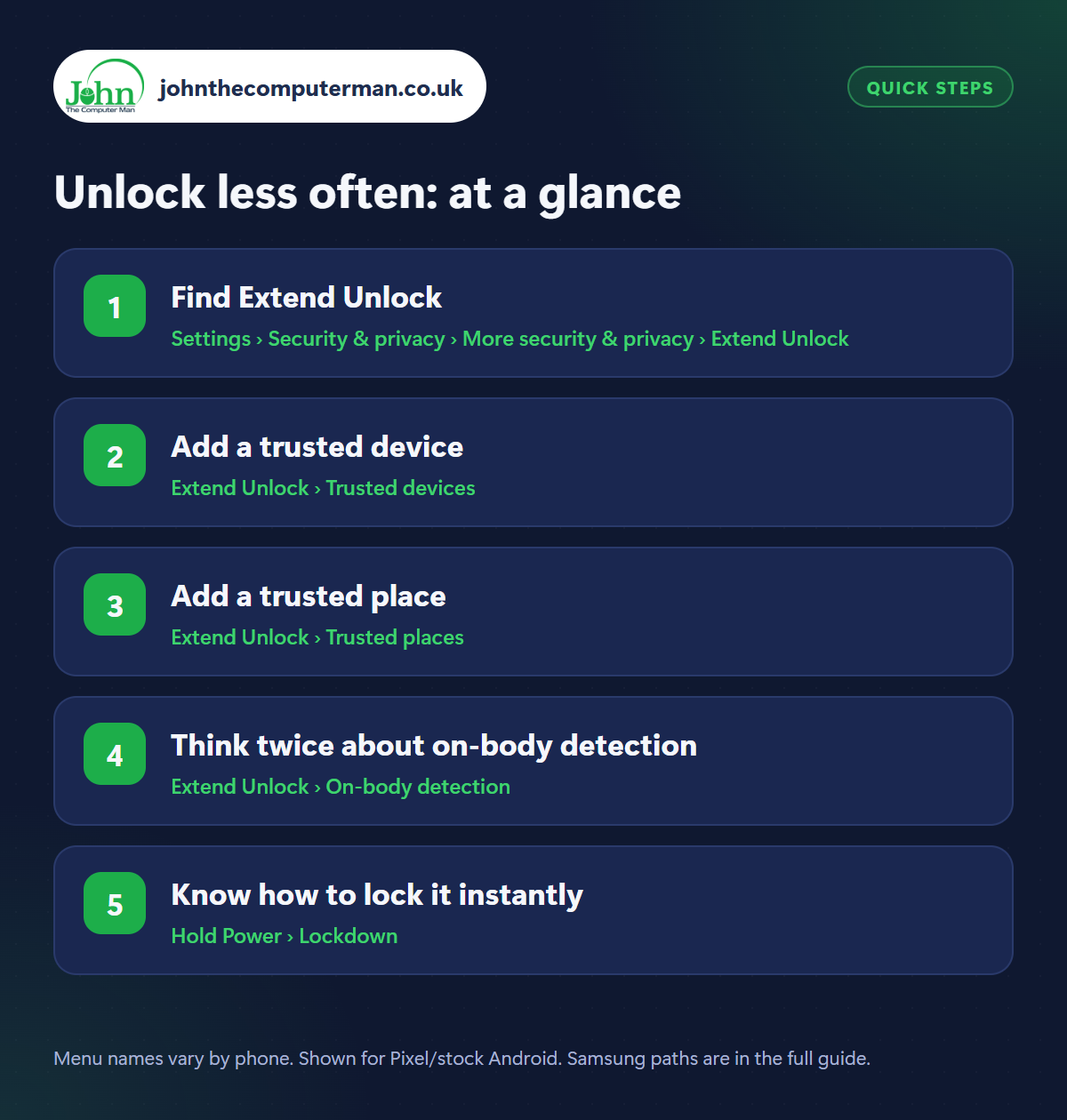
How to unlock less often on Android
Step 1: Find Extend Unlock
Where: Settings › Security & privacy › More security & privacy › Extend Unlock
Samsung: Settings › Lock screen and AOD › Extend Unlock
Samsung: Settings › Lock screen and AOD › Extend Unlock
Go to Settings › Security & privacy › More security & privacy › Extend Unlock (Samsung: Settings › Lock screen and AOD › Extend Unlock), or just search Settings for ‘Extend Unlock’. You need a screen lock set up first, and you'll be asked for your PIN to get in. You'll see three options, which you can use on their own or together.
Step 2: Add a trusted device
Where: Extend Unlock › Trusted devices
Tap Trusted devices › Add trusted device and choose a Bluetooth device you've already paired, such as your smartwatch or your car. While your phone is connected to it, it stays unlocked. Walk away from the watch or the car and it locks again. Choose something that's always with you. A Bluetooth speaker that stays at home is a poor choice.
Step 3: Add a trusted place
Where: Extend Unlock › Trusted places
Tap Trusted places › Add trusted place and choose your home. Your phone then stays unlocked while you're there. Bear in mind location isn't precise. The trusted area can stretch beyond your walls, and anyone in your home can open your phone. That's fine if you live alone, but less so in a shared house or with curious children.
Step 4: Think twice about on-body detection
Where: Extend Unlock › On-body detection
On-body detection keeps your phone unlocked after you've unlocked it once, for as long as it senses it's being carried in a hand, pocket or bag. The catch: it can't tell who is carrying it. If someone snatches your phone while it's unlocked, it stays unlocked. For most people this one is best left off.
Step 5: Know how to lock it instantly
Where: Hold Power › Lockdown
Lockdown instantly locks your phone and switches off fingerprint, face unlock and Extend Unlock until you enter your PIN. Open the power menu (hold Power, or Power + Volume Up) and tap Lockdown. If it isn't there, turn it on in Settings › Display › Lock screen › Show lockdown option (Samsung: Lock screen and AOD › Secure lock settings). Use it whenever you feel your phone might be taken.
Pro tip
💡 Even with Extend Unlock on, your phone asks for your PIN after about four hours and after every restart. That's deliberate, not a fault.
FAQ
Is Extend Unlock safe?
It's a trade-off. A trusted smartwatch is reasonably safe. Trusted places and on-body detection are more convenient but easier for someone else to take advantage of.
Why does my phone still ask for my PIN sometimes?
For security, Extend Unlock times out after a few hours, after a restart, and whenever you use Lockdown.
Will banking apps still ask for my fingerprint?
Yes. Extend Unlock only affects the lock screen. Apps with their own security still check it's you.
The bottom line
A trusted smartwatch gives you nearly all the convenience with very little risk. Add your home if you live alone, leave on-body detection off, and remember Lockdown is one tap away.
More Android tutorials:
• How to Wipe Your Android Phone Before Selling or Trading It In
• 5 Android Clock App Tricks: Better Alarms, Timers and Bedtime
• How to Use Google Keep for Notes and Shared Shopping Lists
• 5 Android Clock App Tricks: Better Alarms, Timers and Bedtime
• How to Use Google Keep for Notes and Shared Shopping Lists
Part of the android phone tutorials series on johnthecomputerman.co.uk. Follow @johnthecomputerman on Instagram for more Android tips. Steps were checked on current Android and Samsung One UI versions in September 2026; menu names can change with updates.
