How to Use Split Screen on Android (and Other Multitasking Tricks)
Copying a code from a text into a banking app. Following a recipe while watching the video. Checking your calendar while replying to a message. All of these are easier with two apps on screen at once.
Android has had split screen for years, but it's tucked away where most people never find it. Here's how to use it, plus a few other tricks for switching between apps faster.
Before you start: Android menus vary a little between phone makers. The steps below use Google Pixel / standard Android names, with Samsung Galaxy differences noted. If you can't find a setting, tap the search bar at the top of Settings and type its name.
How to use two apps at once on Android
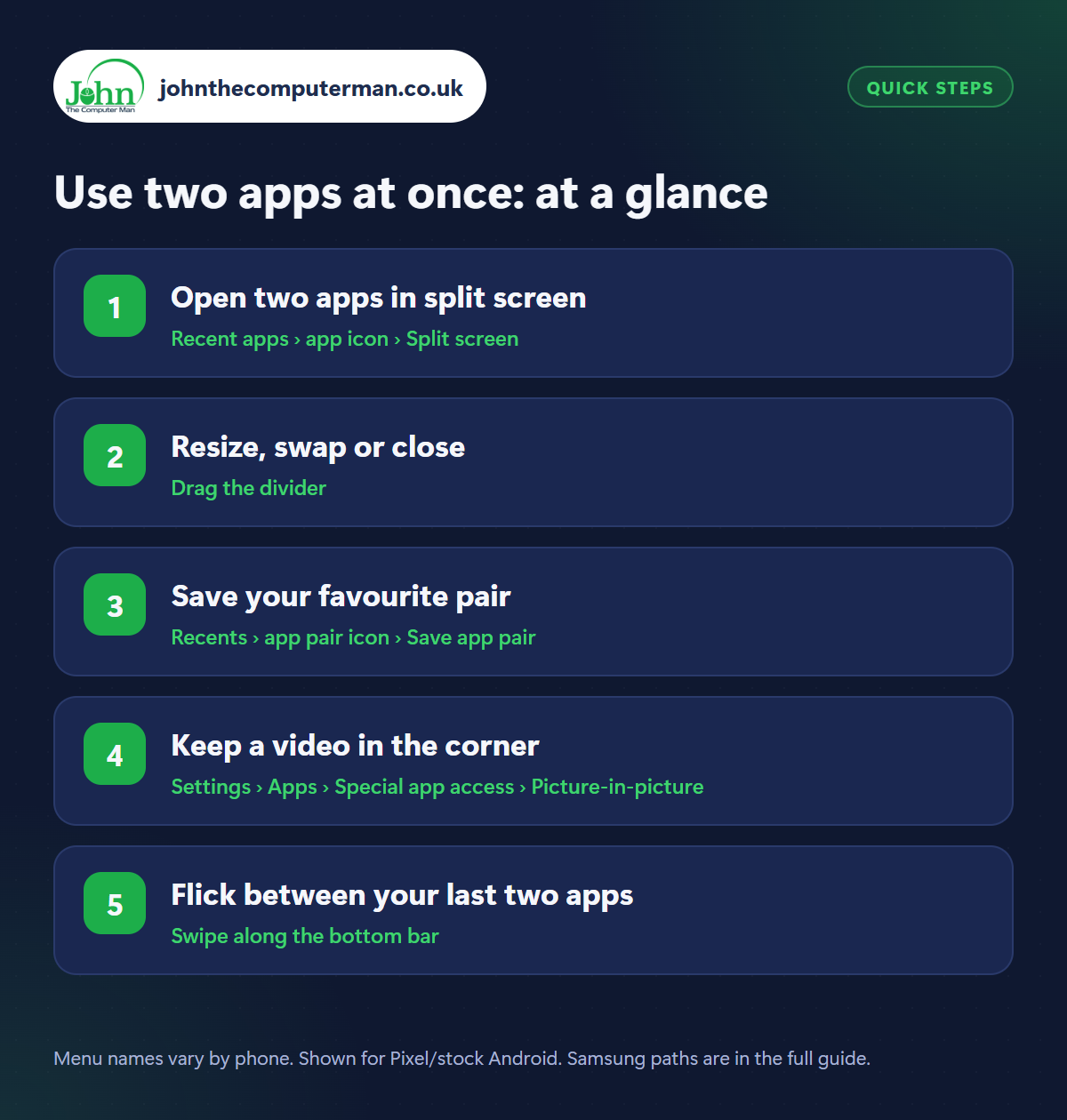
Step 1: Open two apps in split screen
Where: Recent apps › app icon › Split screen
Samsung: Recents › app icon › Open in split screen view
Samsung: Recents › app icon › Open in split screen view
Open Recent apps (swipe up from the bottom and hold, or tap the square/three-lines button). Tap the app icon at the top of the app you want, then Split screen (Samsung: Open in split screen view). That app moves to the top half. Now choose a second app from your recents or home screen for the bottom half. Not every app supports it. Some games and camera apps don't.
Step 2: Resize, swap or close
Where: Drag the divider
Drag the divider bar between the two apps up or down to give one more space, which is handy when you need a bigger keyboard. To go back to a single app, drag the divider all the way to the top or bottom edge. On many phones you can double-tap the divider (or tap it and use the arrows) to swap the two apps over.
Step 3: Save your favourite pair
Where: Recents › app pair icon › Save app pair
Samsung: Tap the divider › star icon
Samsung: Tap the divider › star icon
If you often use the same two apps together (say Maps and Spotify, or WhatsApp and Calendar), save them as an app pair. On Pixel and recent Android versions, open Recents while in split screen, tap the icons above the pair and choose Save app pair. On Samsung, tap the divider, then the star to add the pair to your home screen. One tap then opens both.
Step 4: Keep a video in the corner
Where: Settings › Apps › Special app access › Picture-in-picture
Picture-in-picture shrinks a video into a small floating window so you can use another app at the same time. Just go to your home screen while on a video call, following Maps directions or watching a supported video. Drag the window anywhere, tap it for controls, or drag it to the bottom to close. Choose which apps can do this in Settings › Apps › Special app access › Picture-in-picture.
Step 5: Flick between your last two apps
Where: Swipe along the bottom bar
The fastest way to flip between two apps doesn't need split screen at all. With gesture navigation, swipe right along the bar at the very bottom of the screen to jump to your previous app, and swipe left to go back. If you use the three buttons instead, double-tap the Recents button to do the same thing.
Pro tip
💡 On Samsung, drag an app from Recents to the middle of the screen to open it as a floating pop-up window you can move and resize.
FAQ
Why can't I split screen some apps?
The app's developer has to allow it. Some games, camera apps and banking apps only work full screen.
Does split screen drain the battery?
Slightly, as two apps are running and on screen. It's not noticeable for everyday use.
Can I use split screen in landscape?
Yes. Turn your phone sideways and the apps sit side by side instead of top and bottom.
The bottom line
Split screen is brilliant for copying information between apps, and the swipe-along-the-bar trick is one you'll use dozens of times a day once you know it.
More Android tutorials:
• How to Use “Hey Google” Voice Commands on Android
• Android's Hearing Features: Live Caption, Live Transcribe and More
• How to Use Google Translate on Android: Camera, Conversation and Offline
• Android's Hearing Features: Live Caption, Live Transcribe and More
• How to Use Google Translate on Android: Camera, Conversation and Offline
Part of the android phone tutorials series on johnthecomputerman.co.uk. Follow @johnthecomputerman on Instagram for more Android tips. Steps were checked on current Android and Samsung One UI versions in September 2026; menu names can change with updates.
