How to Use “Hey Google” Voice Commands on Android
Hands covered in flour, driving, carrying shopping, or just can't be bothered to type? Your phone can do a surprising amount if you simply ask it.
Android's voice assistant is either Google Assistant or, on newer phones, Gemini. Both respond to “Hey Google”. Here's how to set it up and the commands that are actually useful every day.
Before you start: Android menus vary a little between phone makers. The steps below use Google Pixel / standard Android names, with Samsung Galaxy differences noted. If you can't find a setting, tap the search bar at the top of Settings and type its name.
How to use voice commands on Android
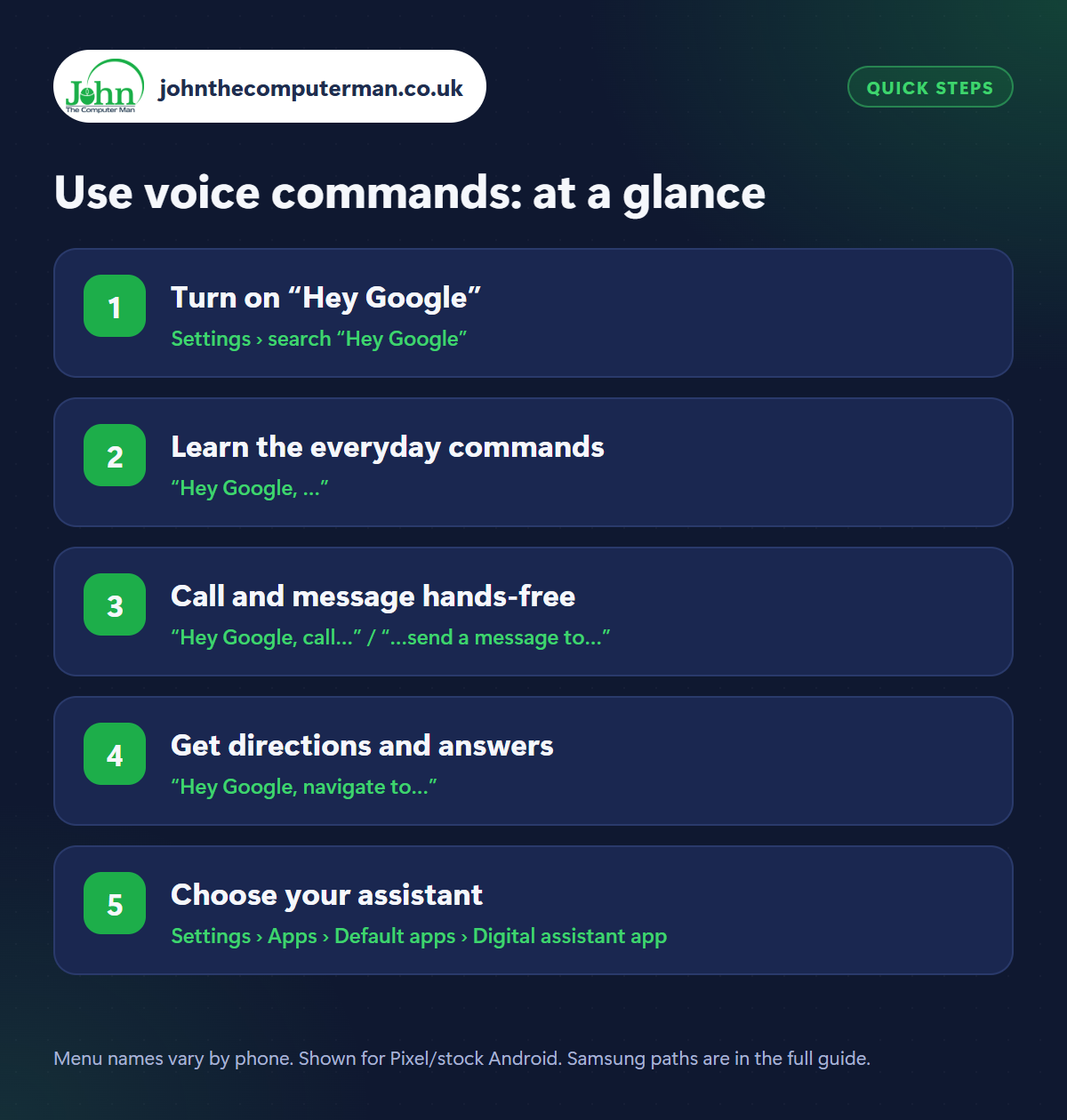
Step 1: Turn on “Hey Google”
Where: Settings › search “Hey Google”
Open Settings and search for Hey Google (it lives in the Google or Gemini settings, depending on your phone). Switch it on and follow the steps to teach it your voice by saying a few phrases. From then on, say “Hey Google” when your phone is nearby. You can also hold the power button (or the side button on Samsung) to start talking without the wake phrase.
Step 2: Learn the everyday commands
Where: “Hey Google, …”
Start with the simple ones you'll use daily. “Set a timer for 10 minutes.” “Set an alarm for 7am.” “Remind me to call Mum at 6pm.” “What's the weather tomorrow?” “Add milk to my shopping list.” “Turn on the torch.” “What's 15% of 80?” You can speak naturally. You don't need to use exact phrases.
Step 3: Call and message hands-free
Where: “Hey Google, call…” / “…send a message to…”
Say “Call Sarah on speakerphone” or “Send a message to Dad saying I'm running ten minutes late”. It reads the message back before sending. You can say “Send a WhatsApp to…” to use WhatsApp instead of texts. “Read my messages” has new messages read aloud. This is especially useful in the car. See our guide to setting up Android Auto.
Step 4: Get directions and answers
Where: “Hey Google, navigate to…”
“Navigate home” starts Google Maps directions straight away. Try “Find a petrol station near me”, “How long will it take to drive to Leeds?” or “What time does Tesco close?” You can also ask general questions like “How many grams in an ounce?” or “Who won the football last night?” and follow up without repeating yourself.
Step 5: Choose your assistant
Where: Settings › Apps › Default apps › Digital assistant app
Newer Android phones use Gemini as the assistant, which is better at longer, conversational questions and can help with what's on your screen. See which you have (and switch, where both are offered) in Settings › Apps › Default apps › Digital assistant app. On Samsung, choose what a long press of the side button does in Settings › Advanced features › Side button.
Pro tip
💡 Lost your phone in the house? If you have a Google speaker or another device signed in, say “Hey Google, find my phone” and it rings even on silent.
FAQ
Is my phone always listening?
It listens only for the wake phrase, and that check happens on the phone. Nothing is sent to Google until it hears “Hey Google”. You can switch it off in the same settings.
Does “Hey Google” work when the phone is locked?
Yes for basic things like timers and weather. Personal results such as messages may need you to unlock first, depending on your settings.
Why doesn't it recognise my voice?
Retrain it in the Hey Google settings, in a quiet room. Check the microphone isn't blocked by a case.
The bottom line
Timers, reminders and hands-free messages are worth setting up “Hey Google” for on their own. Once it becomes a habit, you'll wonder why you ever typed them.
More Android tutorials:
• Android's Hearing Features: Live Caption, Live Transcribe and More
• How to Use Google Translate on Android: Camera, Conversation and Offline
• How to Set Up Android Auto in Your Car
• How to Use Google Translate on Android: Camera, Conversation and Offline
• How to Set Up Android Auto in Your Car
Part of the android phone tutorials series on johnthecomputerman.co.uk. Follow @johnthecomputerman on Instagram for more Android tips. Steps were checked on current Android and Samsung One UI versions in September 2026; menu names can change with updates.
