How to Hide Private Apps and Photos on Android
You hand your phone over to show someone a photo, and suddenly they're swiping through your whole gallery. Or a child borrows it for a game and ends up in your banking app.
Android has several built-in ways to keep private apps and photos locked away, and to lend your phone without worry. Here are the five best.
Before you start: Android menus vary a little between phone makers. The steps below use Google Pixel / standard Android names, with Samsung Galaxy differences noted. If you can't find a setting, tap the search bar at the top of Settings and type its name.
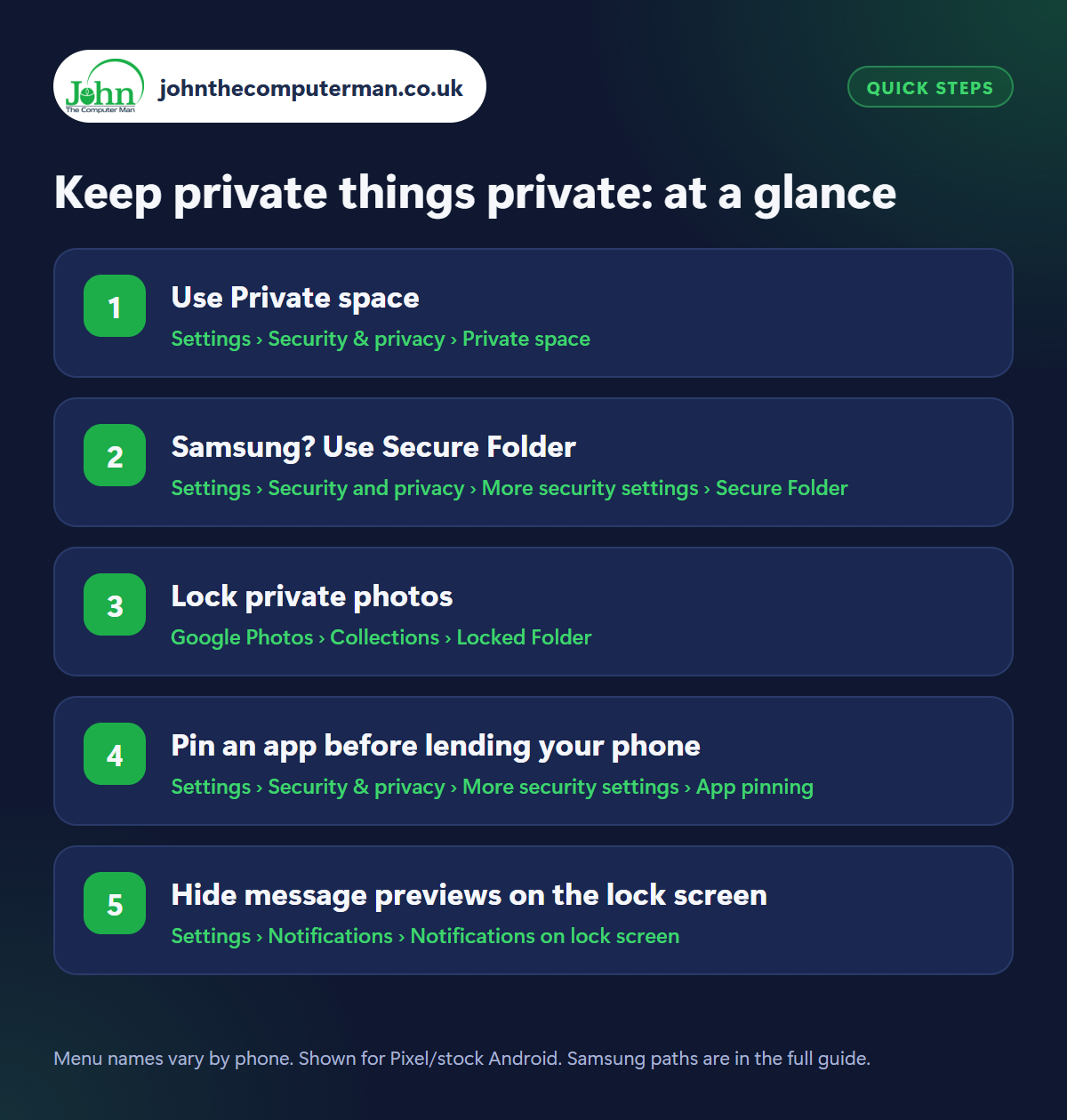
How to keep private things private on Android
Step 1: Use Private space
Where: Settings › Security & privacy › Private space
Private space (on Android 15 and later) creates a separate, hidden area with its own lock. Apps you install there don't appear in your normal app list, notifications or recent apps when it's locked. Set it up in Settings › Security & privacy › Private space. Open it from the bottom of your app drawer, and you can even hide the entry completely.
Step 2: Samsung? Use Secure Folder
Where: Settings › Security and privacy › More security settings › Secure Folder
On Samsung Galaxy phones, Secure Folder does the same job. Set it up in Settings › Security and privacy › More security settings › Secure Folder. It's a separate, encrypted space with its own lock where you can put apps, photos, documents and notes. You can hide the Secure Folder icon from your apps screen and open it from Quick Settings instead.
Step 3: Lock private photos
Where: Google Photos › Collections › Locked Folder
For individual photos, use Locked Folder in Google Photos (Collections › Locked Folder). Photos you move there are removed from your main gallery and can't be seen by other apps, and opening the folder needs your screen lock. See our guide to organising Google Photos for more.
Step 4: Pin an app before lending your phone
Where: Settings › Security & privacy › More security settings › App pinning
Samsung: Settings › Security and privacy › More security settings › Pin app
Samsung: Settings › Security and privacy › More security settings › Pin app
Turn on App pinning (Samsung: Pin app) in Settings › Security & privacy › More security settings, and turn on Ask for PIN before unpinning. Now open the app you want to share, go to Recent apps, tap the app's icon at the top and choose Pin. The person can only use that one app. Getting out needs your PIN. It's perfect for showing photos or lending your phone to a child.
Step 5: Hide message previews on the lock screen
Where: Settings › Notifications › Notifications on lock screen
Notifications on your lock screen can show the first line of every message to anyone who glances at your phone. Go to Settings › Notifications (Samsung: Settings › Notifications › Lock screen notifications) and choose to hide sensitive content or hide silent notifications. You'll still see that a message arrived, just not what it says until you unlock.
Pro tip
💡 Pixel phones also have Guest mode (Settings › System › Multiple users). It gives a borrower a completely separate, empty phone to use.
FAQ
Can someone tell I'm using Private space?
When it's locked and hidden, its apps don't appear anywhere on your phone. Someone would need to know to look for it.
What happens to Private space if I forget its lock?
If you use a separate lock and forget it, you may lose access to what's inside. Using your Google account as a backup recovery option helps.
Is Secure Folder backed up?
Secure Folder has its own backup option in its settings. Items inside aren't included in your normal Samsung or Google backup unless you turn it on.
The bottom line
Use Private space or Secure Folder for apps, Locked Folder for photos, and app pinning whenever you hand your phone over. Your private stuff stays private.
More Android tutorials:
• How to Cast Your Android Phone to Your TV
• How to Save Mobile Data on Android: 5 Settings to Change
• How to Connect Your Android Phone to a Windows PC with Phone Link
• How to Save Mobile Data on Android: 5 Settings to Change
• How to Connect Your Android Phone to a Windows PC with Phone Link
Part of the android phone tutorials series on johnthecomputerman.co.uk. Follow @johnthecomputerman on Instagram for more Android tips. Steps were checked on current Android and Samsung One UI versions in September 2026; menu names can change with updates.
