How to Wipe Your Android Phone Before Selling or Trading It In
Your old phone holds your photos, messages, emails, banking apps and saved passwords. Handing it over without wiping it properly is like giving a stranger your house keys.
A factory reset takes care of it, but there are a few things to do first, or you could lose data you wanted, or leave the phone locked so the new owner can't use it. Do these five steps in order.
Before you start: Android menus vary a little between phone makers. The steps below use Google Pixel / standard Android names, with Samsung Galaxy differences noted. If you can't find a setting, tap the search bar at the top of Settings and type its name.
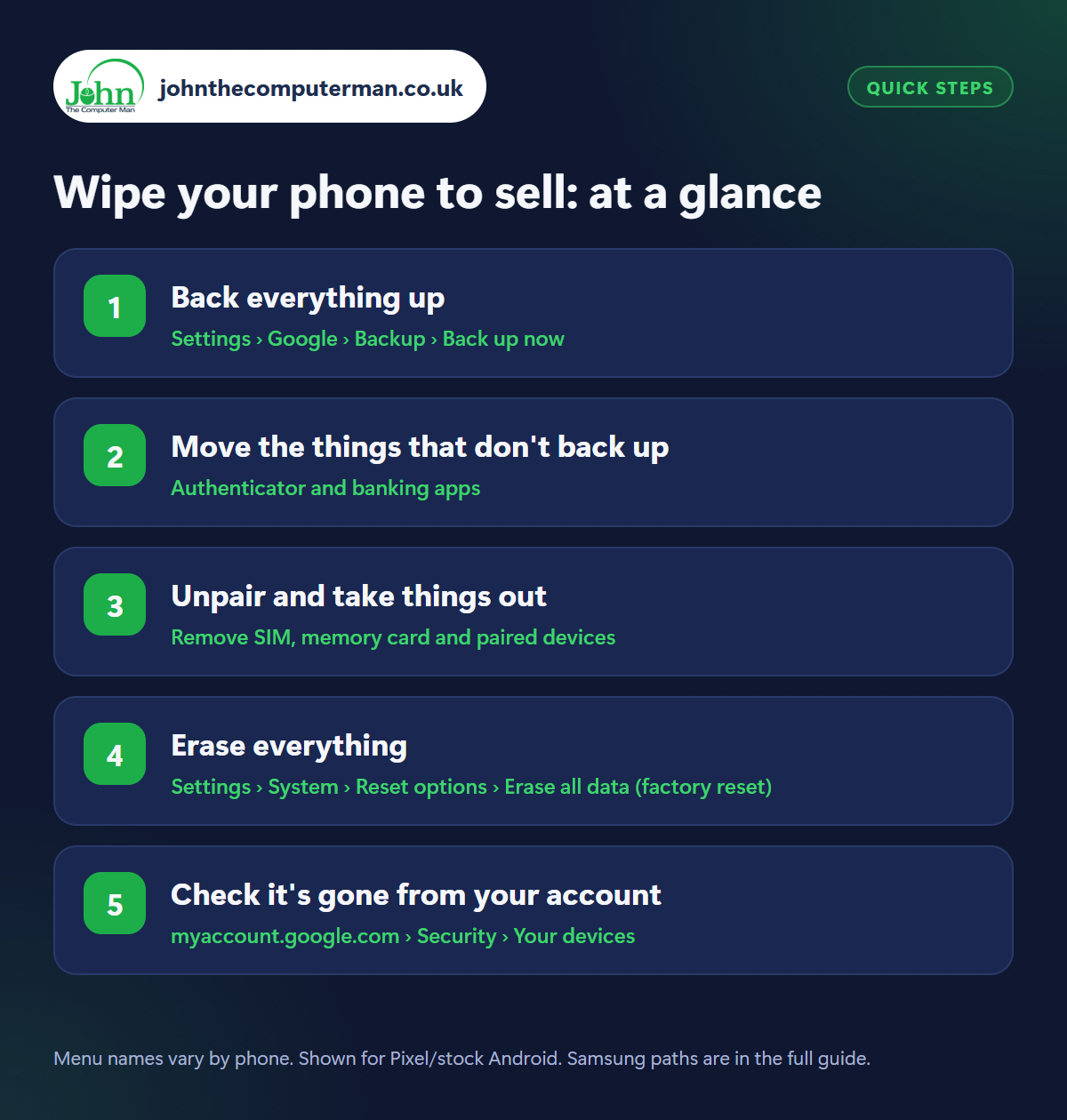
How to wipe your phone to sell on Android
Step 1: Back everything up
Where: Settings › Google › Backup › Back up now
Open Settings › Google › Backup and tap Back up now. Open Google Photos and check your profile picture shows Backup complete. Back up WhatsApp separately (Settings › Chats › Chat backup). Better still, set up your new phone first and check everything has arrived. See how to move to a new Android phone.
Step 2: Move the things that don't back up
Where: Authenticator and banking apps
Some things won't come back from a backup. Authenticator apps need transferring from inside the app, or you can be locked out of accounts. Banking apps usually need re-registering on the new phone. If you use an eSIM, move it to your new phone or ask your network for a new QR code first. Do all of this while the old phone still works.
Step 3: Unpair and take things out
Where: Remove SIM, memory card and paired devices
Remove your SIM card and any microSD card using the tray tool. They don't get wiped by a reset and they're yours. Unpair your smartwatch using its app (some watches need resetting to pair with a new phone). Forget your earbuds and car in Bluetooth settings too, so they connect cleanly to your new phone.
Step 4: Erase everything
Where: Settings › System › Reset options › Erase all data (factory reset)
Samsung: Settings › General management › Reset › Factory data reset
Samsung: Settings › General management › Reset › Factory data reset
Go to Settings › System › Reset options › Erase all data (factory reset) (Samsung: Settings › General management › Reset › Factory data reset). Enter your PIN and confirm. Resetting from Settings is important: it removes your Google account properly, so the new owner isn't blocked by anti-theft protection. If asked, tick Erase eSIMs when you're selling the phone. It takes a few minutes.
Step 5: Check it's gone from your account
Where: myaccount.google.com › Security › Your devices
When it restarts you should see the ‘Welcome’ setup screen. Stop there and switch it off. Then, on another device, go to myaccount.google.com › Security › Your devices, find the old phone and choose Sign out. Samsung owners should check it's gone from their Samsung account too. Give the phone a clean and it's ready to go.
Pro tip
💡 Dial *#06# before you reset and note the IMEI number. Buyers and trade-in sites ask for it, and it's proof the phone was yours.
FAQ
Does a factory reset really delete everything?
Yes. Modern Android phones are encrypted, and a reset destroys the key, so your data can't be recovered.
What if the phone's screen is broken and I can't reset it?
Use Find Hub at google.com/android/find to erase it remotely, then remove it from your Google account.
Should I remove my Google account before resetting?
Resetting from Settings does this for you. Only a reset from the recovery menu (using the buttons) leaves the anti-theft lock in place.
The bottom line
Back up, move your authenticator and banking apps, take out the SIM, then reset from Settings. Follow that order and your data stays yours, and the buyer gets a phone that works.
More Android tutorials:
• 5 Android Clock App Tricks: Better Alarms, Timers and Bedtime
• How to Use Google Keep for Notes and Shared Shopping Lists
• 5 Gmail Tricks on Android to Tame Your Inbox
• How to Use Google Keep for Notes and Shared Shopping Lists
• 5 Gmail Tricks on Android to Tame Your Inbox
Part of the android phone tutorials series on johnthecomputerman.co.uk. Follow @johnthecomputerman on Instagram for more Android tips. Steps were checked on current Android and Samsung One UI versions in September 2026; menu names can change with updates.
