How to Use a USB Stick or SD Card with Your Android Phone
Phone full of photos? Need to hand someone a big video? Want a physical copy of your pictures that isn't in the cloud?
Your Android phone can read and write to an ordinary USB stick, just like a computer. Many people have no idea this works. Here's how to do it, and how to use a memory card if your phone has a slot.
Before you start: Android menus vary a little between phone makers. The steps below use Google Pixel / standard Android names, with Samsung Galaxy differences noted. If you can't find a setting, tap the search bar at the top of Settings and type its name.
How to use a USB stick on Android
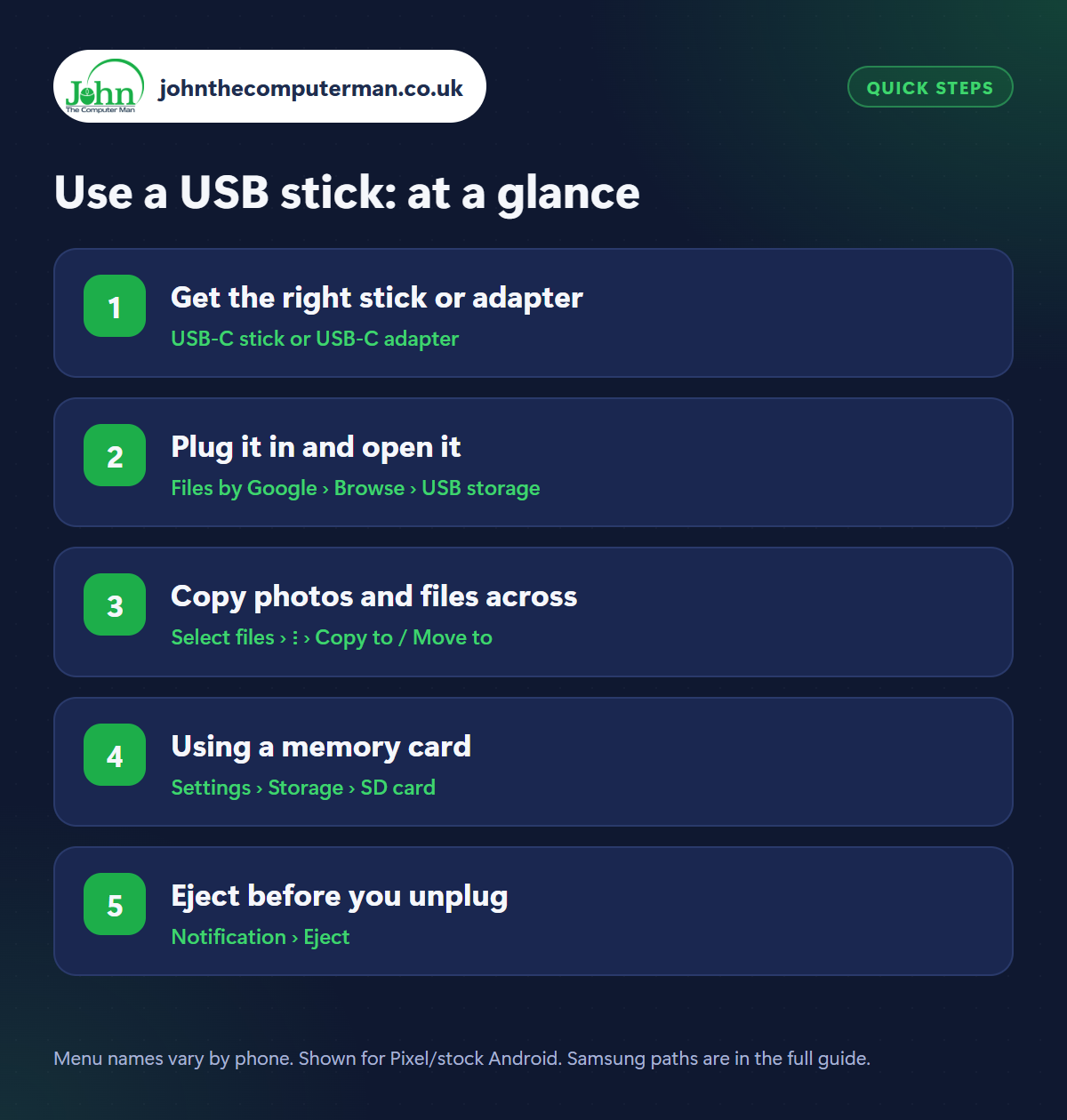
Step 1: Get the right stick or adapter
Where: USB-C stick or USB-C adapter
Modern Android phones have a USB-C port. The simplest option is a USB-C memory stick (many have both USB-C and standard USB plugs, so they also fit a computer). Or buy a small USB-C to USB adapter (often called OTG) for a couple of pounds and use any stick you already own. The same adapter works with card readers, keyboards and mice.
Step 2: Plug it in and open it
Where: Files by Google › Browse › USB storage
Plug the stick into your phone. A notification appears. Tap it, or open Files by Google (or Samsung's My Files) and look under Browse › Storage devices for USB storage. Tap it to see what's on the stick. You can open photos, videos, music and documents straight from it without copying them to your phone.
Step 3: Copy photos and files across
Where: Select files › ⋮ › Copy to / Move to
In the Files app, go to your photos or downloads, long-press a file to select it, then tap others (or Select all). Tap the three dots › Copy to and choose the USB storage. Use Move to instead if you want to free up space on your phone, but only once you're sure the files have copied properly. Open one from the stick to check.
Step 4: Using a memory card
Where: Settings › Storage › SD card
Some phones (many Samsung A-series and budget models, though not Pixels or recent Galaxy S phones) have a microSD card slot in the SIM tray. Insert a card and it appears in Settings › Storage and in the Files app. Set your camera to save to it: on Samsung, open Camera › Settings › Storage location › SD card. Buy cards from a reputable brand and seller. Fake high-capacity cards are common.
Step 5: Eject before you unplug
Where: Notification › Eject
Pulling a stick out while the phone is still writing to it can corrupt your files. Swipe down and tap Eject on the USB notification first (or go to Settings › Storage, tap the stick and choose Eject). Wait for the message saying it's safe, then unplug. The same goes for memory cards. Eject before removing.
Pro tip
💡 Phone won't read the stick? It may be in a format Android doesn't support. Your phone can reformat it in Settings › Storage, but that erases everything on it.
FAQ
Can I plug a portable hard drive into my phone?
Often, yes. Small SSDs work well. Older spinning hard drives may need more power than a phone can supply.
Can I install apps on an SD card?
Most phones no longer allow this. Use the card for photos, videos, music and documents instead.
Is a USB stick a good backup?
It's a useful extra copy, but sticks get lost and fail. Keep your cloud backup switched on as well.
The bottom line
A USB-C stick is the quickest way to clear space or hand over big files, with no internet or computer involved. Just remember to eject it before you pull it out.
More Android tutorials:
• How to Cancel Subscriptions and Get Refunds on Google Play
• How to Share Your Location with Family on Android
• 5 Google Messages Tricks for Better Texting on Android
• How to Share Your Location with Family on Android
• 5 Google Messages Tricks for Better Texting on Android
Part of the android phone tutorials series on johnthecomputerman.co.uk. Follow @johnthecomputerman on Instagram for more Android tips. Steps were checked on current Android and Samsung One UI versions in September 2026; menu names can change with updates.
