How to Share Your Location with Family on Android
Walking home late, a teenager at a festival, an elderly parent out on their own, or simply meeting friends in a busy town. Sometimes it's reassuring for someone to know where you are.
Android can share your live location with people you choose, for an hour or all the time, using apps already on your phone. Here's how to do it, and just as importantly, how to check and stop it.
Before you start: Android menus vary a little between phone makers. The steps below use Google Pixel / standard Android names, with Samsung Galaxy differences noted. If you can't find a setting, tap the search bar at the top of Settings and type its name.
How to share your location on Android
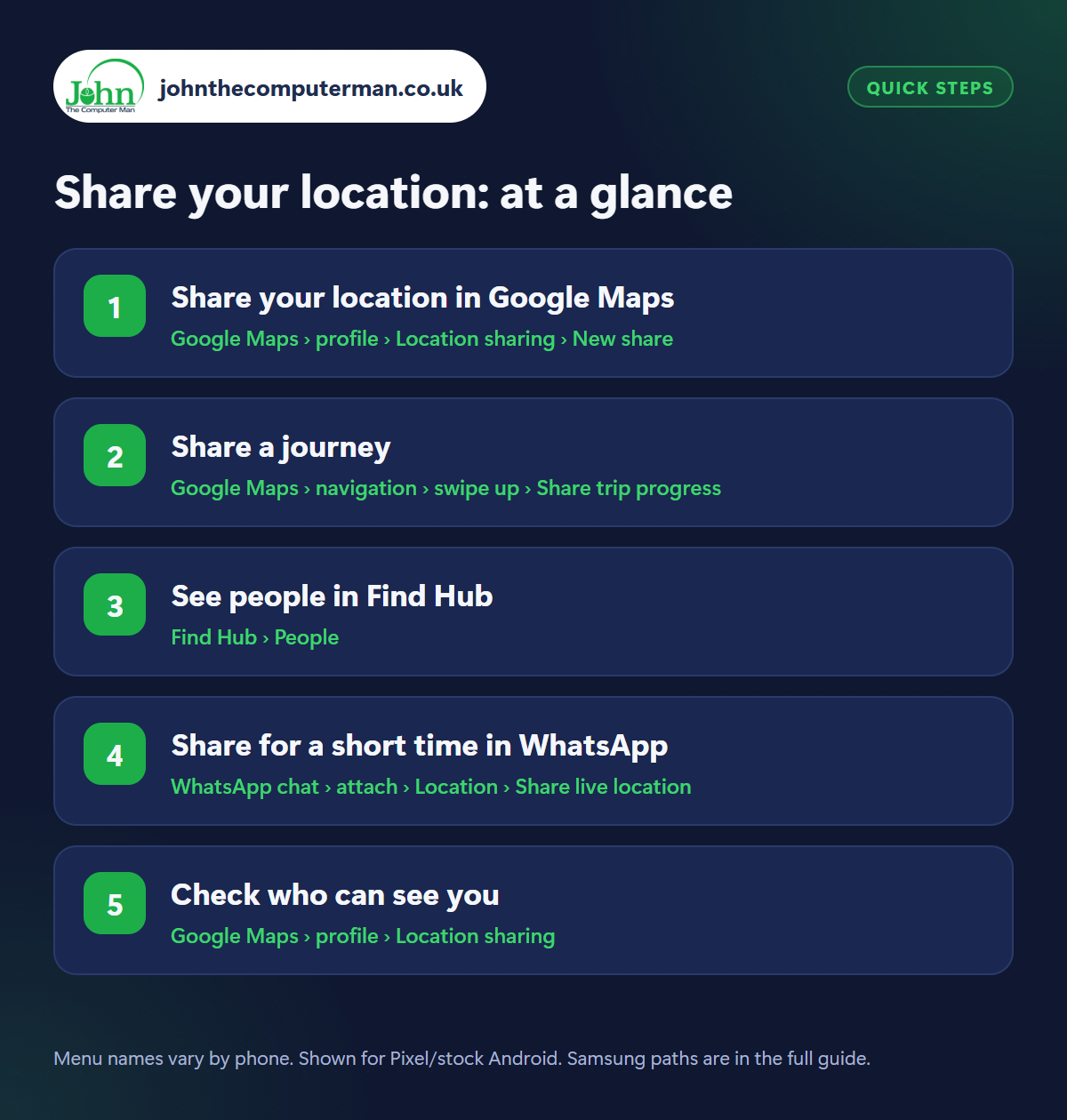
Step 1: Share your location in Google Maps
Where: Google Maps › profile › Location sharing › New share
Open Google Maps, tap your profile picture › Location sharing › New share. Choose how long to share for (1 hour, a set time, or Until you turn this off) and pick the person from your contacts. They get a notification and can see you on their own Google Maps. They need a Google account, and you can share with someone who doesn't use Android.
Step 2: Share a journey
Where: Google Maps › navigation › swipe up › Share trip progress
For a single journey, start navigation in Google Maps, swipe up from the bottom and tap Share trip progress. Choose who to send it to. They'll see where you are on the route and your estimated arrival time, updating live. Sharing stops automatically when you arrive. That's ideal for long drives, or when someone's waiting to pick you up.
Step 3: See people in Find Hub
Where: Find Hub › People
Google's Find Hub app (the same one that finds a lost phone) has a People tab that shows everyone sharing their location with you on a map, and lets you start sharing yours. It's a handy single place for families. See our guide to finding a lost phone for the rest of what Find Hub can do.
Step 4: Share for a short time in WhatsApp
Where: WhatsApp chat › attach › Location › Share live location
Meeting friends? In a WhatsApp chat or group, tap the attach (paperclip) icon › Location › Share live location and choose 15 minutes, 1 hour or 8 hours. Everyone in the chat can see you moving on a map, and it switches off by itself. Tap Stop sharing in the chat to end it early.
Step 5: Check who can see you
Where: Google Maps › profile › Location sharing
Go back to Google Maps › profile › Location sharing to see everyone who can currently see your location. Tap a name and then Stop to end it immediately. They aren't notified. Google also emails you a reminder now and then. If you ever see someone there you didn't add, stop the share, then change your Google password and check your security settings.
Pro tip
💡 Location sharing uses a little battery and needs mobile data. If someone's location looks out of date, their phone is probably off, in airplane mode or out of signal.
FAQ
Can someone track my location without me knowing?
Not through these features without access to your phone or Google account. Check the Location sharing list, and use a strong screen lock.
Does location sharing drain the battery?
A little. Constant sharing uses slightly more battery than usual, but modern phones handle it well.
Can I share with someone who has an iPhone?
Yes. Google Maps location sharing and WhatsApp live location both work between Android and iPhone.
The bottom line
Use ‘Share trip progress’ for journeys and a timed share for nights out. Whatever you use, glance at the Location sharing list now and then so you always know who can see you.
More Android tutorials:
• 5 Google Messages Tricks for Better Texting on Android
• How to Change Your Ringtone and Notification Sounds on Android
• How to Scan and Create QR Codes on Android
• How to Change Your Ringtone and Notification Sounds on Android
• How to Scan and Create QR Codes on Android
Part of the android phone tutorials series on johnthecomputerman.co.uk. Follow @johnthecomputerman on Instagram for more Android tips. Steps were checked on current Android and Samsung One UI versions in September 2026; menu names can change with updates.
