How to Cancel Subscriptions and Get Refunds on Google Play
A free trial you forgot to cancel. A game your grandchild made a purchase in. An app charging £9.99 a month that you haven't opened since spring.
Subscriptions are easy to start and easy to forget. The Play Store keeps every one of them in a single list, and it takes about two minutes to check. Here's how to cancel what you don't want and stop surprises in future.
Before you start: Android menus vary a little between phone makers. The steps below use Google Pixel / standard Android names, with Samsung Galaxy differences noted. If you can't find a setting, tap the search bar at the top of Settings and type its name.
How to cancel subscriptions on Android
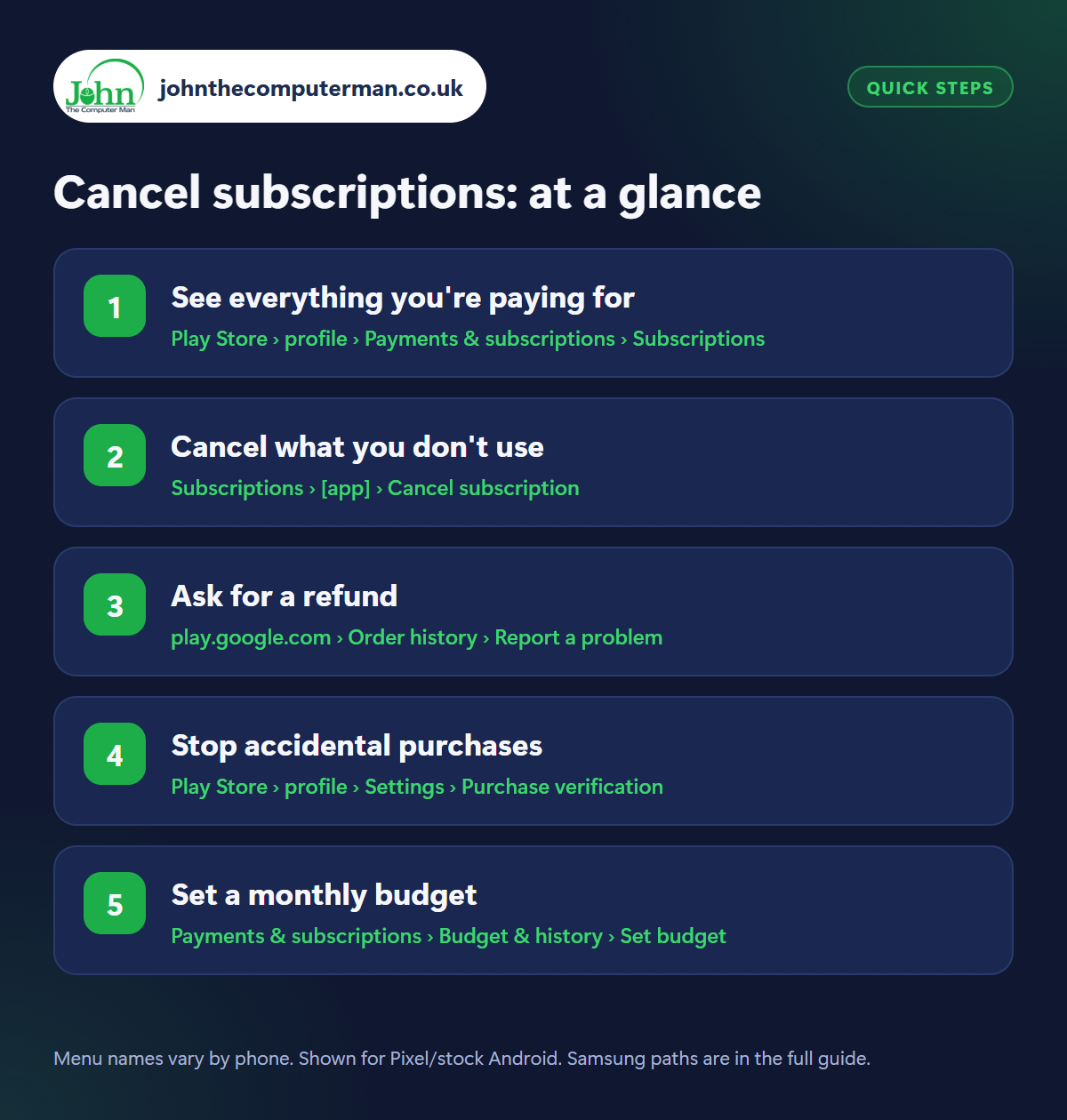
Step 1: See everything you're paying for
Where: Play Store › profile › Payments & subscriptions › Subscriptions
Open the Play Store, tap your profile picture › Payments & subscriptions › Subscriptions. You'll see every active subscription billed through Google Play, with what it costs and when it next renews. Go through the list honestly. If you haven't used something in a month, you probably don't need it.
Step 2: Cancel what you don't use
Where: Subscriptions › [app] › Cancel subscription
This catches a lot of people out: uninstalling an app does not cancel its subscription. You keep being charged. Tap the subscription, then Cancel subscription and follow the steps. You normally keep access until the end of the period you've already paid for. Some subscriptions can be paused instead if you just want a break.
Step 3: Ask for a refund
Where: play.google.com › Order history › Report a problem
For accidental purchases, go to Play Store › profile › Payments & subscriptions › Budget & history, tap the purchase and choose Report a problem or Request a refund (or visit play.google.com/store/account/orderhistory). Requests within 48 hours are often approved quickly. After that, you usually need to contact the app's developer directly. Refunds aren't guaranteed, but it's always worth asking.
Step 4: Stop accidental purchases
Where: Play Store › profile › Settings › Purchase verification
In the Play Store, tap your profile picture › Settings › Purchase verification (called Authentication on some versions). Turn on verification for every purchase and enable biometric verification so nothing can be bought without your fingerprint, face or password. This is essential if children ever play games on your phone. See also our guide to Family Link parental controls.
Step 5: Set a monthly budget
Where: Payments & subscriptions › Budget & history › Set budget
Under Payments & subscriptions › Budget & history, tap Set budget and enter a monthly amount. The Play Store then shows a running total of what you've spent and tells you when you're approaching your limit. It won't block purchases, but seeing the number is often enough. The same screen shows your full purchase history.
Pro tip
💡 This list only shows subscriptions billed by Google Play. Check your bank statement too, for things you signed up to on a website, like Netflix or Spotify.
FAQ
Will I get money back when I cancel a subscription?
Usually not for the current period. Cancelling stops future payments, and you keep access until the paid period ends.
How do I cancel a free trial?
The same way: cancel it in Subscriptions before the trial ends. Set a reminder a day or two before, as you're charged automatically.
Someone else used my phone to buy something. Can I get a refund?
Request a refund through the Play Store as soon as you can and explain what happened. Then turn on purchase verification.
The bottom line
Check your subscriptions list today. Most people find at least one thing they'd forgotten. Then turn on purchase verification so nothing gets bought by accident again.
More Android tutorials:
• How to Share Your Location with Family on Android
• 5 Google Messages Tricks for Better Texting on Android
• How to Change Your Ringtone and Notification Sounds on Android
• 5 Google Messages Tricks for Better Texting on Android
• How to Change Your Ringtone and Notification Sounds on Android
Part of the android phone tutorials series on johnthecomputerman.co.uk. Follow @johnthecomputerman on Instagram for more Android tips. Steps were checked on current Android and Samsung One UI versions in September 2026; menu names can change with updates.
