How to Set Up Parental Controls on Android with Google Family Link
Giving a child their first phone is a big step for them and a nerve-racking one for parents.
Google Family Link is free and built for exactly this. You manage your child's Android phone from your own phone: set daily limits, approve apps before they're installed, filter content and see where they are. Here's how to set it up.
Before you start: Android menus vary a little between phone makers. The steps below use Google Pixel / standard Android names, with Samsung Galaxy differences noted. If you can't find a setting, tap the search bar at the top of Settings and type its name.
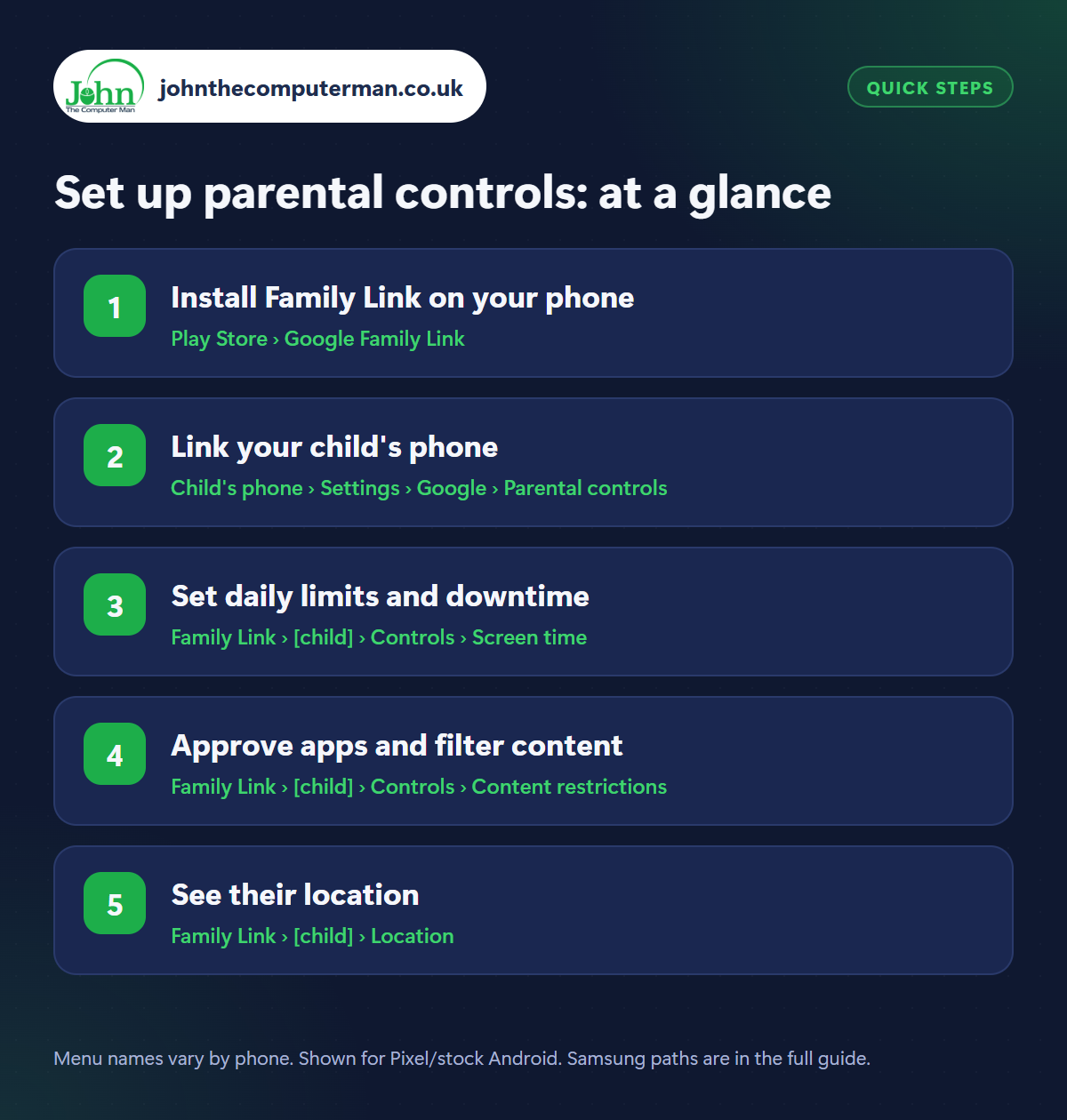
How to set up parental controls on Android
Step 1: Install Family Link on your phone
Where: Play Store › Google Family Link
On your own phone, install Google Family Link from the Play Store (it's on the App Store too, if you use an iPhone). Open it and sign in with your Google account. You'll become the family manager. You can add a second parent later so you can both manage settings.
Step 2: Link your child's phone
Where: Child's phone › Settings › Google › Parental controls
On your child's phone, go to Settings › Google › Parental controls (or Settings › Digital Wellbeing & parental controls › Parental controls) and follow the steps. If your child is under 13, you'll create a supervised Google account for them. Older children can sign in with their own account and agree to supervision. Once linked, their phone appears in your Family Link app.
Step 3: Set daily limits and downtime
Where: Family Link › [child] › Controls › Screen time
In Family Link, tap your child, then Controls › Screen time. Set a daily limit (you can choose different limits for school days and weekends) and Downtime, when the phone locks, like bedtime and school hours. You can also set limits for individual apps. When time's up, the phone locks but they can still make calls to you.
Step 4: Approve apps and filter content
Where: Family Link › [child] › Controls › Content restrictions
Go to Controls › Content restrictions. Under Google Play, set approval so your child has to ask before downloading apps (you get a notification to approve or deny), and set age ratings for apps, films and books. Turn on SafeSearch for Google, set Chrome to try to block explicit sites, and choose the right YouTube experience for their age.
Step 5: See their location
Where: Family Link › [child] › Location
In Family Link, tap your child and look at Location to see where their phone is on a map, and turn on location sharing if prompted. You can set up notifications for when they arrive at or leave places like school or home. You can also ring their phone at full volume if they (or it) go missing.
Pro tip
💡 Talk to your child about why you're using Family Link. Controls work best alongside open conversations about staying safe online.
FAQ
Is Google Family Link free?
Yes, completely. There are no subscriptions or in-app purchases.
What happens when my child turns 13?
At 13, children in the UK can choose to manage their own account. You'll be notified, and you can keep supervision if they agree to it.
Does Family Link work on Samsung phones?
Yes. It works on any Android phone, and Samsung also has its own parental controls in Settings › Digital Wellbeing and parental controls.
The bottom line
Family Link takes about 15 minutes to set up and gives you real peace of mind. Start stricter and relax the rules as your child shows they can handle their phone sensibly.
More Android tutorials:
• How to Hide Private Apps and Photos on Android
• How to Cast Your Android Phone to Your TV
• How to Save Mobile Data on Android: 5 Settings to Change
• How to Cast Your Android Phone to Your TV
• How to Save Mobile Data on Android: 5 Settings to Change
Part of the android phone tutorials series on johnthecomputerman.co.uk. Follow @johnthecomputerman on Instagram for more Android tips. Steps were checked on current Android and Samsung One UI versions in September 2026; menu names can change with updates.
