Is Your Android Phone Still Getting Updates? How to Check
Updates aren't just new emojis and a rearranged settings menu. Each one fixes security holes that criminals are actively using, which makes them the single most important thing keeping your phone safe.
Every phone stops receiving them eventually. Here's how to check where yours stands, make sure nothing is waiting, and find out how long you've got left.
Before you start: Android menus vary a little between phone makers. The steps below use Google Pixel / standard Android names, with Samsung Galaxy differences noted. If you can't find a setting, tap the search bar at the top of Settings and type its name.
How to check your updates on Android
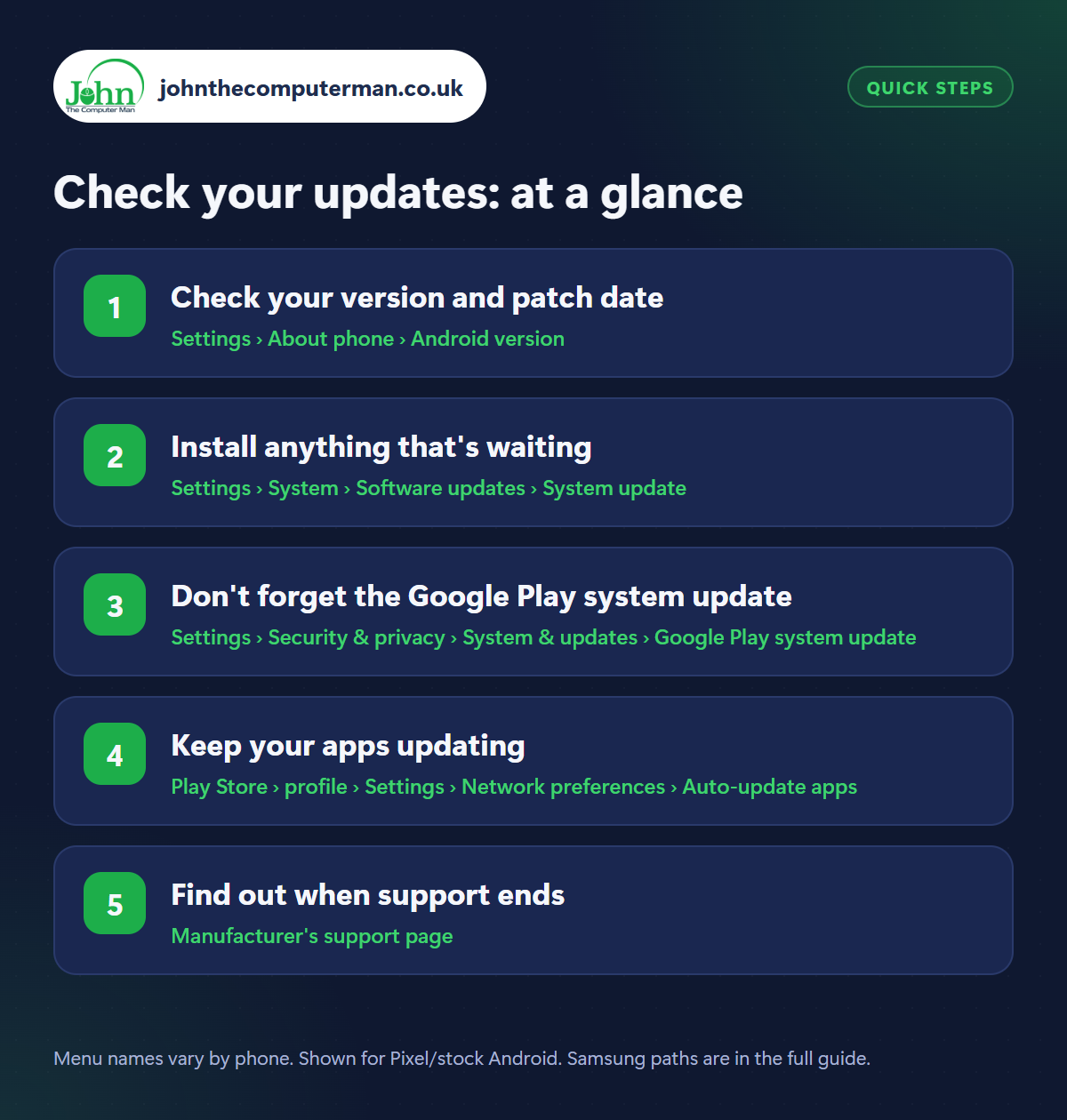
Step 1: Check your version and patch date
Where: Settings › About phone › Android version
Samsung: Settings › About phone › Software information
Samsung: Settings › About phone › Software information
Open Settings › About phone › Android version (Samsung: About phone › Software information). You'll see your Android version and, more importantly, the Android security update date (Samsung calls it the security patch level). If that date is within the last three months or so, your phone is being looked after. If it's more than a year old, read on.
Step 2: Install anything that's waiting
Where: Settings › System › Software updates › System update
Samsung: Settings › Software update › Download and install
Samsung: Settings › Software update › Download and install
Go to Settings › System › Software updates › System update (Samsung: Settings › Software update › Download and install) and tap Check for update. Install anything on offer. Use Wi-Fi, have at least 50% battery or plug in, and allow up to half an hour. The phone restarts once or twice. On Samsung, switch on Auto download over Wi-Fi so updates fetch themselves.
Step 3: Don't forget the Google Play system update
Where: Settings › Security & privacy › System & updates › Google Play system update
Android has a second, separate update that often goes unnoticed. Open Settings › Security & privacy › System & updates and tap Google Play system update (on Samsung, search Settings for it). It delivers security fixes directly from Google, even on phones whose manufacturer has stopped sending full updates. If one is available, install it and restart.
Step 4: Keep your apps updating
Where: Play Store › profile › Settings › Network preferences › Auto-update apps
Open the Play Store, tap your profile picture › Settings › Network preferences › Auto-update apps and choose Over Wi-Fi only. To update everything now, go to profile picture › Manage apps & device › Update all. Browsers, banking apps and messaging apps are updated constantly to fix security problems, so this matters just as much as system updates.
Step 5: Find out when support ends
Where: Manufacturer's support page
How long you get depends on the phone. Recent Google Pixel and flagship Samsung Galaxy phones are promised seven years of updates from launch. Mid-range and budget models typically get between two and six. Search for your exact model plus ‘update policy’ on the manufacturer's website. Remember the clock starts when the model was released, not when you bought it.
Pro tip
💡 Buying a phone, new or second-hand? Check how many years of updates it has left first. A cheap phone with one year remaining is no bargain.
FAQ
Is it safe to use a phone that no longer gets updates?
It becomes riskier over time, especially for banking and email. Keep apps updated, stick to the Play Store, and plan to replace it.
Why hasn't my phone got the latest Android version yet?
Manufacturers release new versions model by model over several months. Security patches matter more than the version number.
Can an update slow my phone down?
Phones can feel slow for a day or two afterwards while apps are optimised. If it lasts, free up storage and restart.
The bottom line
Check your security patch date today, and the Google Play system update while you're there. If your phone has stopped getting updates altogether, that is a better reason to replace it than a scratched screen.
More Android tutorials:
• Android Speaker Too Quiet or Muffled? 5 Fixes
• Android GPS Not Accurate? 5 Ways to Fix Your Location
• How to Customise Your Android Lock Screen
• Android GPS Not Accurate? 5 Ways to Fix Your Location
• How to Customise Your Android Lock Screen
Part of the android phone tutorials series on johnthecomputerman.co.uk. Follow @johnthecomputerman on Instagram for more Android tips. Steps were checked on current Android and Samsung One UI versions in September 2026; menu names can change with updates.
