BlackHole: Record Your Mac's System Audio for Free
Want to record a video call, the sound from a website, or your Mac's audio for a tutorial? macOS doesn't make it easy. Most apps can only record from a microphone.
BlackHole creates a virtual audio device that works like a cable between apps. Send your Mac's sound into it, and any recording app can capture it. It's free and open source.
What is BlackHole?
BlackHole is a free, open-source virtual audio driver for macOS from Existential Audio. It adds a virtual device that apps can play sound into and record from, with zero added delay. It's commonly used to record system audio in Audacity or QuickTime, capture app sound in streaming software, and pass audio between music apps. It comes in 2, 16 and 64-channel versions; 2-channel is right for most people.
Key features
Record Mac audio
Capture any sound your Mac plays in Audacity, QuickTime and more.
Route between apps
Send sound from one app straight into another.
Zero delay
No added latency, so it's great for music and streaming.
How to get started with BlackHole
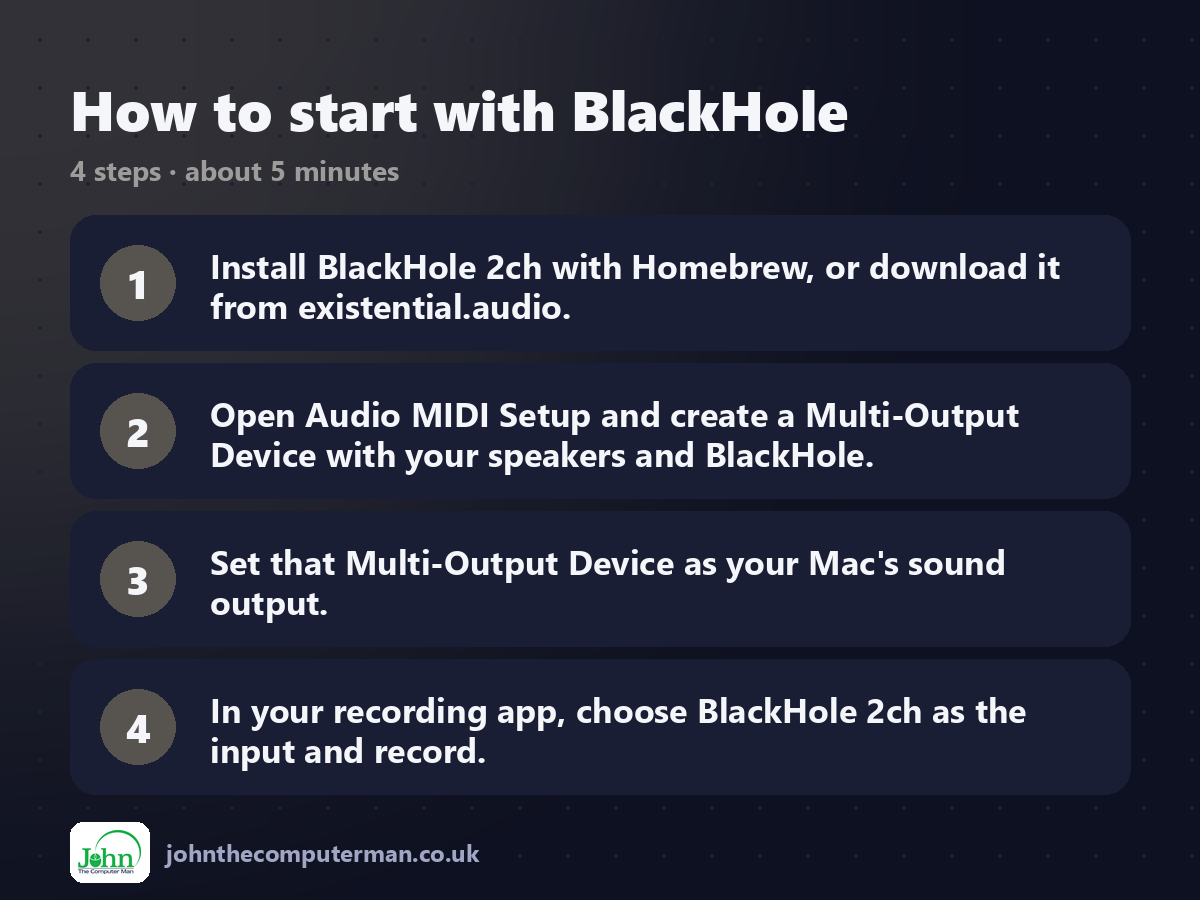
1. Install BlackHole 2ch with Homebrew, or download it from existential.audio.
2. Open Audio MIDI Setup and create a Multi-Output Device with your speakers and BlackHole.
3. Set that Multi-Output Device as your Mac's sound output.
4. In your recording app, choose BlackHole 2ch as the input and record.
2. Open Audio MIDI Setup and create a Multi-Output Device with your speakers and BlackHole.
3. Set that Multi-Output Device as your Mac's sound output.
4. In your recording app, choose BlackHole 2ch as the input and record.
Prefer the command line? If you use Homebrew, the free package manager for Mac, open Terminal and run:
brew install --cask blackhole-2ch
Tips to get more out of it
• The Multi-Output Device lets you hear sound while recording it.
• Volume keys don't work with a Multi-Output Device. Adjust volume in the app instead.
• Switch your output back to your speakers when you've finished recording.
• Background Music is a simpler option if you only need basic recording.
• Volume keys don't work with a Multi-Output Device. Adjust volume in the app instead.
• Switch your output back to your speakers when you've finished recording.
• Background Music is a simpler option if you only need basic recording.
Is it really free?
Free and open source. The website asks for an email to download, but Homebrew doesn't.
Pros and cons
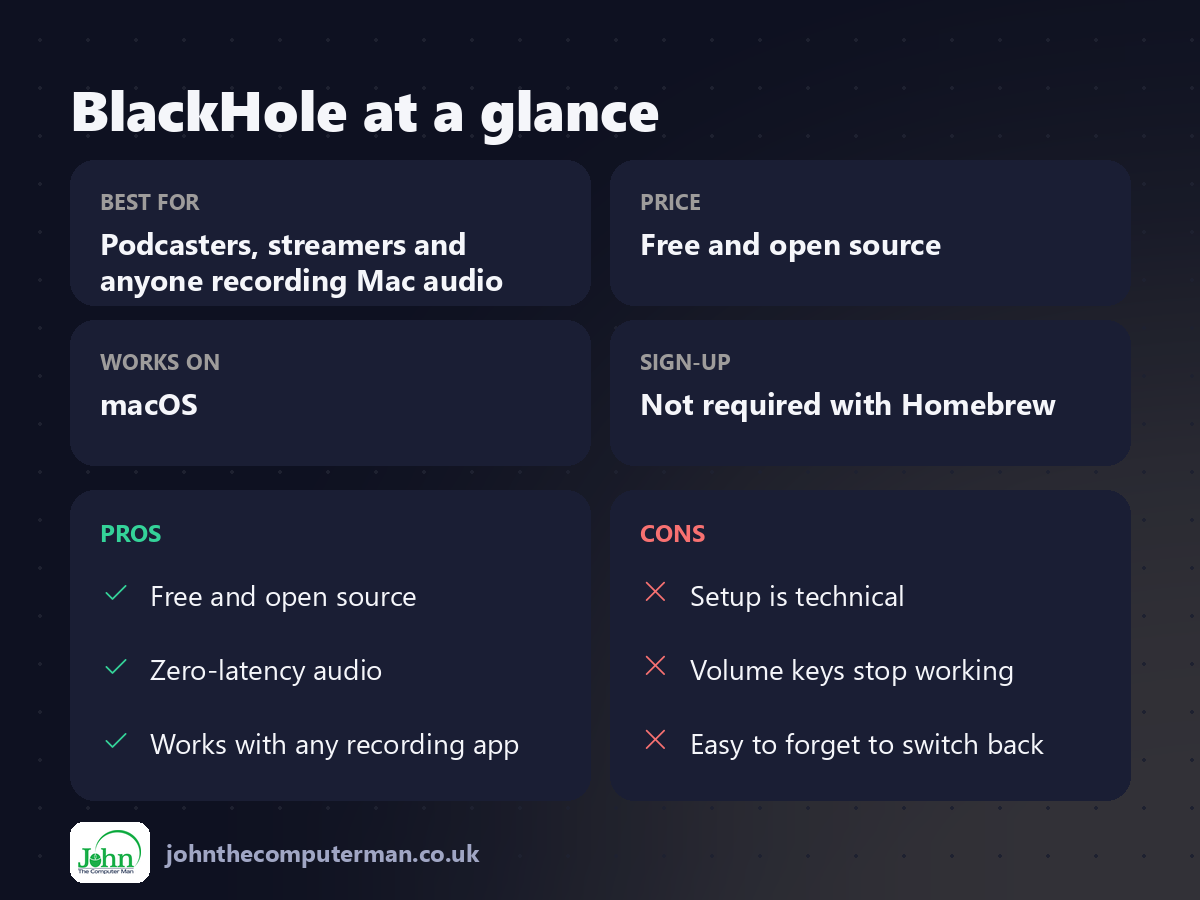
| 👍 Pros | 👎 Cons |
|---|---|
| Free and open source | Setup is technical |
| Zero-latency audio | Volume keys stop working |
| Works with any recording app | Easy to forget to switch back |
Who is it for?
Best for: Podcasters, streamers and anyone recording Mac audio. Works on: macOS. Sign-up: Not required with Homebrew.
BlackHole alternatives
• Background Music: free per-app volume that can also record system audio.
• OBS Studio: can capture app audio directly on recent macOS.
• Loopback: a polished, paid audio routing app.
• OBS Studio: can capture app audio directly on recent macOS.
• Loopback: a polished, paid audio routing app.
FAQ
Why can't I hear anything?
You've set BlackHole as your only output. Create a Multi-Output Device with your speakers and BlackHole, and use that instead.
Which version should I install?
BlackHole 2ch is right for most people. The 16 and 64-channel versions are for music production.
The verdict
BlackHole is the free way to capture any sound on your Mac. The setup takes a few minutes, but once it's done, you can record anything.
👉 Try it: existential.audio/blackhole/
Part of the hidden-gem mac apps series on johnthecomputerman.co.uk. Follow @johnthecomputerman on Instagram for a new free Mac tool every Monday, Wednesday and Friday. Pricing and features were checked in September 2026 and can change, so check the tool's own site for the latest.
