OpenShot for Mac: The Easy, Free Video Editor for Beginners
iMovie is simple but limited. Pro editors are powerful but overwhelming. There's a gap in the middle for people who want a bit more without a steep learning curve.
OpenShot fills it. Drag clips onto a timeline, add titles, transitions and effects, and export. It's free and open source, with no watermark.
What is OpenShot?
OpenShot is a free, open-source video editor for Mac, Windows and Linux, designed to be easy to use. It offers drag-and-drop editing on unlimited tracks, transitions, effects, title templates, animated 3D titles (using Blender), keyframe animation, speed changes and export to common formats and presets for YouTube and more.
Key features
Drag-and-drop simple
Drag clips, music and photos onto the timeline to start editing.
Titles and animations
Title templates, plus animated 3D titles powered by Blender.
Unlimited tracks
Layer as many videos, images and sounds as you need.
How to get started with OpenShot
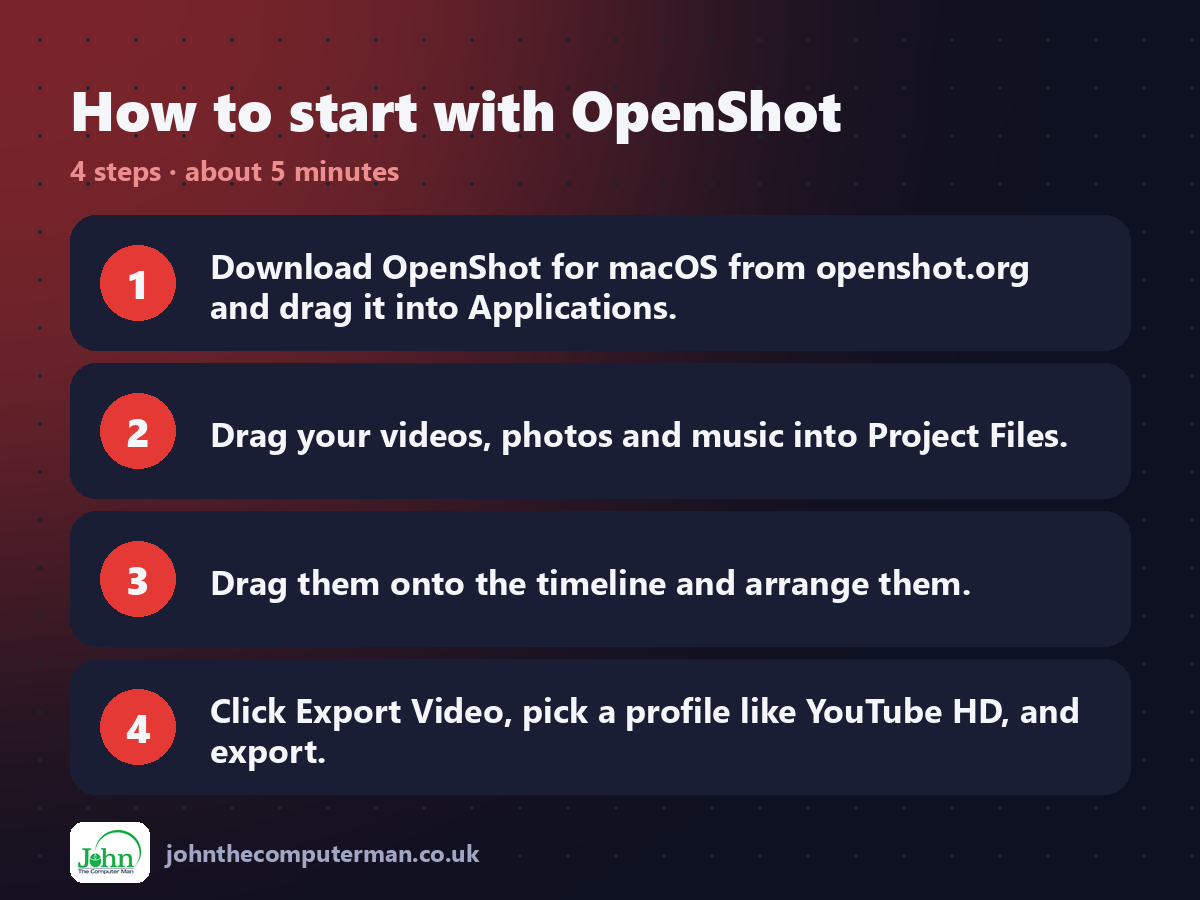
1. Download OpenShot for macOS from openshot.org and drag it into Applications.
2. Drag your videos, photos and music into Project Files.
3. Drag them onto the timeline and arrange them.
4. Click Export Video, pick a profile like YouTube HD, and export.
2. Drag your videos, photos and music into Project Files.
3. Drag them onto the timeline and arrange them.
4. Click Export Video, pick a profile like YouTube HD, and export.
Prefer the command line? If you use Homebrew, the free package manager for Mac, open Terminal and run:
brew install --cask openshot-video-editor
Tips to get more out of it
• Right-click a clip for quick options like speed, fade and rotate.
• Use the Title menu for ready-made title templates.
• Keep projects small and simple. Very long projects can get sluggish.
• Save often in case of crashes.
• Use the Title menu for ready-made title templates.
• Keep projects small and simple. Very long projects can get sluggish.
• Save often in case of crashes.
Is it really free?
Free and open source. No watermark, no ads and no paid version.
Pros and cons
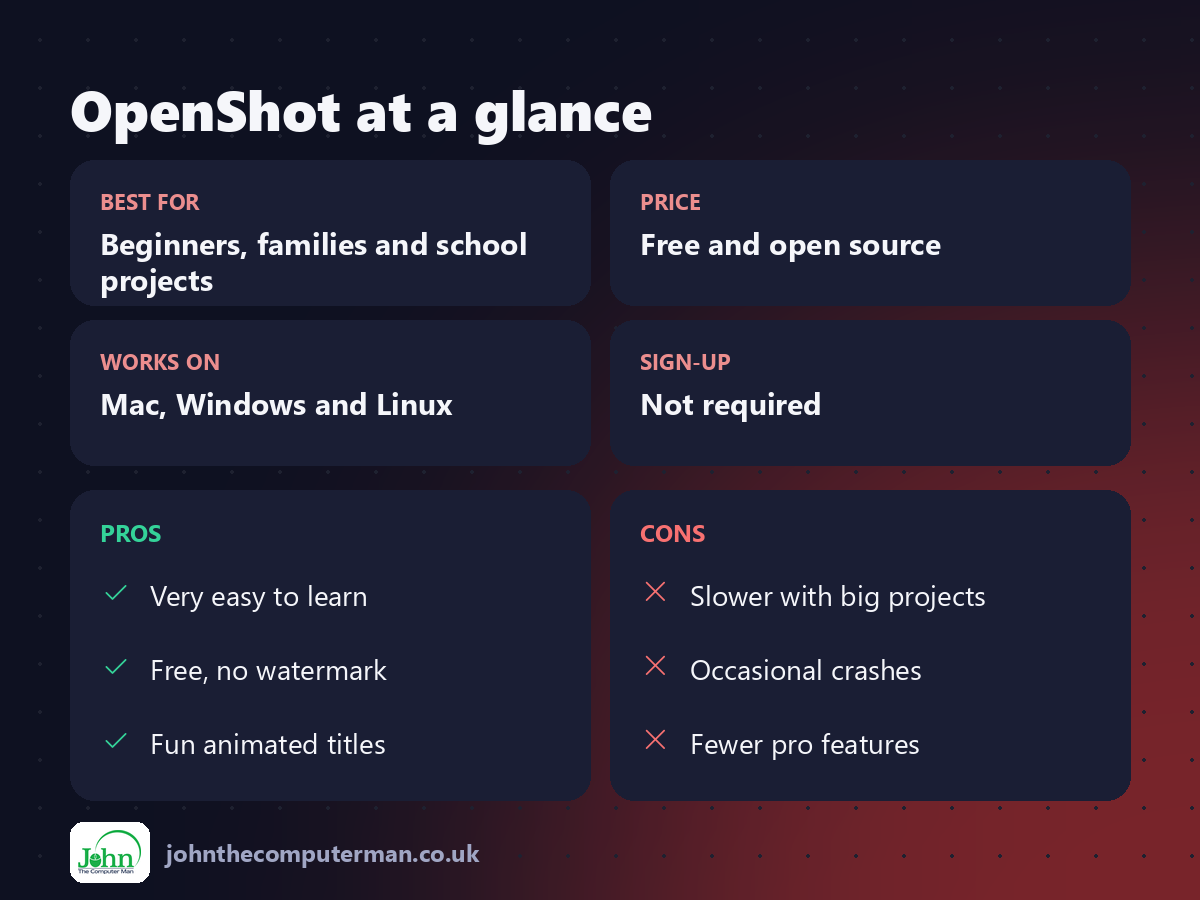
| 👍 Pros | 👎 Cons |
|---|---|
| Very easy to learn | Slower with big projects |
| Free, no watermark | Occasional crashes |
| Fun animated titles | Fewer pro features |
Who is it for?
Best for: Beginners, families and school projects. Works on: Mac, Windows and Linux. Sign-up: Not required.
OpenShot alternatives
• iMovie: free on every Mac, even simpler.
• Shotcut: a free editor with more advanced features.
• Kdenlive: a more powerful free editor with automatic subtitles.
• Shotcut: a free editor with more advanced features.
• Kdenlive: a more powerful free editor with automatic subtitles.
FAQ
Does OpenShot add a watermark?
No. It's completely free with no watermark or limits.
Is OpenShot good for YouTube?
Yes, for straightforward videos. It includes YouTube export presets.
The verdict
OpenShot is a friendly next step up from iMovie. Keep projects simple, save often, and it's a great free editor for beginners.
👉 Try it: www.openshot.org
Part of the free creative apps for mac series on johnthecomputerman.co.uk. Follow @johnthecomputerman on Instagram for a new free Mac tool every Monday, Wednesday and Friday. Pricing and features were checked in September 2026 and can change, so check the tool's own site for the latest.
