How to Convert HEIC Photos to JPG on a Mac (Free, Even in Bulk)
iPhones save photos as HEIC to save space. That's great until a website upload form rejects them, or you send them to someone on an older Windows PC who can't open them.
Your Mac can convert a handful of HEIC photos without installing anything. For a whole folder, and extras like resizing or removing location data, the free XnConvert does it all in one go.
Time needed: about 10 minutes · Cost: free
What you'll need
• XnConvert: free batch image converter, resizer and watermarker
• Your HEIC photos, copied to your Mac
• Your HEIC photos, copied to your Mac
The quick way (nothing to install)
Only a few photos? Select them in Finder, right-click and choose Quick Actions > Convert Image. Pick JPEG, choose a size, and click Convert to JPEG. In the Photos app, you can also select photos and use File > Export > Export Photos with the JPEG option.
Step by step
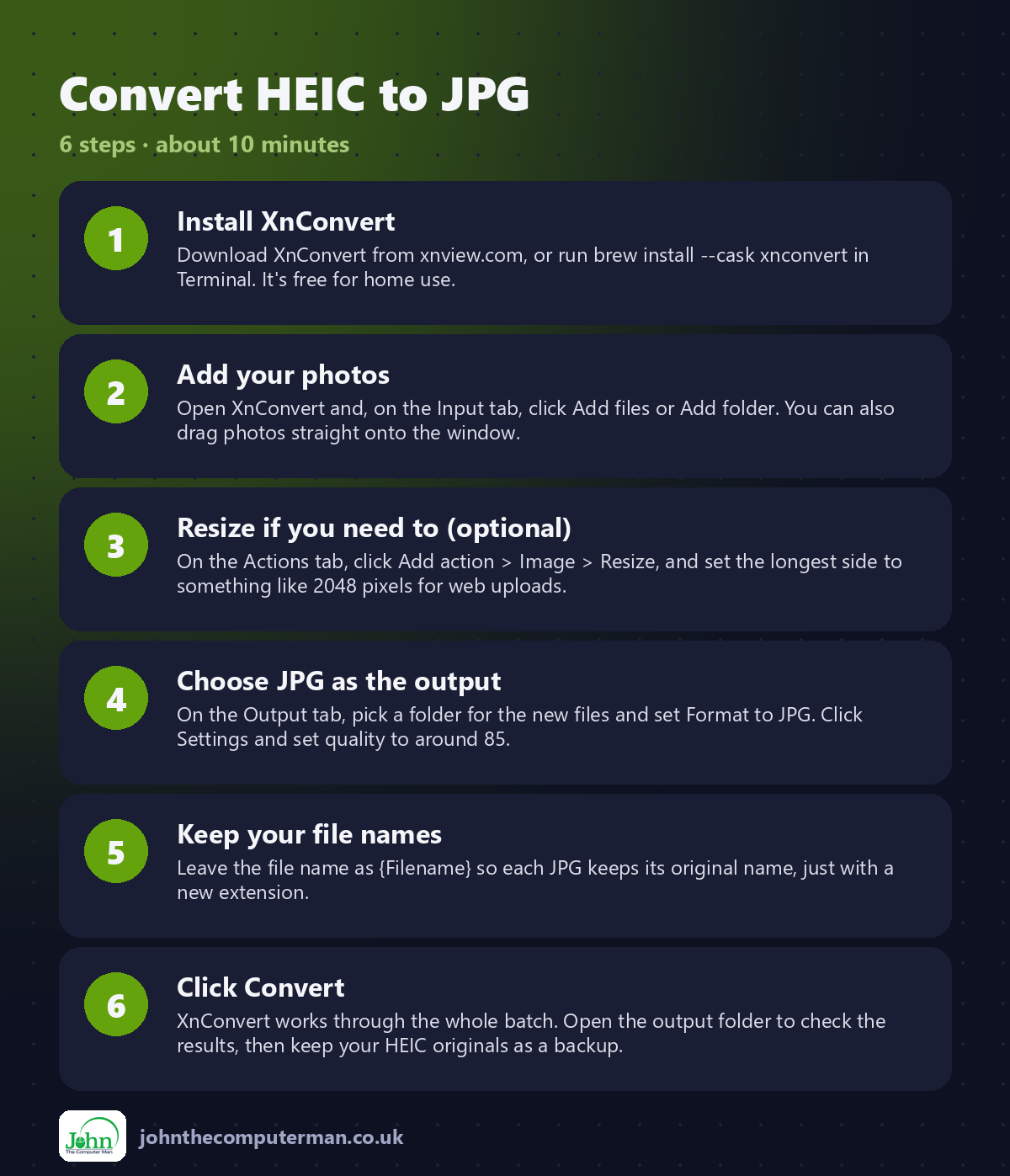
Step 1: Install XnConvert
Download XnConvert from xnview.com, or run brew install --cask xnconvert in Terminal. It's free for home use.
Step 2: Add your photos
Open XnConvert and, on the Input tab, click Add files or Add folder. You can also drag photos straight onto the window.
Step 3: Resize if you need to (optional)
On the Actions tab, click Add action > Image > Resize, and set the longest side to something like 2048 pixels for web uploads.
Step 4: Choose JPG as the output
On the Output tab, pick a folder for the new files and set Format to JPG. Click Settings and set quality to around 85.
Step 5: Keep your file names
Leave the file name as {Filename} so each JPG keeps its original name, just with a new extension.
Step 6: Click Convert
XnConvert works through the whole batch. Open the output folder to check the results, then keep your HEIC originals as a backup.
Prefer Terminal? If you use Homebrew, install the app for this tutorial in one go:
brew install --cask xnconvert
Tips
• Save your settings as a preset so next time is a single click.
• Search the Actions list for 'metadata' to strip the hidden GPS location before sharing photos online.
• Want JPGs from now on? On your iPhone, go to Settings > Camera > Formats and choose Most Compatible.
• Always output to a new folder so your originals stay untouched.
• Search the Actions list for 'metadata' to strip the hidden GPS location before sharing photos online.
• Want JPGs from now on? On your iPhone, go to Settings > Camera > Formats and choose Most Compatible.
• Always output to a new folder so your originals stay untouched.
If something goes wrong
The JPGs are much bigger than the HEICs
That's normal: HEIC is more efficient. Lower the JPG quality to 80, or add a Resize action.
XnConvert won't open on a work Mac
It's free for home use only. At work, use Finder's Convert Image quick action instead.
Some photos look darker or duller
HDR photos can lose some brightness as JPG. It's a format limit, not a mistake.
FAQ
Does converting HEIC to JPG lose quality?
Slightly, as JPG is less efficient, but at quality 85 or above the difference is very hard to see.
Can I convert HEIC to JPG without an app?
Yes. Right-click photos in Finder and choose Quick Actions > Convert Image. It's perfect for a few photos at a time.
Wrapping up
For a few photos, Finder's Convert Image does the job with nothing to install. For a whole folder, XnConvert turns an afternoon of fiddling into one click.
📖 Full app guide: XnConvert
More Mac tutorials: Record Your Screen With Sound · Run Windows 11 on a Mac · Free Up Storage on Your Mac · Snap Windows Side by Side · Send Files Mac to Android · Secure Your Mac in 30 Minutes · Shrink a Video for Email · Make Your MacBook Battery Last · Windows Keyboard on a Mac
Part of the free Mac tools series on johnthecomputerman.co.uk. Follow @johnthecomputerman on Instagram for free Mac tips every Monday, Wednesday and Friday. Steps were checked in September 2026. Menus can move between macOS versions, so look for similar wording if yours differs.
