How to Start Windows 11 in Safe Mode (4 Ways)
Safe Mode starts Windows with only the essentials: no extra drivers, no startup apps, nothing third-party. If your PC works properly in Safe Mode, you know Windows itself is fine, and the culprit is something that was added, such as a driver, an app or malware.
Here are four ways to get there, depending on how well your PC is working.
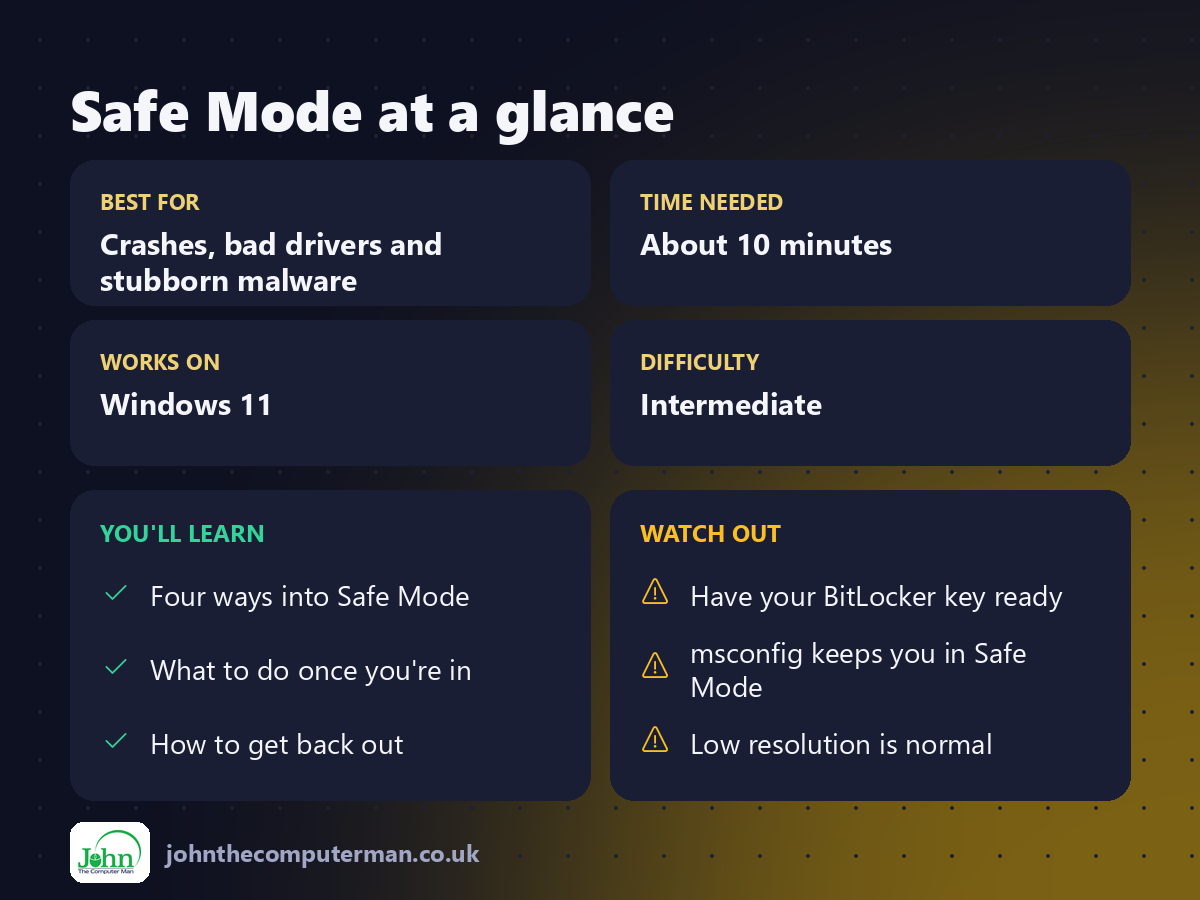
Before you start: if your drive is encrypted, Windows may ask for your BitLocker recovery key. Find it first at aka.ms/myrecoverykey. See: Encrypt Your PC.
Method 1: From Settings (Windows is working)
1. Go to Settings → System → Recovery.
2. Next to Advanced startup, click Restart now.
3. Follow "The blue menu" below.
2. Next to Advanced startup, click Restart now.
3. Follow "The blue menu" below.
Method 2: Shift + Restart (quickest)
1. Click Start → Power, or use the power icon on the sign-in screen.
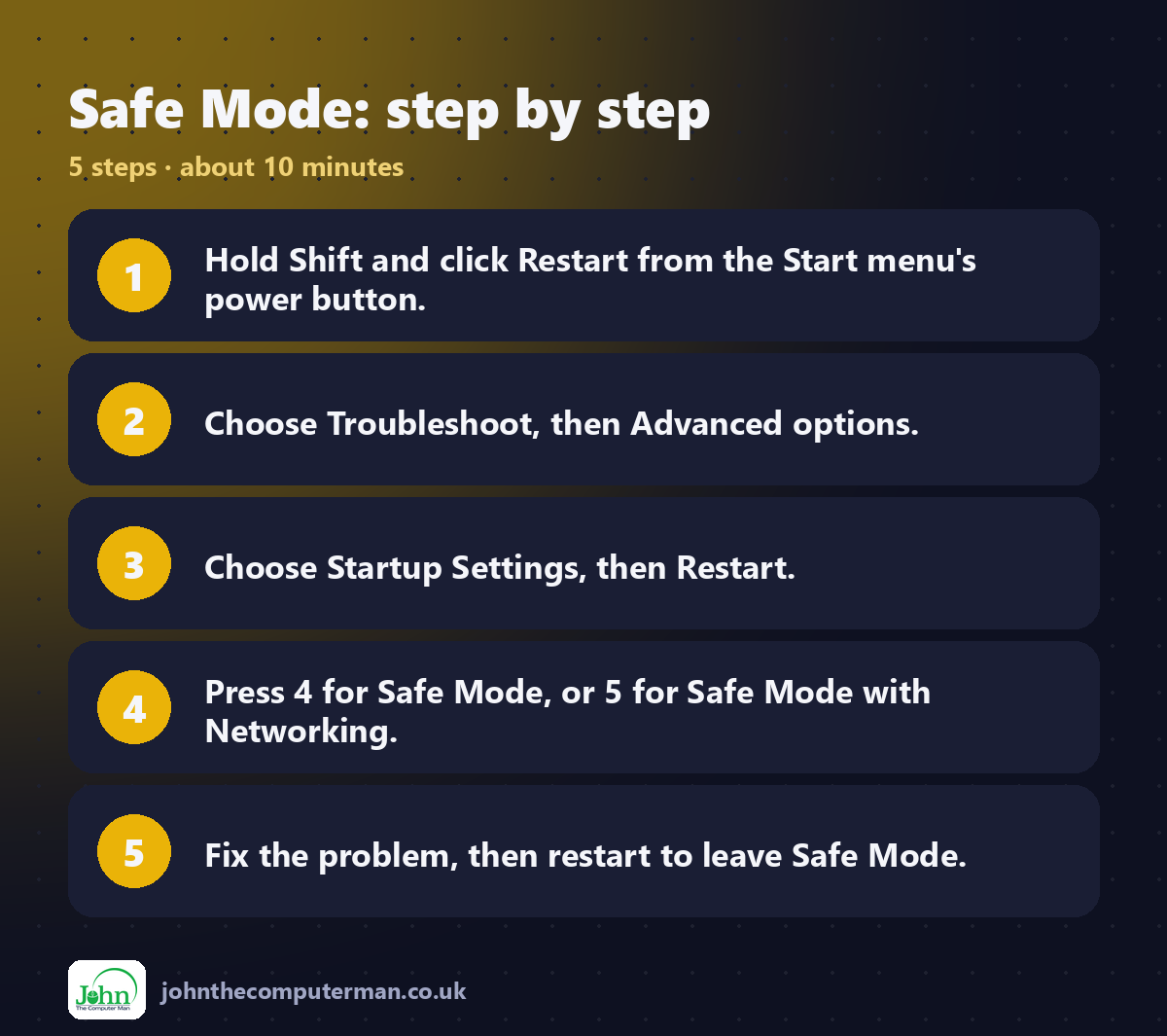
2. Hold down Shift and click Restart.
3. Follow "The blue menu" below.
2. Hold down Shift and click Restart.
3. Follow "The blue menu" below.
Method 3: When Windows won't start
Windows opens the recovery menu by itself after several failed starts in a row. To trigger it:
1. Turn the PC on. As soon as the Windows logo appears, hold the power button until it switches off.
2. Do this two more times.
3. On the next start, you'll see Preparing Automatic Repair. Click Advanced options.
4. Follow "The blue menu" below.
2. Do this two more times.
3. On the next start, you'll see Preparing Automatic Repair. Click Advanced options.
4. Follow "The blue menu" below.
The blue menu
Whichever method you used, you'll arrive at a blue Choose an option screen:
1. Click Troubleshoot.
2. Click Advanced options.
3. Click Startup Settings, then Restart.
4. When the list appears, press:
• 4 for Safe Mode
• 5 for Safe Mode with Networking (if you need the internet)
2. Click Advanced options.
3. Click Startup Settings, then Restart.
4. When the list appears, press:
• 4 for Safe Mode
• 5 for Safe Mode with Networking (if you need the internet)
Windows starts with a black desktop and Safe Mode written in the corners.
Method 4: System Configuration (stays in Safe Mode)
1. Press Win + R, type msconfig and press Enter.
2. Open the Boot tab and tick Safe boot.
3. Click OK and restart.
2. Open the Boot tab and tick Safe boot.
3. Click OK and restart.
⚠️ Your PC will start in Safe Mode every time until you go back and untick Safe boot.
What to do in Safe Mode
• Uninstall an app or driver you installed just before the trouble started.
• Run a full scan with Windows Security.
• Use System Restore (Win + R, then rstrui) to go back to before the problem.
• Roll back a driver in Device Manager: right-click the device, choose Properties → Driver → Roll Back Driver.
• Run a full scan with Windows Security.
• Use System Restore (Win + R, then rstrui) to go back to before the problem.
• Roll back a driver in Device Manager: right-click the device, choose Properties → Driver → Roll Back Driver.
How to leave Safe Mode
Just restart your PC. If you used Method 4, untick Safe boot first.
Quick recap
Frequently asked questions
Why does the screen look odd in Safe Mode? Safe Mode uses a basic display driver, so the resolution is low. That's normal.
My PC has the same problem in Safe Mode. What now? Then it's likely a Windows or hardware fault. Try repairing Windows with SFC and DISM, then consider resetting Windows.

John The Computer Man: plain-English computer help. 🌐 johnthecomputerman.co.uk · 📸 Instagram @johnthecomputerman
