Mouse and Touchpad Settings in Windows 11: Speed, Scrolling and Gestures
A pointer that's too slow, scrolling that goes the "wrong" way, or a touchpad that clicks when you brush it with your palm can make a PC feel awkward to use. A few minutes in Settings fixes all of that, and laptop touchpads have some useful gestures that are worth learning.
Part 1: Mouse
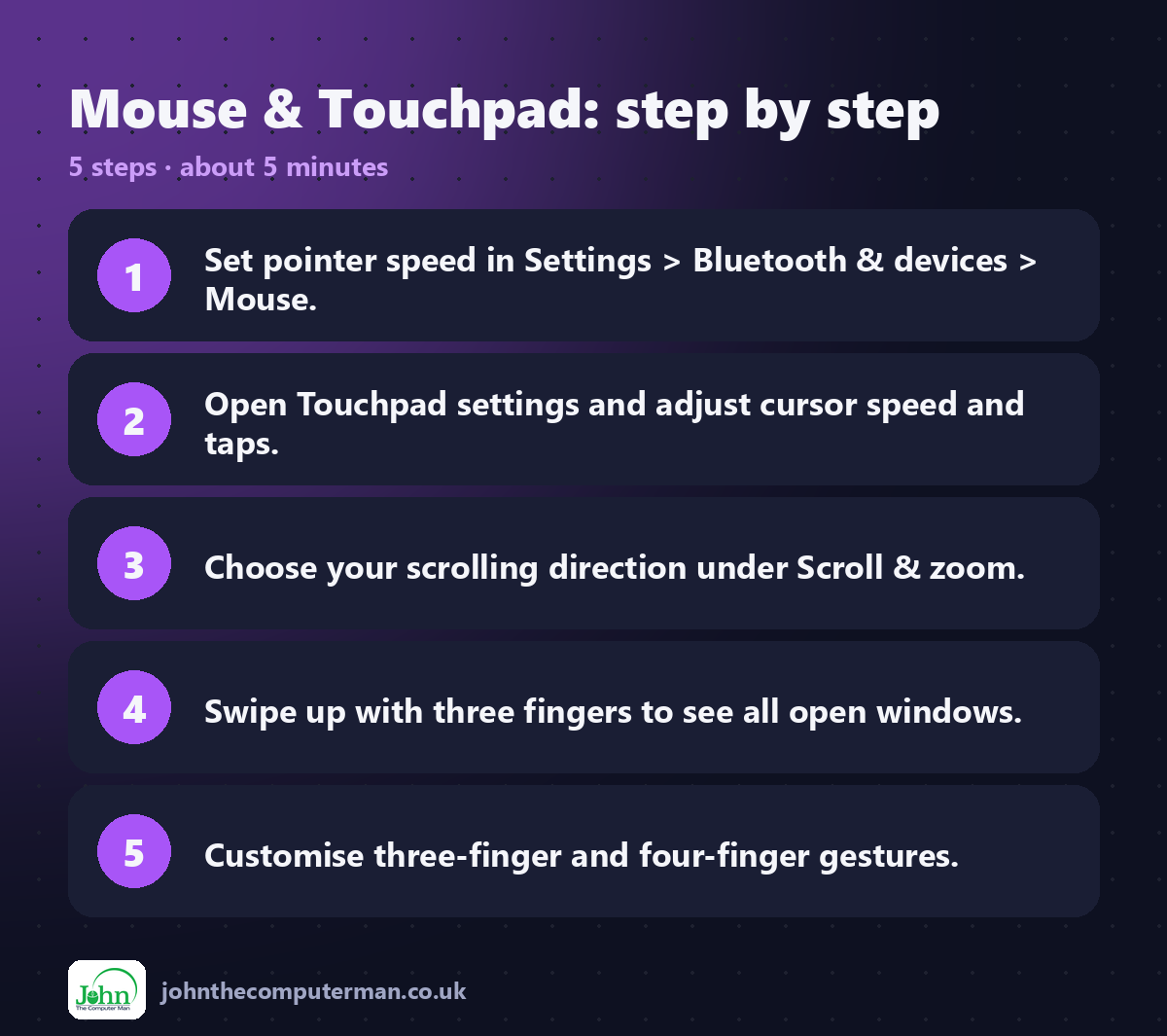
Go to Settings → Bluetooth & devices → Mouse.
1. Change the pointer speed
Drag the Mouse pointer speed slider. Move it right if you have to push the mouse a long way to cross the screen.
2. Change how far the wheel scrolls
Under Scrolling, set Lines to scroll at a time. Three is the default. Try five or six if you read long documents.
3. Swap the buttons (left-handed)
Set Primary mouse button to Right.
4. Scroll windows you're pointing at
Keep Scroll inactive windows when hovering over them turned on. You can then scroll any window just by pointing at it, without clicking it first.
Part 2: Touchpad
Go to Settings → Bluetooth & devices → Touchpad.
5. Speed, taps and accidental clicks
• Cursor speed: drag the slider to taste.
• Expand Taps to choose whether a tap counts as a click. If the pointer jumps while you type, lower Touchpad sensitivity.
• To turn the touchpad off when a mouse is plugged in, expand the Touchpad switch at the top and untick Leave touchpad on when a mouse is connected.
• Expand Taps to choose whether a tap counts as a click. If the pointer jumps while you type, lower Touchpad sensitivity.
• To turn the touchpad off when a mouse is plugged in, expand the Touchpad switch at the top and untick Leave touchpad on when a mouse is connected.
6. Change the scrolling direction
Expand Scroll & zoom and set Scrolling direction:
• Down motion scrolls up: like a phone or a Mac ("natural")
• Down motion scrolls down: the traditional way
• Down motion scrolls down: the traditional way
7. Learn the gestures
Gesture | What it does
Two fingers, slide | Scroll
Two fingers, pinch | Zoom in and out
Two-finger tap | Right-click
Three fingers, swipe up | Task View (all open windows)
Three fingers, swipe down | Show the desktop
Three fingers, swipe left or right | Switch between apps
Four fingers, swipe left or right | Switch virtual desktops
Two fingers, slide | Scroll
Two fingers, pinch | Zoom in and out
Two-finger tap | Right-click
Three fingers, swipe up | Task View (all open windows)
Three fingers, swipe down | Show the desktop
Three fingers, swipe left or right | Switch between apps
Four fingers, swipe left or right | Switch virtual desktops
8. Customise the gestures
Expand Three-finger gestures or Four-finger gestures to change what swipes and taps do. For example, you can make a three-finger tap open search or act as a middle click. For full control, click Advanced gestures.
Quick recap
Frequently asked questions
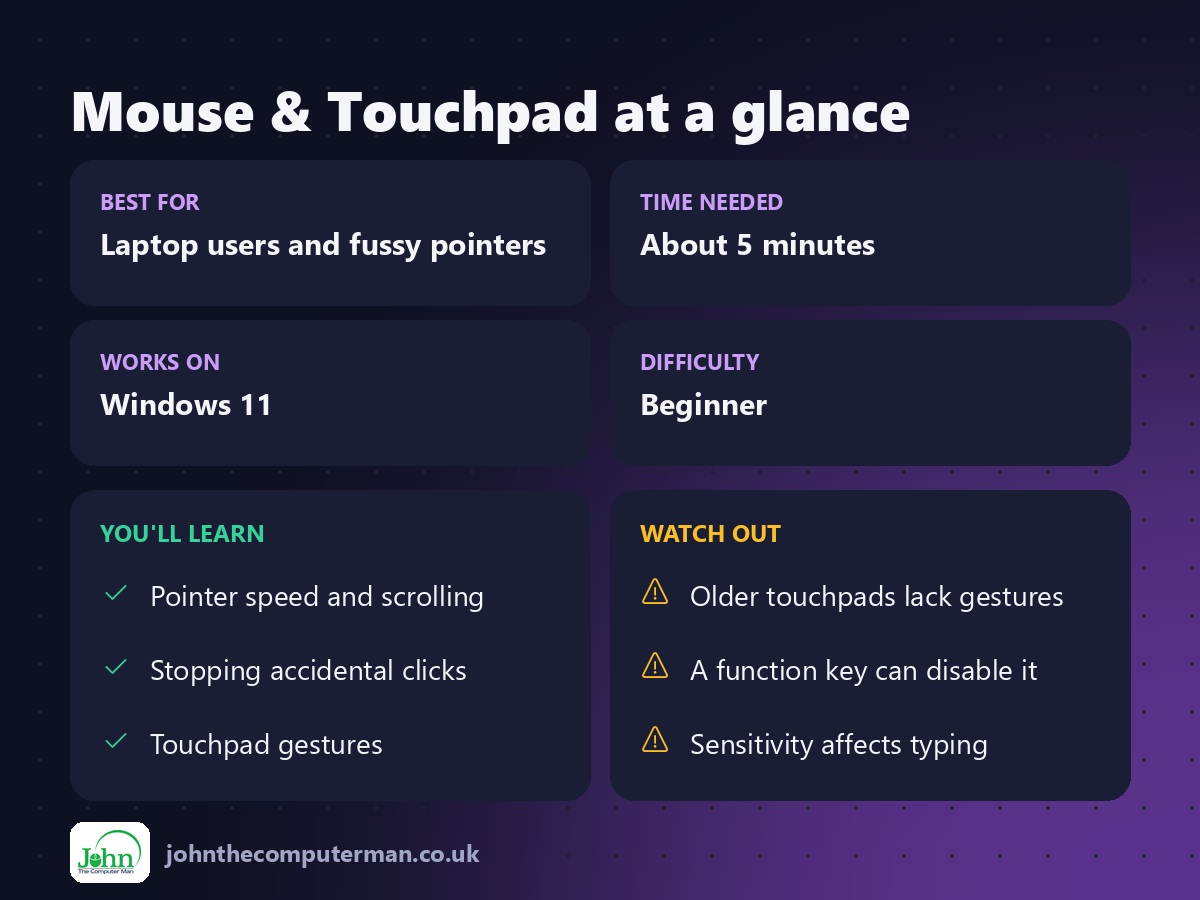
I can't see the Touchpad settings. Why? Some older laptops don't have a "precision touchpad". Look for the manufacturer's own touchpad settings under Additional mouse settings.
My touchpad has stopped working completely. Check the Touchpad switch at the top of the settings page. Many laptops also have a function key, such as Fn + F7, that turns it on and off.
How do I make the pointer bigger? See step 4 in 7 Accessibility Features Everyone Should Know.
Related: Connect Bluetooth Devices · Virtual Desktops

John The Computer Man: plain-English computer help. 🌐 johnthecomputerman.co.uk · 📸 Instagram @johnthecomputerman
