
Your Mac is suddenly slow, the fans are spinning, or the battery is draining fast. Something’s working hard, but what?
Stats puts the answer in your menu bar. Tiny live graphs for CPU, memory, disk, network and battery, with a click to see which apps are responsible. It’s free and open source, a no-cost alternative to paid system monitors.
What is Stats?
Stats is a free, open-source system monitor for macOS. It adds small, customisable widgets to the menu bar showing CPU, GPU, memory, disk, network, battery, temperature sensors and fan speeds. Click any widget for a detailed panel with charts and the top apps using that resource. You choose which modules to show and how each one looks.
Key features
Live stats in the menu bar
CPU, memory, network and more at a glance, as numbers, bars or mini graphs.
Find the culprit
Click a widget to see which apps are using the most CPU, memory or battery right now.
Temperatures and fans
Check how hot your Mac is running and how hard the fans are working.
How to get started with Stats
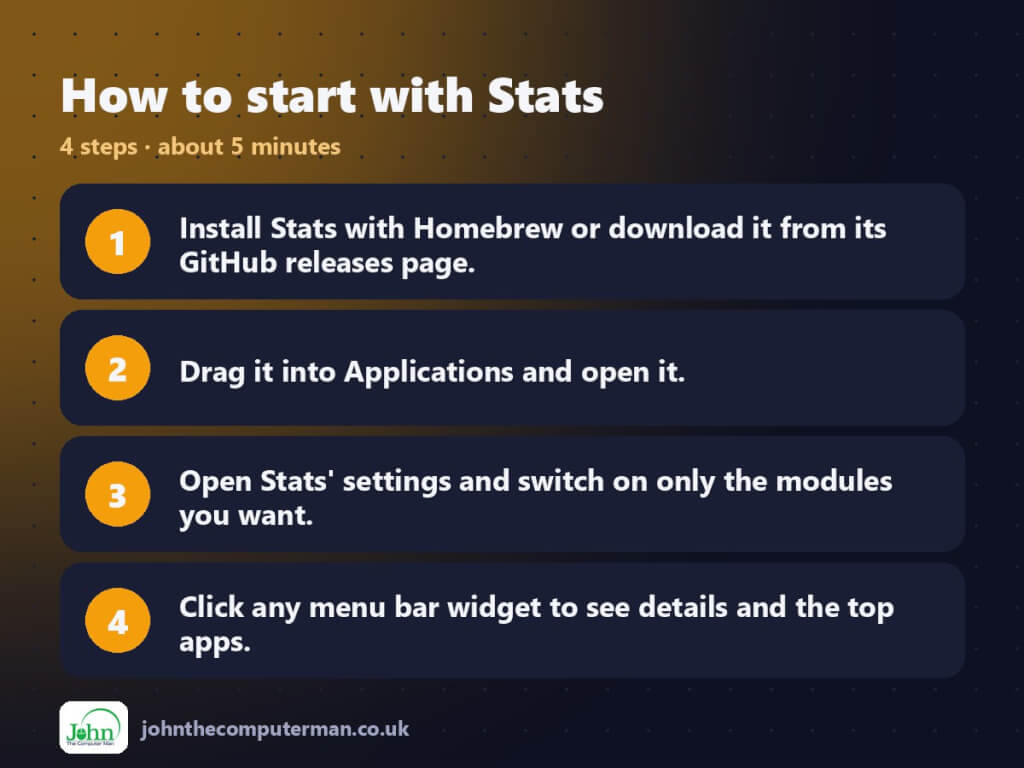
- Install Stats with Homebrew or download it from its GitHub releases page.
- Drag it into Applications and open it.
- Open Stats’ settings and switch on only the modules you want.
- Click any menu bar widget to see details and the top apps.
Prefer the command line? If you use Homebrew, the free package manager for Mac, open Terminal and run:
brew install --cask stats
Tips to get more out of it
- Start with just CPU, memory and network to keep your menu bar tidy.
- Turn on notifications for things like low battery or high CPU in each module’s settings.
- The Battery module shows battery health and cycle count, handy when buying a used MacBook.
- If your menu bar gets crowded, hold Command and drag widgets to reorder them.
Is it really free?
Free and open source. No ads and no paid version. Donations are welcome.
Pros and cons
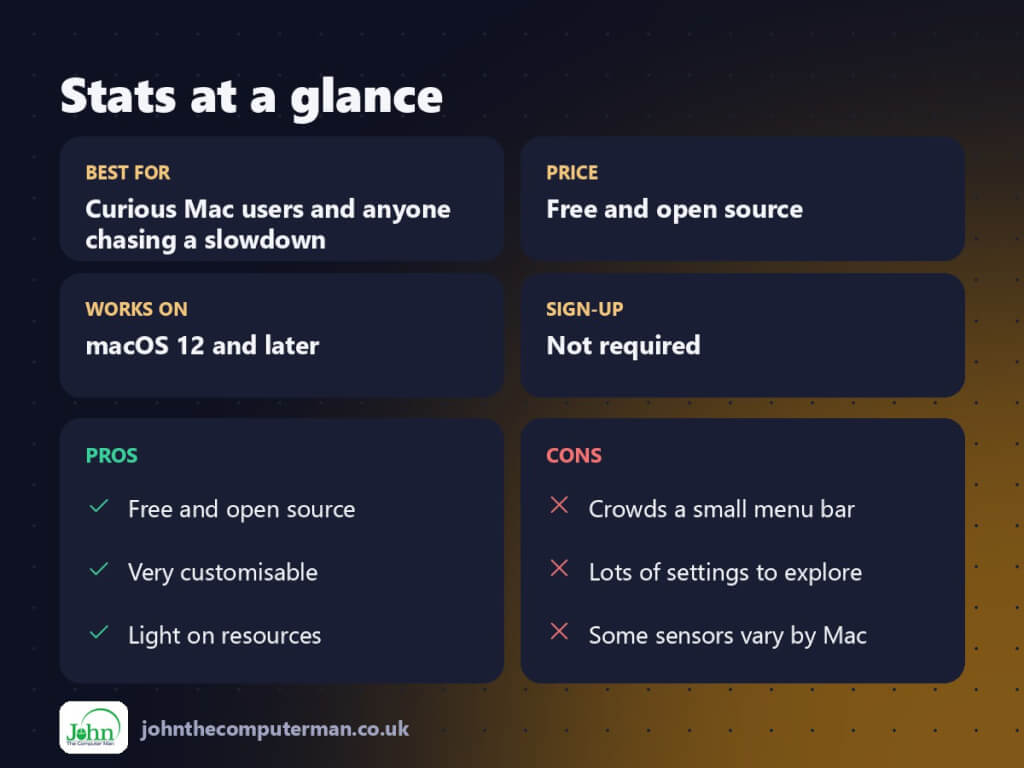
| 👍 Pros | 👎 Cons |
|---|---|
| Free and open source | Crowds a small menu bar |
| Very customisable | Lots of settings to explore |
| Light on resources | Some sensors vary by Mac |
Who is it for?
Best for: Curious Mac users and anyone chasing a slowdown. Works on: macOS 12 and later. Sign-up: Not required.
Stats alternatives
- iStat Menus: the polished paid option with even more detail.
- Activity Monitor: built into macOS: detailed, but not in the menu bar.
- Raycast: has free extensions that show system stats on demand.
FAQ
Is Stats safe?
Yes. It’s open source with its code on GitHub, and it only reads system information locally.
Does Stats slow my Mac down?
Not noticeably. It’s lightweight, and you can lower how often it updates in settings if you’re worried about battery.
The verdict
Stats gives you the kind of insight you normally pay for, free. Switch on three or four modules and you’ll always know why your Mac is working hard.
👉 Try it: github.com/exelban/stats
Part of the best free mac tools series on johnthecomputerman.co.uk/. Follow @johnthecomputerman on Instagram for a new free Mac tool every Monday, Wednesday and Friday. Pricing and features were checked in September 2026 and can change, so check the tool’s own site for the latest.
