
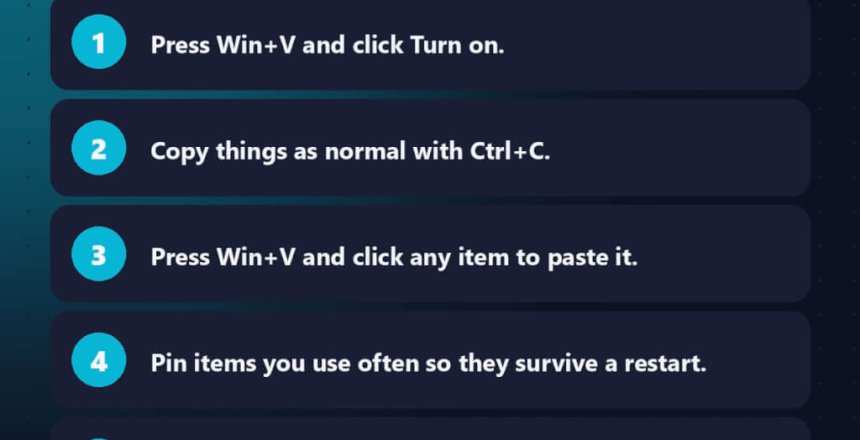
Normally, when you copy something, it replaces whatever you copied before. Clipboard history changes that. Windows 11 keeps a list of your recent copies, so you can paste something you copied ten minutes ago.
It’s one of the most useful features in Windows, and most people don’t know it exists.
1. Turn on clipboard history
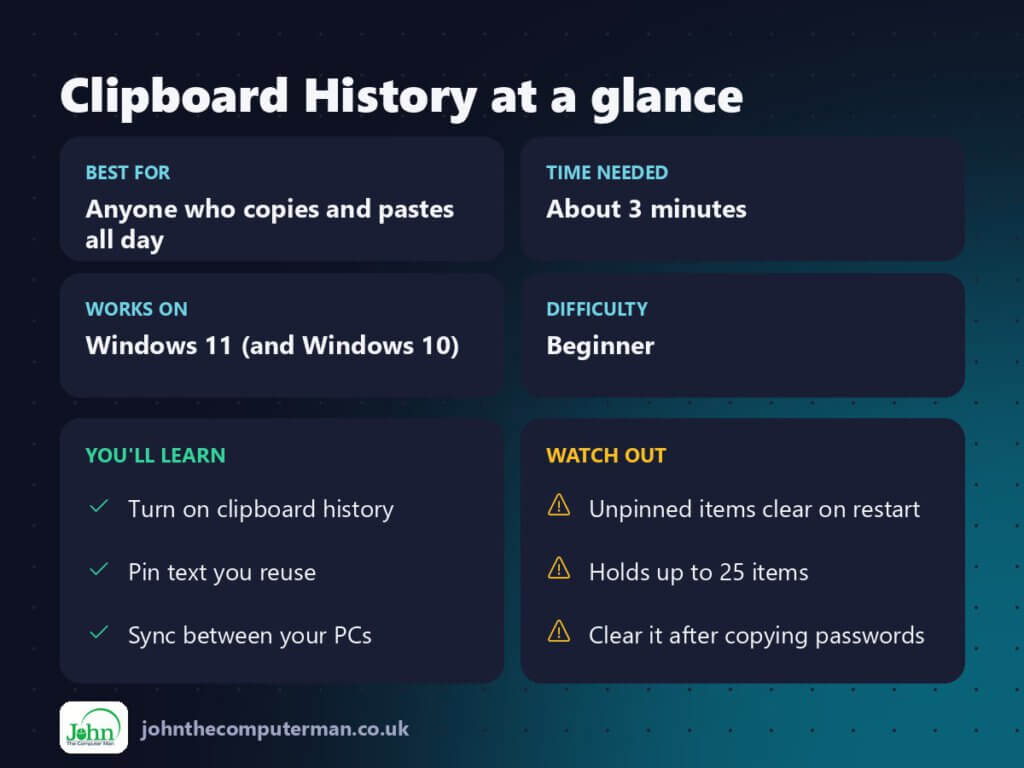
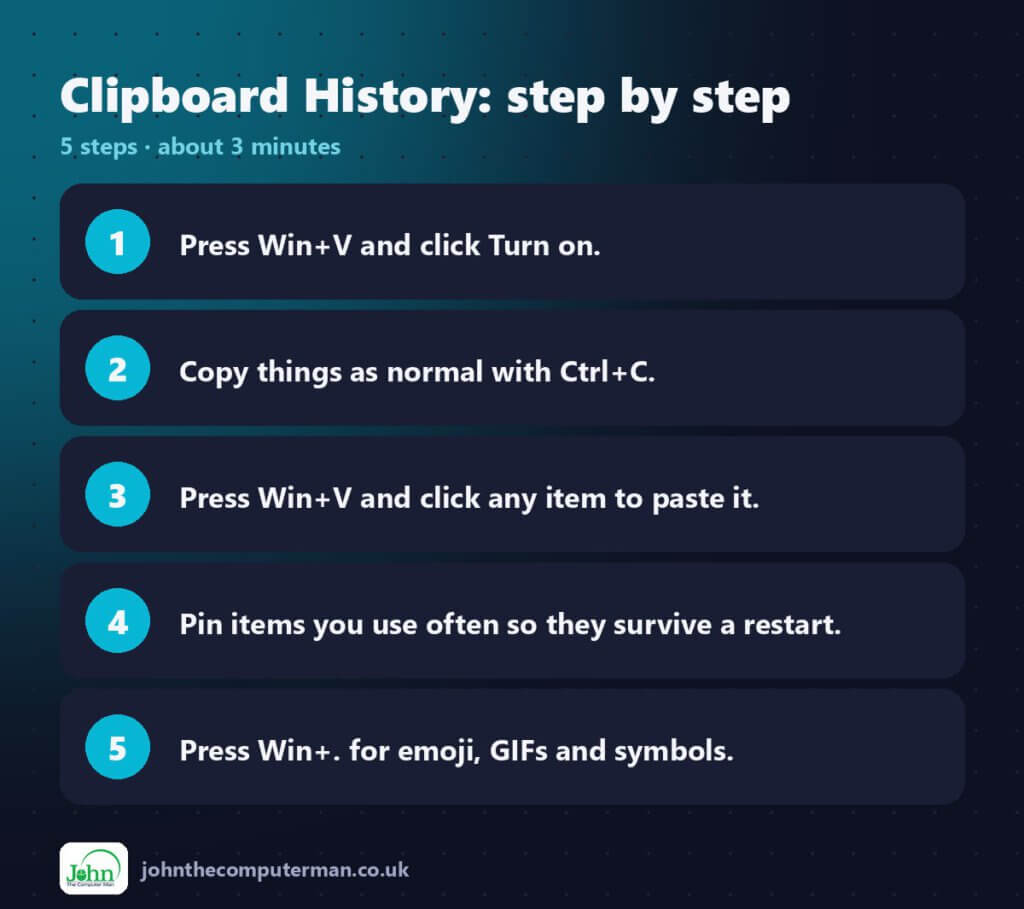
- Press Win + V.
- The first time, you’ll see a message saying clipboard history is off. Click Turn on.
That’s it. From now on, Windows remembers the things you copy.
You can also switch it on in Settings → System → Clipboard → Clipboard history.
2. Paste something you copied earlier
- Copy things as normal with Ctrl + C.
- When you want to paste, press Win + V instead of Ctrl + V.
- Click the item you want and it’s pasted where your cursor is.
Clipboard history works with text, HTML and images (up to 4 MB per item). It keeps up to 25 items.
3. Pin items you use a lot
Pinned items stay in the list permanently, even after a restart.
- Press Win + V.
- Click the ⋯ (three dots) next to an item.
- Choose Pin.
This is great for things you paste often, like your address, email sign-off, bank sort code or a standard reply.
Note: Unpinned items are cleared every time you restart your PC.
4. Use the emoji and symbol panel
The same panel includes emoji, GIFs and symbols:
- Press Win + . (full stop) or Win + ; (semicolon).
- Use the tabs to switch between emoji, GIFs, kaomoji ( ͡° ͜ʖ ͡°) and symbols, such as £, €, ©, ° and →.
This is much easier than remembering Alt codes.
5. Sync your clipboard to other PCs
If you use more than one Windows PC with the same Microsoft account:
- Go to Settings → System → Clipboard.
- Turn on Clipboard across your devices.
- Choose whether to sync automatically or only when you choose.
6. Clear your clipboard history
If you’ve copied something sensitive, such as a password:
- Press Win + V, then click Clear all to remove everything except pinned items.
- Or click ⋯ → Delete next to a single item.
Security tip: Clear your clipboard after copying passwords, especially on a shared computer. Better still, use a password manager that clears the clipboard automatically.
Quick recap
Frequently asked questions
Why is Win + V empty? Clipboard history only records things copied after it was turned on, and it clears when you restart. Pin anything you want to keep.
Can I turn it off? Yes. Go to Settings → System → Clipboard and switch off Clipboard history.
John The Computer Man: plain-English computer help. 🌐 johnthecomputerman.co.uk · 📸 Instagram @johnthecomputerman
