How to Create a Windows 11 Recovery Drive (Before You Need One)
A recovery drive is a USB stick that can start your PC and repair or reinstall Windows when Windows itself won't load. It takes about an hour to make and costs the price of a USB stick. The catch is that you have to make it while your PC still works.
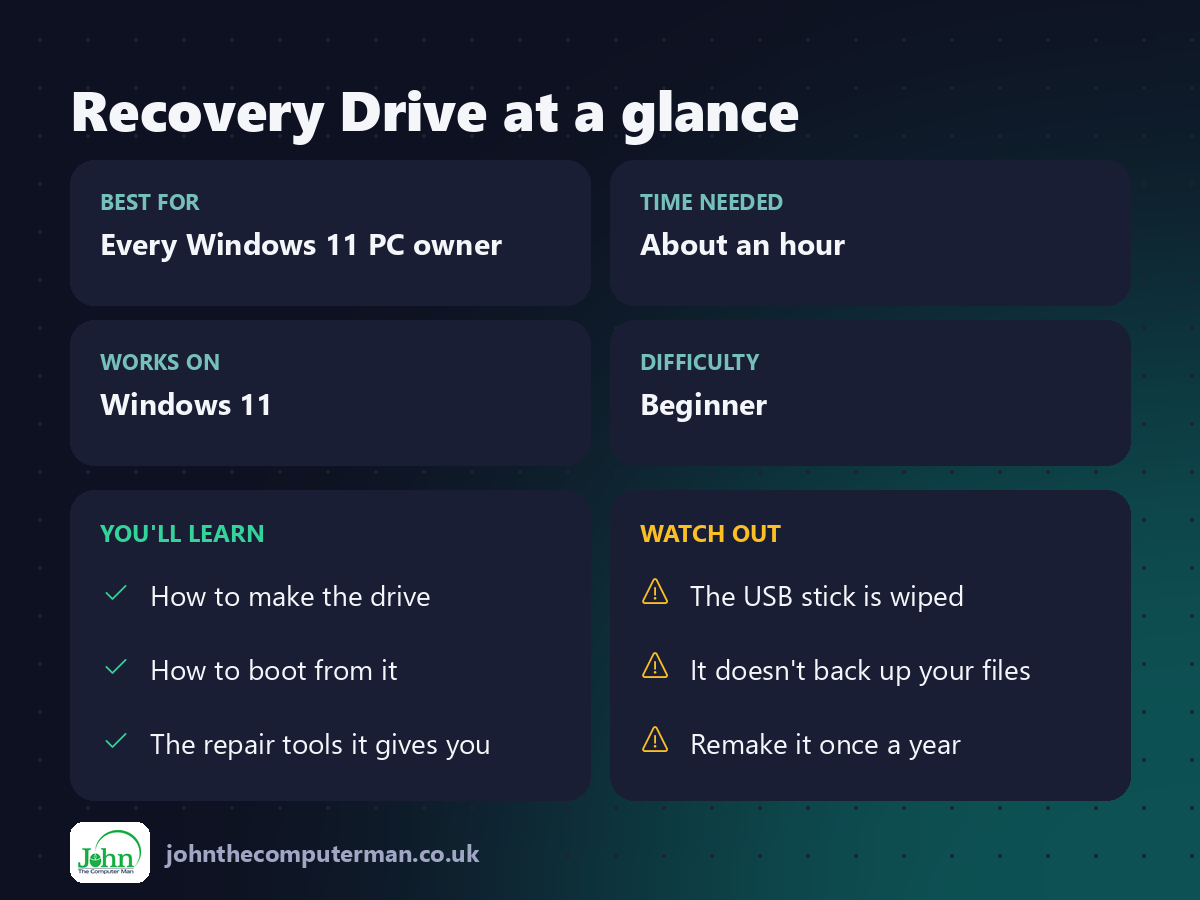
What you need
• A USB stick of at least 16 GB (32 GB is safer).
• About an hour. Most of it is waiting.
• About an hour. Most of it is waiting.
⚠️ Everything on the USB stick will be erased. Copy anything you want to keep off it first.
Important: a recovery drive does not contain your personal files. It's for repairing Windows, not a backup. See: How to Back Up Your PC.
1. Open the Recovery Drive tool
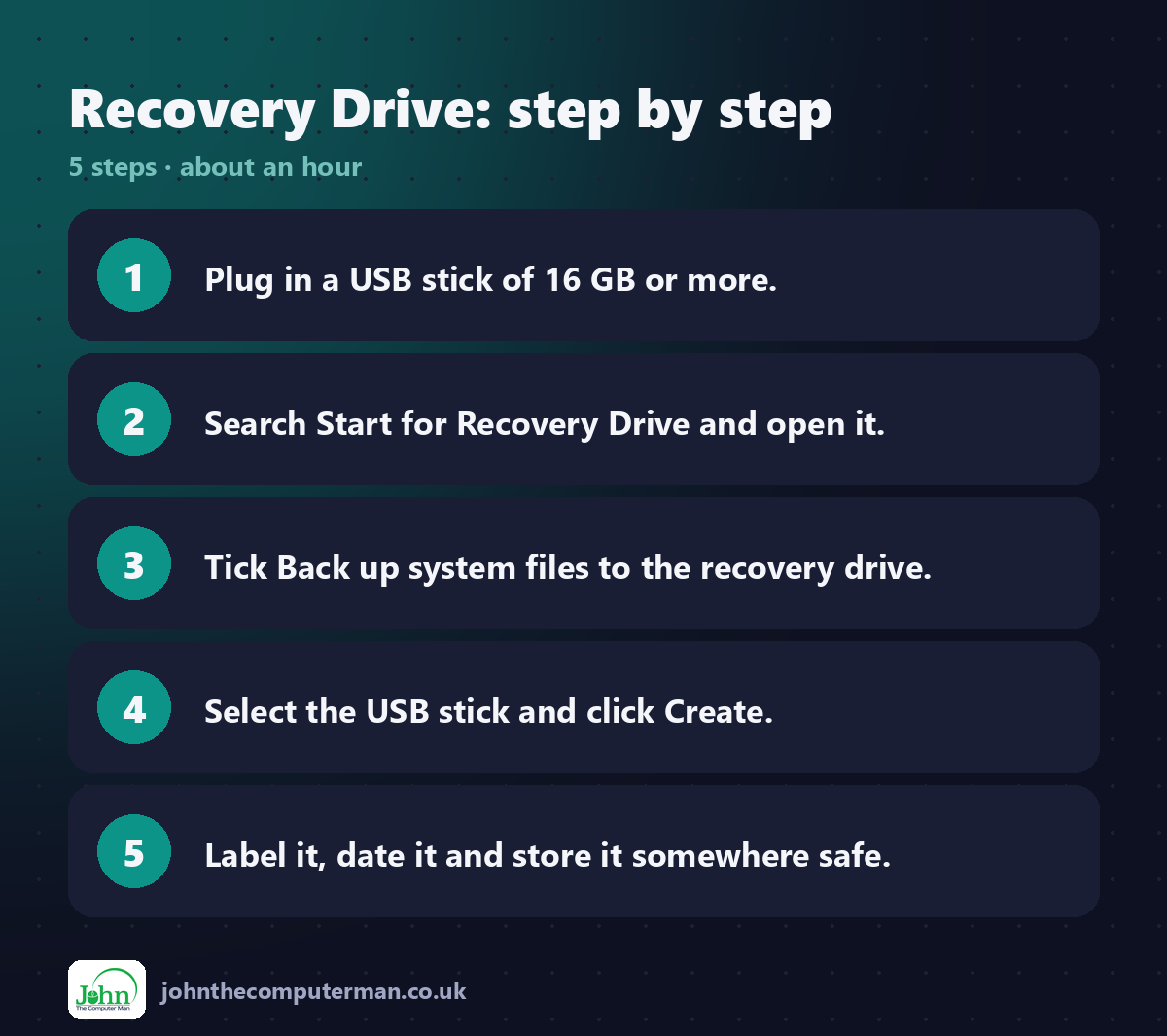
1. Plug in the USB stick.
2. Click Start, type Recovery Drive and open it.
3. Click Yes when Windows asks for permission.
2. Click Start, type Recovery Drive and open it.
3. Click Yes when Windows asks for permission.
2. Include system files
Make sure Back up system files to the recovery drive is ticked, then click Next.
This is what lets you reinstall Windows from the stick, not just run repair tools.
3. Choose the USB stick
Select your USB stick and click Next. Check carefully that you've picked the right drive.
4. Create it
Click Create. Windows formats the stick and copies the files. This can take an hour or more, and you can keep using your PC while it works.
When it finishes, click Finish, then safely remove the stick.
5. Label it and store it safely
Write "Windows 11 recovery" and the date on the stick. Keep it somewhere you'll find it, and don't use it for anything else.
Also keep a copy of your BitLocker recovery key with it. If your drive is encrypted, you'll need the key to repair it. Find it at aka.ms/myrecoverykey.
How to use a recovery drive
1. Plug the stick into the PC that won't start.
2. Turn the PC on and press the boot menu key straight away. It's often F12, F9, Esc or F2, depending on the make.
3. Choose the USB drive.
4. Pick your keyboard layout, then click Troubleshoot.
2. Turn the PC on and press the boot menu key straight away. It's often F12, F9, Esc or F2, depending on the make.
3. Choose the USB drive.
4. Pick your keyboard layout, then click Troubleshoot.
From there you can try:
• Startup Repair: fixes common problems that stop Windows loading
• System Restore: goes back to an earlier restore point
• Uninstall updates: removes a recent update that broke things
• Recover from a drive: reinstalls Windows. ⚠️ This removes your files and apps, so use it as a last resort
• System Restore: goes back to an earlier restore point
• Uninstall updates: removes a recent update that broke things
• Recover from a drive: reinstalls Windows. ⚠️ This removes your files and apps, so use it as a last resort
Keep it up to date
Windows changes a lot over a year. Make a fresh recovery drive once a year, or after a major Windows update.
Quick recap
Frequently asked questions
Can I use a recovery drive on a different PC? It's designed for the PC it was made on. For another PC, use Microsoft's Media Creation Tool to make a general Windows 11 installation USB.
My PC is already broken and I don't have one. What now? Make a Windows 11 installation USB on another PC with the Media Creation Tool from Microsoft's website. It includes the same repair tools.
Related: Repair Windows With SFC and DISM · Start Windows in Safe Mode · Reset Windows Without Losing Files

John The Computer Man: plain-English computer help. 🌐 johnthecomputerman.co.uk · 📸 Instagram @johnthecomputerman
