How to Compress a Video on a Mac for Email or WhatsApp (Free)

A few minutes of iPhone video can easily be hundreds of megabytes. Most email services cap attachments at around 20 to 25 MB, and messaging apps squash big videos badly.
HandBrake shrinks videos to a fraction of the size while keeping them looking good. It's free, and you'll be done in a few minutes.
Time needed: about 10 minutes · Cost: free
What you'll need
• HandBrake: the free video converter that shrinks and converts any video
• The video you want to send, saved on your Mac
• The video you want to send, saved on your Mac
The quick way (nothing to install)
In Finder, right-click the video and choose Encode Selected Video Files. Pick a smaller setting, like 720p, and click Continue. It's quick, with fewer options than HandBrake.
Step by step
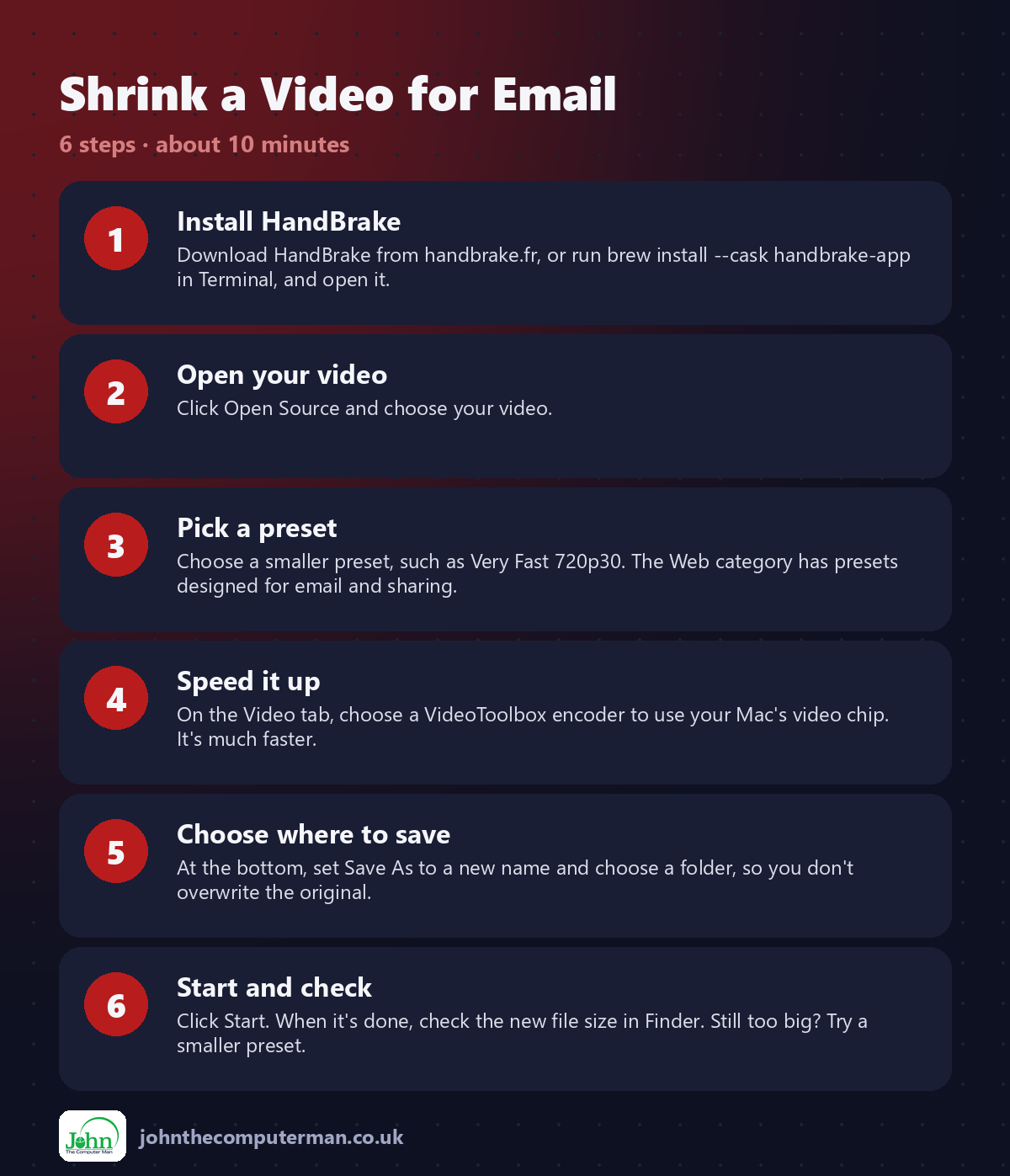
Step 1: Install HandBrake
Download HandBrake from handbrake.fr, or run brew install --cask handbrake-app in Terminal, and open it.
Step 2: Open your video
Click Open Source and choose your video.
Step 3: Pick a preset
Choose a smaller preset, such as Very Fast 720p30. The Web category has presets designed for email and sharing.
Step 4: Speed it up
On the Video tab, choose a VideoToolbox encoder to use your Mac's video chip. It's much faster.
Step 5: Choose where to save
At the bottom, set Save As to a new name and choose a folder, so you don't overwrite the original.
Step 6: Start and check
Click Start. When it's done, check the new file size in Finder. Still too big? Try a smaller preset.
Prefer Terminal? If you use Homebrew, install the app for this tutorial in one go:
brew install --cask handbrake-app
Tips
• Trim the video first in QuickTime Player (Edit > Trim) so there's less to send.
• 720p is plenty for watching on a phone.
• For really big files, Mail Drop in Apple Mail sends a download link for attachments up to 5 GB.
• Queue several videos and let HandBrake work through them.
• 720p is plenty for watching on a phone.
• For really big files, Mail Drop in Apple Mail sends a download link for attachments up to 5 GB.
• Queue several videos and let HandBrake work through them.
If something goes wrong
It's still too big
Pick a lower-resolution preset, or trim the video shorter.
The video looks blocky
Choose a higher-quality preset. You've squeezed it too far.
HandBrake won't open my video
Some protected or unusual files won't open. Try Finder's Encode Selected Video Files instead.
FAQ
Does compressing reduce quality?
A little, but with the standard presets the difference is usually hard to see on a phone or laptop.
What's the best format for sharing?
MP4 with H.264 plays almost everywhere. HandBrake's standard presets use it.
Wrapping up
Keep HandBrake in your Applications folder and 'file too large' becomes a two-minute fix. For really big files, remember Mail Drop.
📖 Full app guide: HandBrake
More Mac tutorials: Convert HEIC to JPG · Record Your Screen With Sound · Run Windows 11 on a Mac · Free Up Storage on Your Mac · Snap Windows Side by Side · Send Files Mac to Android · Secure Your Mac in 30 Minutes · Make Your MacBook Battery Last · Windows Keyboard on a Mac
Part of the free Mac tools series on johnthecomputerman.co.uk. Follow @johnthecomputerman on Instagram for free Mac tips every Monday, Wednesday and Friday. Steps were checked in September 2026. Menus can move between macOS versions, so look for similar wording if yours differs.
