How to Use a Windows Keyboard and Mouse on a Mac (Properly)
Plug a Windows keyboard into a Mac and the Command and Option keys are the wrong way round. Plug in a mouse and scrolling goes the 'wrong' way, and the side buttons do nothing.
All of it is fixable. Some with your Mac's own settings, the rest with a few free apps. Here's how to make them feel right.
Time needed: about 15 minutes · Cost: free
What you'll need
• Karabiner-Elements: free, powerful keyboard remapping for macOS
• LinearMouse: free mouse settings macOS doesn't give you
• AltTab: Windows-style window switching with previews, for Mac
• Your Windows keyboard and mouse connected to your Mac
• LinearMouse: free mouse settings macOS doesn't give you
• AltTab: Windows-style window switching with previews, for Mac
• Your Windows keyboard and mouse connected to your Mac
The quick way (nothing to install)
The quickest fix is built in: System Settings > Keyboard > Keyboard Shortcuts > Modifier Keys. Pick your keyboard and swap Option and Command.
Step by step
Step 1: Swap the modifier keys
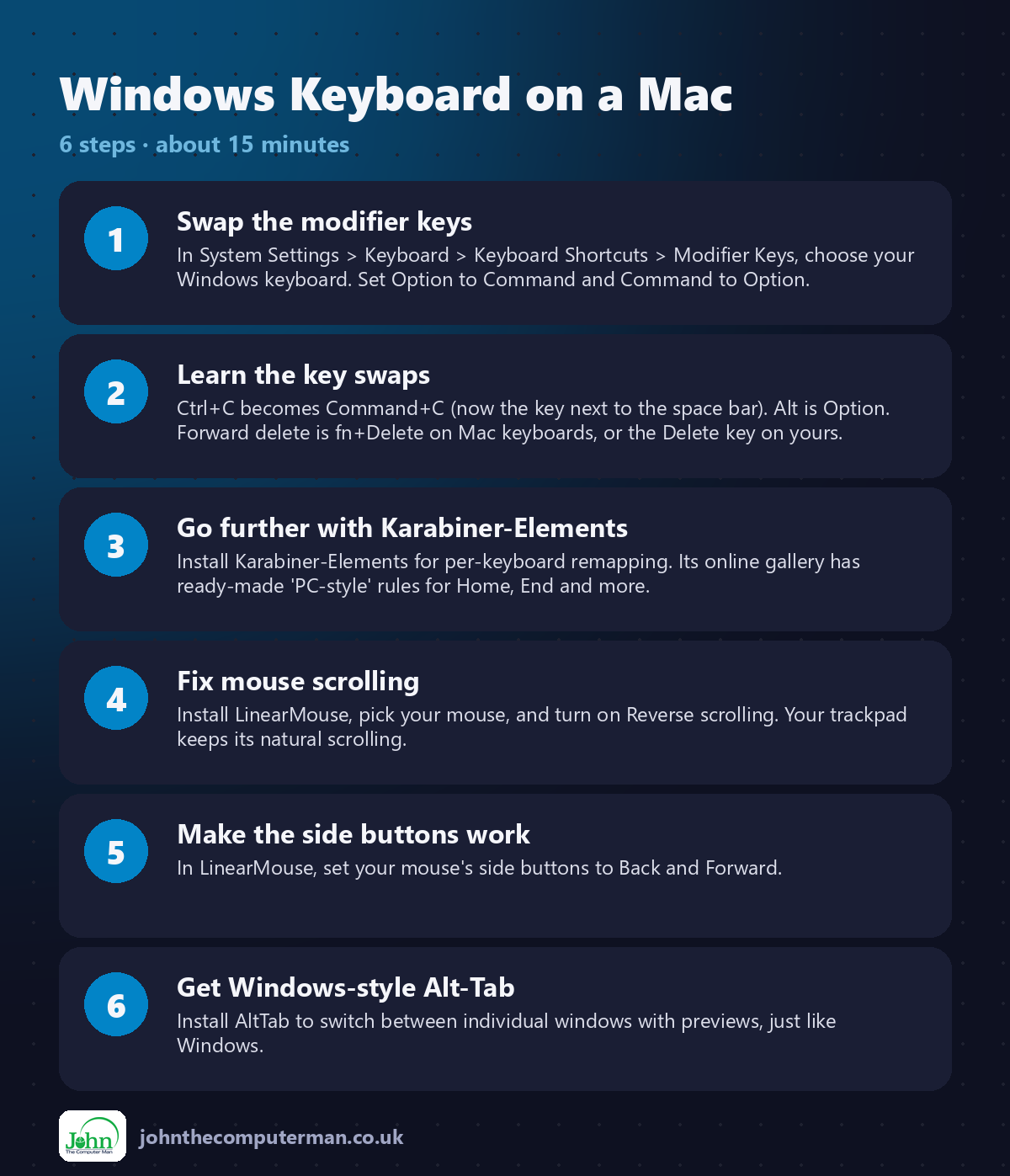
In System Settings > Keyboard > Keyboard Shortcuts > Modifier Keys, choose your Windows keyboard. Set Option to Command and Command to Option.
Step 2: Learn the key swaps
Ctrl+C becomes Command+C (now the key next to the space bar). Alt is Option. Forward delete is fn+Delete on Mac keyboards, or the Delete key on yours.
Step 3: Go further with Karabiner-Elements
Install Karabiner-Elements for per-keyboard remapping. Its online gallery has ready-made 'PC-style' rules for Home, End and more.
Step 4: Fix mouse scrolling
Install LinearMouse, pick your mouse, and turn on Reverse scrolling. Your trackpad keeps its natural scrolling.
Step 5: Make the side buttons work
In LinearMouse, set your mouse's side buttons to Back and Forward.
Step 6: Get Windows-style Alt-Tab
Install AltTab to switch between individual windows with previews, just like Windows.
Prefer Terminal? If you use Homebrew, install every app for this tutorial in one go:
brew install --cask karabiner-elements linearmouse alt-tab
Tips
• Take a screenshot with Shift+Command+4, or map the Print Screen key to it in Karabiner-Elements.
• Home and End jump to the top and bottom of documents on a Mac. Karabiner-Elements rules can change that.
• Settings are per device, so your MacBook's own keyboard stays normal.
• Give it a week. Your fingers adapt faster than you'd think.
• Home and End jump to the top and bottom of documents on a Mac. Karabiner-Elements rules can change that.
• Settings are per device, so your MacBook's own keyboard stays normal.
• Give it a week. Your fingers adapt faster than you'd think.
If something goes wrong
Modifier Keys doesn't list my keyboard
Make sure it's connected, then choose it from the 'Select keyboard' menu at the top of the Modifier Keys window.
Karabiner-Elements does nothing
Approve its driver and Input Monitoring permissions in System Settings > Privacy & Security.
The trackpad scrolls the wrong way too
Check LinearMouse's settings are applied to your mouse only, not all devices.
FAQ
Do I need a Mac keyboard?
No. Any USB or Bluetooth keyboard works. These steps just make a Windows one feel right.
Are these apps free?
Yes. Karabiner-Elements, LinearMouse and AltTab are all free and open source.
Wrapping up
Start with the Modifier Keys swap, then add the free apps for the rest. Within a week your Windows keyboard and mouse will feel at home on your Mac.
More Mac tutorials: Convert HEIC to JPG · Record Your Screen With Sound · Run Windows 11 on a Mac · Free Up Storage on Your Mac · Snap Windows Side by Side · Send Files Mac to Android · Secure Your Mac in 30 Minutes · Shrink a Video for Email · Make Your MacBook Battery Last
Part of the free Mac tools series on johnthecomputerman.co.uk. Follow @johnthecomputerman on Instagram for free Mac tips every Monday, Wednesday and Friday. Steps were checked in September 2026. Menus can move between macOS versions, so look for similar wording if yours differs.
