How to Secure Your Mac in 30 Minutes (Free Privacy and Security Checklist)
Macs are secure out of the box, but only if the right settings are switched on. Many aren't by default, and most people never check.
This checklist takes about half an hour and covers the things that matter most. It uses your Mac's own settings plus a few free apps from this series.
Time needed: about 30 minutes · Cost: free
What you'll need
• Pareto Security: a free security checklist for your Mac's menu bar
• KeePassXC: a free, open-source password manager you control
• Ente Auth: free, open-source two-factor codes on your Mac and phone
• LuLu: a free, open-source firewall that shows what's connecting out
• About 30 minutes
• Your Mac's login password
• KeePassXC: a free, open-source password manager you control
• Ente Auth: free, open-source two-factor codes on your Mac and phone
• LuLu: a free, open-source firewall that shows what's connecting out
• About 30 minutes
• Your Mac's login password
Step by step
Step 1: Update everything
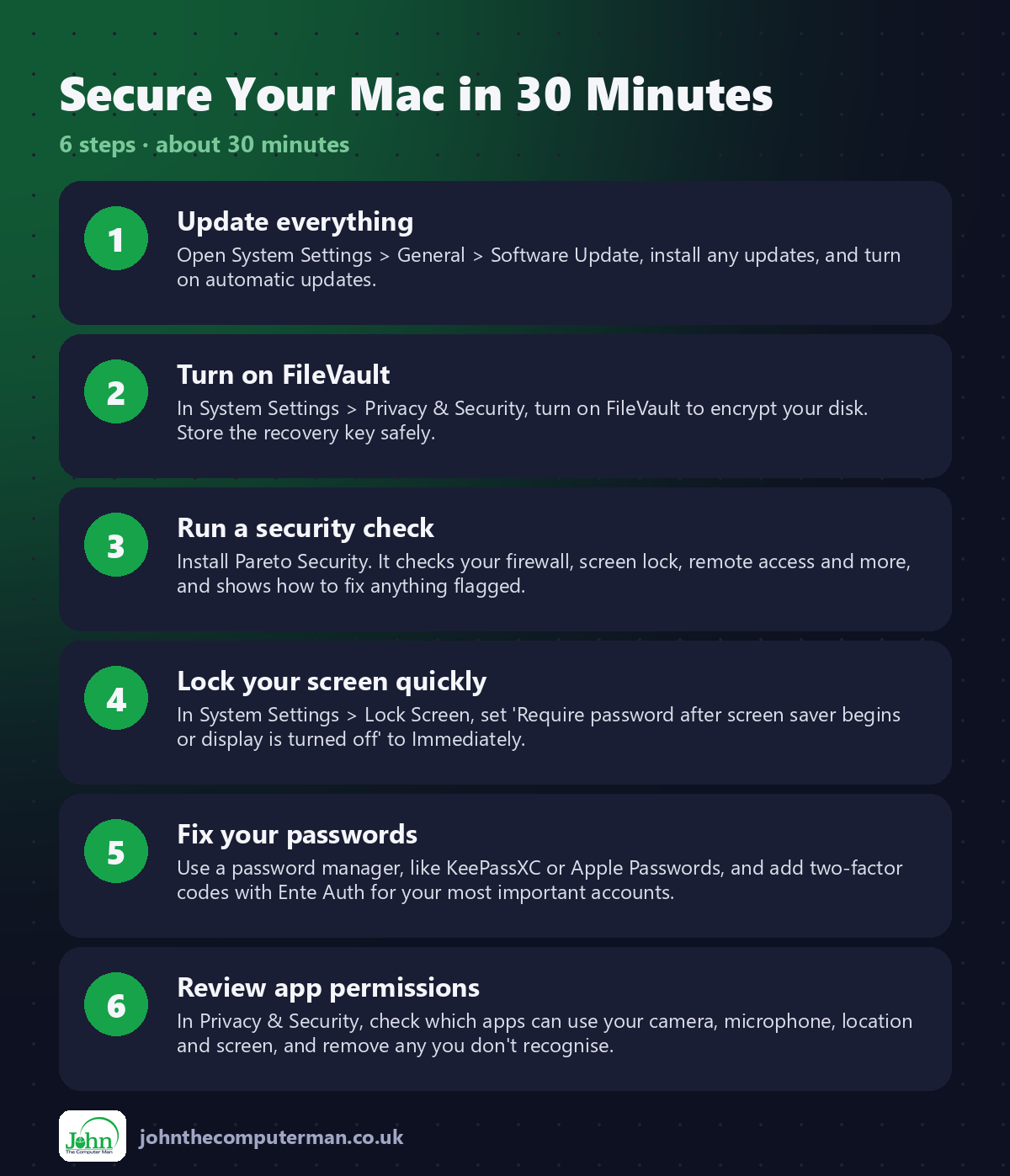
Open System Settings > General > Software Update, install any updates, and turn on automatic updates.
Step 2: Turn on FileVault
In System Settings > Privacy & Security, turn on FileVault to encrypt your disk. Store the recovery key safely.
Step 3: Run a security check
Install Pareto Security. It checks your firewall, screen lock, remote access and more, and shows how to fix anything flagged.
Step 4: Lock your screen quickly
In System Settings > Lock Screen, set 'Require password after screen saver begins or display is turned off' to Immediately.
Step 5: Fix your passwords
Use a password manager, like KeePassXC or Apple Passwords, and add two-factor codes with Ente Auth for your most important accounts.
Step 6: Review app permissions
In Privacy & Security, check which apps can use your camera, microphone, location and screen, and remove any you don't recognise.
Prefer Terminal? If you use Homebrew, install every app for this tutorial in one go:
brew install --cask pareto-security keepassxc ente-auth lulu
Tips
• Start with your email account's password and 2FA. It's the key to resetting everything else.
• Want to see which apps connect to the internet? Install LuLu.
• Turn on Find My Mac in System Settings > [your name] > iCloud.
• Do this checklist on family members' Macs too.
• Want to see which apps connect to the internet? Install LuLu.
• Turn on Find My Mac in System Settings > [your name] > iCloud.
• Do this checklist on family members' Macs too.
If something goes wrong
I lost my FileVault recovery key
If you chose iCloud, you can recover with your Apple Account. Otherwise, turn FileVault off and on again to create a new key while you can still log in.
Pareto flags something I don't use
You can disable individual checks in its settings.
Updates won't install
Check you have at least 20 GB free and restart your Mac, then try again.
FAQ
Do Macs need antivirus?
macOS has good built-in protection. Keeping it updated matters more. A free scanner like Malwarebytes is a useful extra check.
Will FileVault slow my Mac down?
Not noticeably on modern Macs, which encrypt data in hardware.
Wrapping up
Thirty minutes, six steps and a few free apps, and your Mac is dramatically safer. Set a reminder to run Pareto Security again every few months.
More Mac tutorials: Convert HEIC to JPG · Record Your Screen With Sound · Run Windows 11 on a Mac · Free Up Storage on Your Mac · Snap Windows Side by Side · Send Files Mac to Android · Shrink a Video for Email · Make Your MacBook Battery Last · Windows Keyboard on a Mac
Part of the free Mac tools series on johnthecomputerman.co.uk. Follow @johnthecomputerman on Instagram for free Mac tips every Monday, Wednesday and Friday. Steps were checked in September 2026. Menus can move between macOS versions, so look for similar wording if yours differs.
